Troubleshooting Basic HTTP Connectivity Using VBScript
As a follow up to my last blog post I wanted to share with you a way to perform basic HTTP connectivity testing using VBScript. Using the GetAllResponseHeaders method of the XMLHTTP object we can easily retrieve and display response headers returned by a web server. The VBScript code looks like this:
Option Explicit
Dim HTTP, Site
Site = InputBox(“Enter site name:”, “Get All Response Headers”)
Set HTTP = WScript.CreateObject(“Microsoft.XMLHTTP”)
Call HTTP.Open(“HEAD”, “http://” & Site, False)
Call HTTP.Send()
MsgBox HTTP.GetAllResponseHeaders(), vbInformation, “Response Headers for ” & Site
Set HTTP = Nothing
Copy the code above to a text file and save it with a .vbs extension. Double-click on the file and you will be prompted to enter a web site to test.
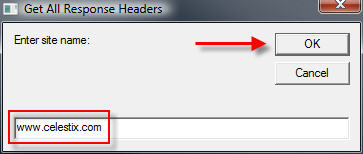
Enter the name of the web site to test and choose ‘Ok’. The script will send a request to the web server and display the response headers returned.
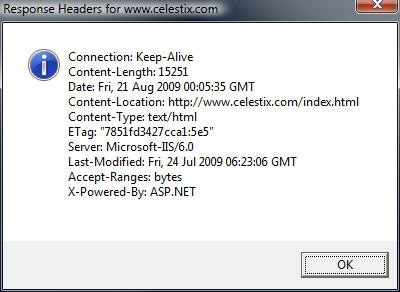
Admittedly this code is very rudimentary, but it is a simple and effective way to troubleshoot HTTP connectivity issues. If you are interested in something similar that has many more features, including the ability to use specific HTTP commands, perform logging, use a proxy server, specify a USER AGENT string and much more, visit Jim Harrison’s ISATools.org and download his very powerful HTTP_TEST VBScript.
Troubleshooting Basic HTTP Connectivity Using A Telnet Client
In my last blog post I demonstrated how to use the Windows telnet client to perform basic network connectivity troubleshooting. In this post I will demonstrate how to use the telnet client to interactively perform basic HTTP troubleshooting.
Note: This post assumes that you have a fundamental understanding of the HTTP protocol. If you are not familiar with HTTP and would like to learn more, there are some excellent books on the subject available. Two books that I recommend are HTTP – The Definitive Guide and the HTTP Pocket Reference, both from O’Reilly Books.
To begin, open a command prompt and enter the command telnet. This will bring up a telnet command prompt.
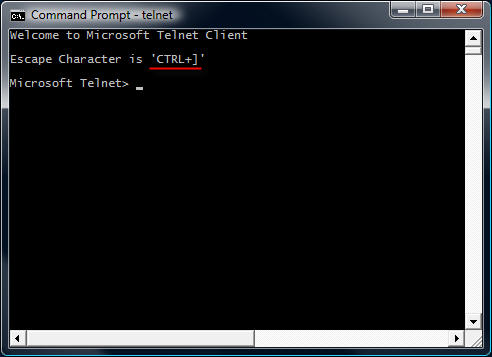
Notice that the escape character is CTRL+]. We’ll need to know this later. Next, enter the command set localecho. This command allows us see the text that we type in the command window.
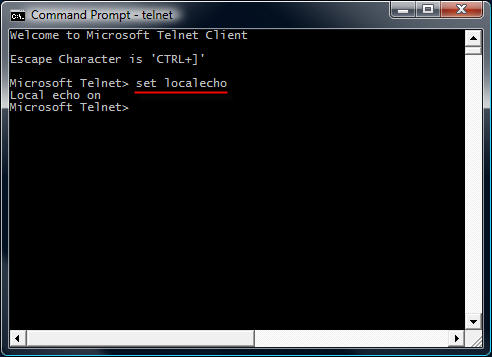
To establish a connection to a web server on the default port, the command syntax is open <IP address, FQDN, or hostname> <port>.
For example…
open intranet.celestix.net 80
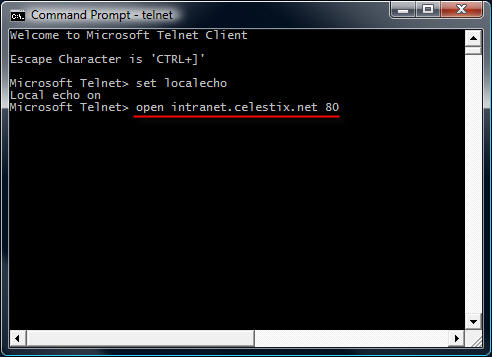
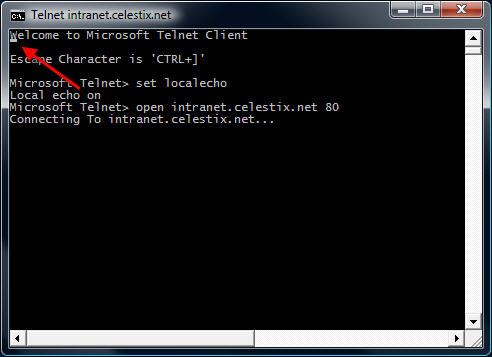
After you enter the open command and hit enter, it is not readily apparent that a connection has been made to the web server. That’s because the cursor immediately jumps to the upper left corner of the command window.
Before entering commands, hit the enter key a few times to bring the cursor to a clear area in the window.
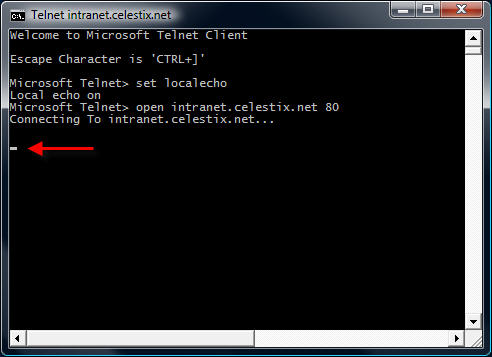
Now that we have established a connection, we are ready to issue some basic HTTP commands to the web server. Let’s begin by retrieving the default web page for the site intranet.celestix.net. Although a full-featured HTTP client will send many request headers to a web server to retrieve content, the RFC specifies that only the HOST header is mandatory for HTTP 1.1. First we will send a GET command requesting the default page, then we will provide the HOST header to let the web server know which web site we are requesting content from (this is required because the web server may be hosting multiple web sites using the same IP address).
To retrieve the default page from intranet.celestix.net, enter the following commands:
GET / HTTP/1.1
HOST: intranet.celestix.net
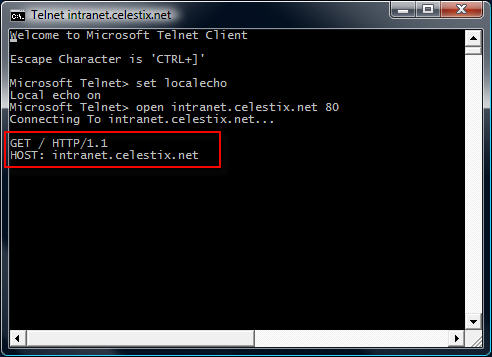
These commands are case sensitive! Be sure to enter them exactly as shown above. After entering the HOST information, hit enter twice to send the commands to the web server. If successful, the web server will respond with the requested content.
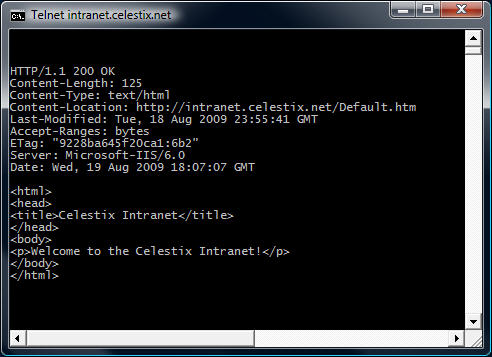
Enter the escape command sequence CTRL+] to return to the telnet command prompt.
Additional Examples
Instead of retrieving the content of the web page, we could request that the web server send response headers only. This can be accomplished by entering the following commands:
HEAD / HTTP/1.1
HOST: intranet.celestix.net
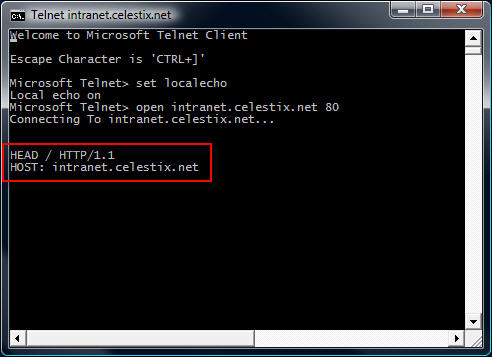
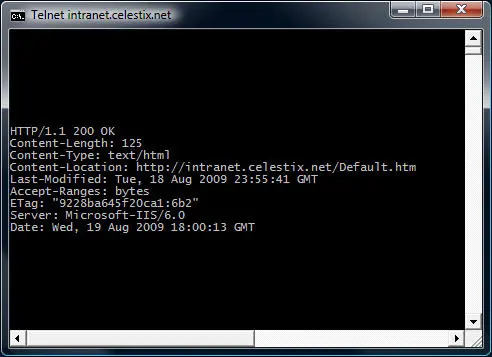
If successful, the web server will send only the response headers and not the content of the web page itself.
Although somewhat useful in troubleshooting basic HTTP communication, the telnet client isn’t the best tool to use. As you will quickly see, the telnet client will not allow you to backspace if you make a typo entering a command. The advantage of using the telnet client is that it is installed on most Windows operating systems by default. Thankfully, a much more robust and feature rich tool is available from Microsoft. WFetch is a GUI utility that allows you to issue many different commands to the web server and includes support for multiple authentication methods. It includes the flexibility to manipulate headers and provides the ability to direct communication through a proxy server. If you are performing advanced troubleshooting or want to learn more about HTTP communication, you can find out more about using WFetch here.
Troubleshooting Basic Network Connectivity Using A Telnet Client
The telnet client included with Windows is a useful low level diagnostic tool. When troubleshooting a network connectivity issue, it is a simple and effective way to determine if you can establish a TCP connection with a remote host on a particular port. The command syntax is:
telnet <IP address, FQDN or hostname> <port>
For example…
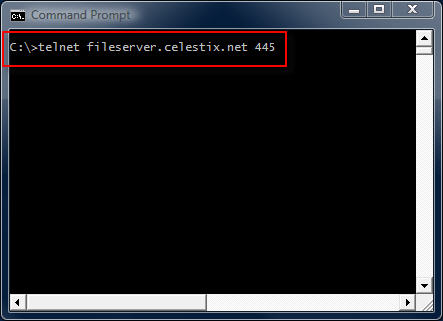
telnet fileserver.celestix.net 445
This command instructs the telnet client to open a TCP connection to the server fileserver.celestix.net on port 445 (which is used by SMB). A successful TCP connection was made if the command prompt disappears and you are left with only a flashing cursor.
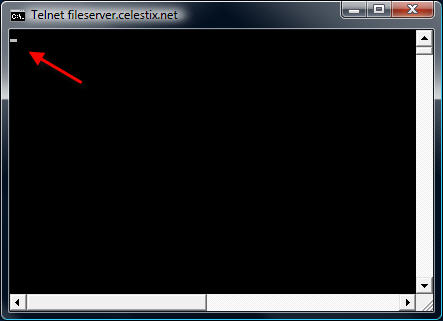
You can confirm this by monitoring the communication with a protocol analyzer (e.g. Network Monitor or Wireshark) when you execute the command.

Note: The example above uses a fully-qualified domain name (FQDN). When using FQDN’s or hostnames, make certain that name resolution is working properly if you are unable to establish connectivity.
Additional Examples
telnet dc01 389
This command establishes connectivity to dc01 on TCP port 389 (LDAP).
telnet 192.168.1.100 3389
This command establishes connectivity to 192.168.1.100 on TCP port 3389 (RDP).
Unable To Connect
If a connection cannot be established you will receive the following error message:
Could not open connection to the host, on port <port number>: Connect failed
This error message does not explain why the connection could not be established, however. It may be that the remote host was not listening on the specified port, the remote host was not reachable, or perhaps a firewall on the remote host or in the network path between the client and the remote host denied the connection. Looking at the communication with a protocol analyzer provides more information. For example, if the remote host is reachable but not listening on the port requested, the remote host will reply with a TCP reset.
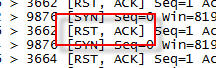
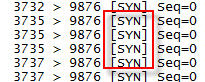
If the remote host was not reachable or a firewall denies the communication there will be no replies.
Telnet Clients
Historically the telnet client has been installed by default on all Windows operating systems. That changed beginning with Windows Vista. With Windows Vista and Windows 7 you will need to open the ‘Programs and Features’ control panel application and in the task pane select the option to ‘Turn Windows features on or off’.
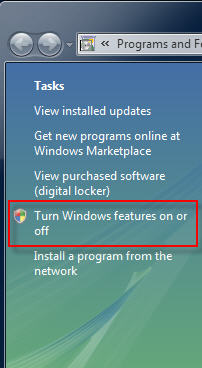
Select ‘Telnet Client’ and choose ‘Ok’ to install it.
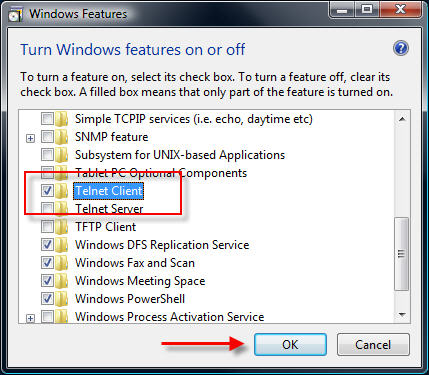
On Windows Server 2008 systems it is even easier to install the telnet client. From an elevated command prompt enter the following command:
servermanagercmd -i telnet-client
In addition there are numerous third-party telnet clients available for Windows. Some are free such as the popular Putty telnet client, and some are commercial such as SecureCRT. Third-party telnet clients offer advanced featuers not found in the native Windows telnet client and also support additional protocols such as SSH and RLogin.
In my next post I will demonstrate how to perform basic HTTP troubleshooting using a telnet client.
Microsoft Internet Explorer 8 Scores Highest in Browser Security Testing
NSS Labs recently released the results of its latest web browser security testing. Microsoft Internet Explorer 8 rated highest among all web browsers in terms of protecting users from socially engineered malware and phishing attacks.
http://nsslabs.com/browser-security
: )
Configuring Microsoft ISA Server 2006 Web Proxy to Prompt Authenticated Users
When the ISA firewall is configured as a forward proxy server, the web proxy listener is configured to use integrated authentication by default.
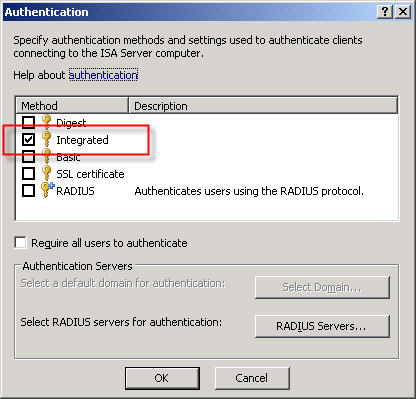
A web proxy client makes its initial request anonymously. If there are no policies allowing anonymous access to the requested destination, the ISA firewall responds with a challenge for authentication in the form of an HTTP 407 response (proxy authentication required).
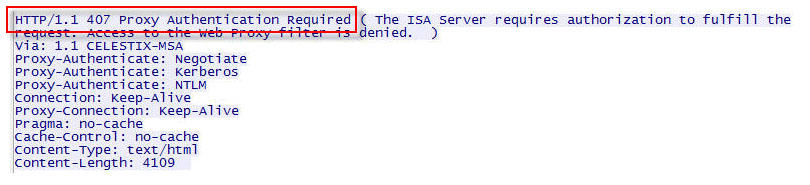
The client then resubmits the request, this time providing credentials to the firewall. This transaction is completely transparent to the end user. The credentials supplied to the ISA firewall are that of the current logged on user. If the user does not have permission, the ISA firewall denies the request without prompting. This behavior is by design.
There are situations in which this behavior is not desirable. Recently I was working with a customer who had workstations configured to log on automatically with a non-privileged domain service account. These workstations were used to access a web-based application on the local intranet. There are times when privileged users will need access to the Internet from these systems, but they will need to do so without logging the service account off. To meet these requirements we needed to configure the ISA firewall to prompt authenticated users for credentials if they are initially denied access.
Making this change required setting the value of the ReturnAuthRequiredIfAuthUserDenied property of the web proxy listener to ‘true’. When configured, the ISA firewall will prompt authenticated users for credentials when they are denied access. This change cannot be made via the management console; it can only be configured programmatically. The MSDN reference for this property contains a VBScript that is used for changing this setting, or you can download the script here. Run the script from the command line on the ISA firewall with the argument ‘true’ to enable prompting for authenticated users who are denied access and ‘false’ to disable it.
For example…
ReturnAuthRequiredIfAuthUserDenied.vbs true
…enables the prompting of authenticated users who are denied access, and…
ReturnAuthRequiredIfAuthUserDenied.vbs false
…disables it.
Websense Content Filtering Services Shutdown and Startup Order
When stopping or starting the services for Websense content filtering software, there is a specific order in which the services should be stopped and started. While this information is documented by Websense, it can sometimes be difficult to find so I’ve decided to publish this information here as an additional reference.
Begin by stopping the following services in any order:
Apache Services (Websense 7.x)
Apache2Websense
ApacheTomcatWebsense
Transparent Identification Agents
Websense DC Agent
Websense e-Directory Agent
Logging and Reporting Services
Websense Explorer Report Scheduler
Websense Information Service for Explorer
Websense Reporter Scheduler
Websense Log Server
Other Websense Services
Websense Usage Monitor
Once these services has been stopped you can proceed with stopping the Websense core services in the following order:
Websense Network Agent
Websense Filtering Service
Websense User Service
Websense Policy Server
Websense Policy Broker (Websense 7.x)
Websense Policy Database (Websense 7.x)
To start these services simply proceed in the reverse order of that listed above.
Microsoft ISA Server 2006 Web-based Management Console?
In response to my recent blog post about system policies in Microsoft ISA Server, several people asked me about a rule called ‘Web Management’…
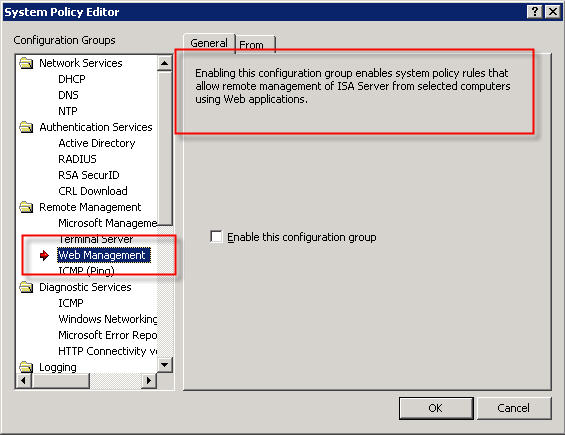
The description of the rule states that “Enabling this configuration group enables system policy rules that allow remote management of ISA server from selected computers using Web applications”. This rule is disabled by default when you install the ISA firewall software. If you view the access rule itself, you will notice that the protocol defined is “ISA Server Web Management” and is configured to use TCP port 2175 outbound.

So, is there a native web-based management application for Microsoft ISA Server 2006? The answer is no; at least not natively. According to Jim Harrison, this system policy rule was implemented to provide OEM’s a way to enable remote web-based management of an ISA appliance. Embarrassingly enough, I work for Celestix Networks but didn’t know this. ; ) In my defense, however, the web-based management utility that ships with the Celestix MSA Series security appliance is configured to use port 10000. Since the ISA defined protocol was TCP port 2175, which coincidentally is near other native Microsoft ISA Server ports, it sure sounded plausible that maybe there was a native Microsoft ISA web-based management console (or perhaps there were plans for one at some point).
So there you have it. In spite of what the system policy rule might look like, there is no native Microsoft ISA Server web-based management console. If you would like the ability to manage ISA with a web browser, I would strongly encourage you to check out the Celestix MSA Series security appliance featuring Microsoft ISA Server 2006. Not only will you get an intuitive web-based management console, you’ll get plenty of other benefits as well.
Security Update for Microsoft ISA Server 2006 (MS09-031)
Microsoft today announced the availability of a security update for Microsoft ISA Server 2006. This update addresses a vulnerability with RADIUS One Time Password (OTP). This update is rated important, and affects only ISA Server 2006 (and only in very specific scenarios). Previous versions of ISA are not affected, nor is Forefront Threat Management Gateway. For additional information, please read this post from the ISA product team.
Reviewing the Microsoft ISA Server 2006 System Policy
By default, the Microsoft ISA Server firewall is configured to deny all traffic that is not explicitly permitted by an access rule. This means that the firewall administrator will need to configure a number of access rules in order to facilitate domain and client communication, among other things.
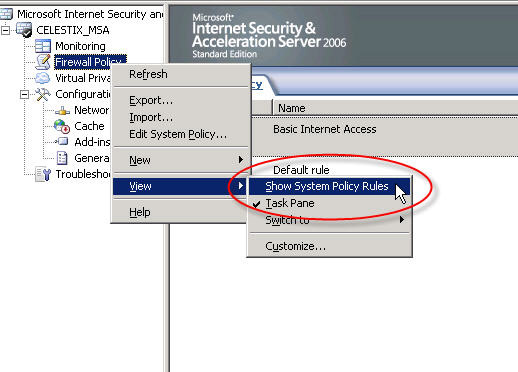
Thankfully the ISA firewall includes a set of system policy access rules that simplify the configuration and operation of the firewall. The system policy contains a set of pre-configured access rules that allow ISA and the underlying operating system to communicate with things such as domain controllers, DNS servers, authentication servers, etc. The system policy rules are hidden from view by default. If you wish to see the system policy rules themselves, right-click on the ‘Firewall Policy’ node, highlight ‘View’, and then select ‘Show System Policy Rules’.
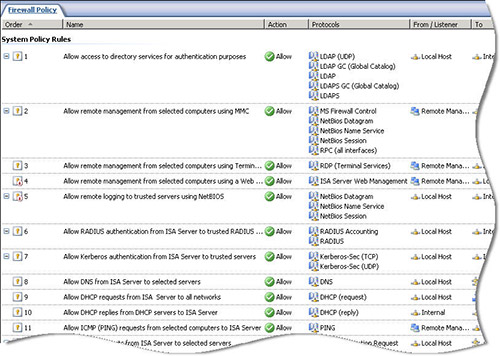
To edit the system policy rules, right-click on the ‘Firewall Policy’ node and choose ‘Edit System Policy…’.

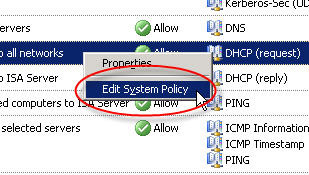
If you have chosen to display the system policy rules you can double-click any rule or right-click a rule and choose ‘Edit System Policy’ to bring up the system policy editor as well.
Although having pre-configured system policy rules is convenient, some of the rules are broad or may not be required in your environment. I would highly recommend that you review and edit the system policy prior to deploying a production Microsoft ISA firewall. For example, by default the system policy is configured to allow DHCP requests from the ISA firewall to the Internal network.
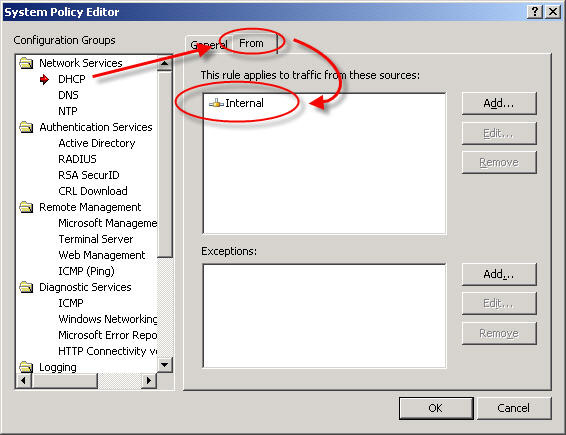
From a security perspective it would be best to specify which DHCP servers your ISA firewall can communicate with. Create new computer objects for each of your DHCP servers and specify them as the source for this rule instead of the entire Internal network. If none of your firewall’s network interfaces are configured to use DHCP you can safely disable this rule.
Another instance where the system policy can be tightened up is the DNS system policy rule. By default this rule allows the ISA firewall to communicate to DNS servers on all networks – and that includes the external network! (see Jason Jones’ blog post on proper ISA firewall network configuration)
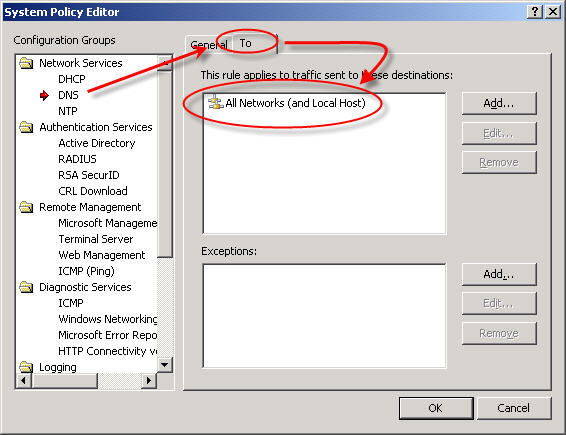
This is an excellent opportunity to improve the security posture of your ISA firewall. I would recommend that you specify which DNS servers the ISA firewall can communicate with explicitly. Create new computer objects for each of your DNS servers and specify them as the destination for this rule, removing of course the ‘All Networks (and Local Host)’ network object.
One more example of broad system policy configuration is the SMTP system policy rule. By default this rule allows the ISA firewall to communicate to any SMTP server on the Internal network.
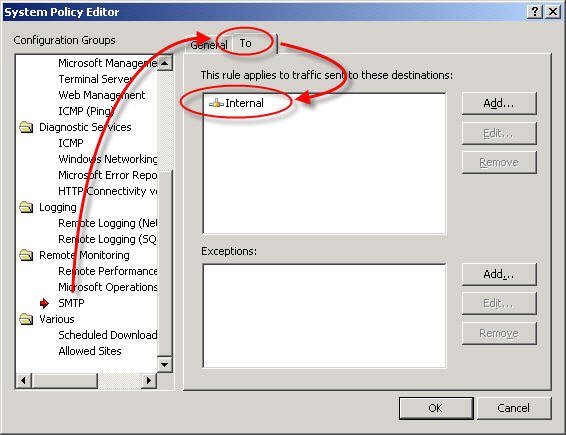
Again, your configuration will be much more secure if you specify which SMTP servers the ISA firewall can communicate with. If you are not using STMP notifications on the ISA firewall you can safely disable this rule.
These are only a few examples of areas where the system policy rule set can be tightened to improve security on the ISA firewall. Once you have completed your initial configuration, I would strongly encourage you to review and edit these policies. By disabling unnecessary rules and restricting the access on others you can enhance the already secure configuration of the ISA firewall.
Ad-hoc Use of Sysinternals Utilities
If you perform any troubleshooting at all in the Windows environment you are no doubt familiar with Mark Russinovich‘s Sysinternals utilities. There is hardly a day that goes by that I don’t use one myself, and I’m not even directly involved in supporting our products!
The tools themselves are fantastic and provide a wealth of information, which is helpful not only for troubleshooting, but for learning as well. Typically you just download the tools and run them from your local system (they don’t require installation – just run them directly!). There are, however, certain times when I’m working on a customer’s machine and I find myself in need of one of these tools, and thanks to Alex Eckelberry’s post on the Sunbelt Blog I’ve learned that you can run them directly from live.sysinternals.com/tools right from the command line! For example…

As long as the system you are working on has Internet access you can use any of the tools in the suite remotely and on an ad-hoc basis.
Be sure to read Alex’s full post on the subject for more information.
Connect


 Richard Hicks' Forefront TMG Blog