Archive
Slipstream Service Pack 2 for Forefront TMG 2010
Now that Service Pack 2 (SP2) for Microsoft Forefront TMG 2010 is available I’ve had numerous people ask me about the process of slipstreaming the service pack with the Forefront TMG 2010 installation media. Having Forefront TMG 2010 with SP2 slipstreamed is a great time saver if you install TMG frequently like I do, but it is also essential if you wish to install Forefront TMG 2010 on a read-only domain controller (RODC). Last year when service pack 1 for Forefront TMG 2010 was released I wrote this post on how to slipstream the service pack. The process is nearly identical with Forefront TMG 2010 SP2 with the exception that there are a few more steps required because of TMG SP2’s dependencies on SP1 and software update 1 for TMG SP1.
To slipstream SP2 with the Forefront TMG 2010 installation media, begin by copying the contents of your Forefront TMG 2010 DVD or extracting the ISO to a temporary folder. Next, download Forefront TMG 2010 SP1, Forefront TMG 2010 SP1 software update 1, and Forefront TMG 2010 SP2. Software update 1 for Forefront TMG 2010 SP1 and SP2 for Forefront TMG 2010 are both .exe files that can’t be used for slipstreaming. To support slipstreaming we’ll need to extract the .msp files from them by opening an elevated command prompt and issuing the following commands:
For software update 1 for Forefront TMG 2010 SP1
TMG-KB2288910-amd64-ENU.exe /t d:\temp\SP1U1
For Forefront TMG 2010 SP2
TMG-KB2555840-amd64-ENU.exe /t d:\temp\SP2
Now begin the slipstreaming process by navigating to the \FPC folder of the TMG installation source and then issuing the following commands:
First, slipstream SP1 for Forefront TMG 2010
msiexec /a MS_FPC_Server.msi /p d:\temp\sp1\TMG-KB981324-AMD64-ENU.msp
Next, slipstream software update 1 for Forefront TMG 2010 SP1
msiexec /a MS_FPC_Server.msi /p d:\temp\sp1u1\TMG-KB2288910-amd64-ENU.msp
Finally, slipstream Forefront TMG 2010 SP2
msiexec /a MS_FPC_Server.msi /p d:\temp\sp2\TMG-KB2555840-amd64-ENU.msp
Once complete, use your favorite tool to burn a DVD or create an ISO file.
Important Note: If you install the Forefront TMG 2010 firewall client from the new SP2 slipstreamed installation source, you will still need to install the October 2011 Forefront TMG 2010 firewall client hotfix rollup as outlined in my previous blog post.
Forefront TMG 2010 Service Pack 2 Now Available
Service Pack 2 for Microsoft Forefront TMG 2010 is now available. In addition to numerous fixes released since SP1 and SP1 hotfix rollup 4, this service pack also includes the following new features:
New reports – A new site activity report that provides details about requests made to specific web sites for individual users.
New error pages – TMG SP2 provides the option to use new error pages that feature a whole new look and feel. In addition, these new error pages are more easily customized and can now include embedded objects.
Kerberos authentication for NLB – TMG SP2 includes the ability to leverage Kerberos authentication for clients accessing enterprise arrays via the NLB virtual IP address (VIP).
You can download Forefront TMG 2010 service pack 2 here. Please note that this update requires that Forefront TMG 2010 SP1 and software update 1 for TMG SP1 be installed prior to installing Forefront TMG 2010 SP2. Once TMG SP2 has been installed successfully the build number will be 7.0.9193.500.
For information regarding the installation of SP2 for Forefront TMG 2010 on enterprise arrays, click here.
Configuring Forefront TMG for Microsoft System Center Data Protection Manager (DPM) 2010
Microsoft System Center Data Protection Manager (DPM) 2010 is a management product that provides data protection for Windows systems. More advanced than Windows Backup, DPM uses Protection Agents that provide advanced capabilities. Getting the DPM server to communicate with the Protection Agent installed on a Forefront TMG 2010 firewall can be challenging, however. DPM server-to-agent communication takes place over several non-standard ports, and it also relies on DCOM. Unfortunately the Forefront TMG RPC filter does not fully support DCOM , so we’ll need to employ a workaround to ensure that DPM communication works correctly.
[Note: Many resources that I found on the Internet detailing how to configure TMG for DPM were incorrect and didn’t work. Those that did work didn’t explain why, involved unnecessary steps, or included very broad rule sets that allowed more access to the TMG firewall than absolutely necessary. In this post I’ll provide a definitive and comprehensive guide to preparing the TMG firewall to work with DPM and its Protection Agent, while at the same time adhering to the principle of least privilege and maintaining the lowest possible attack surface.]
As stated, DPM uses Protection Agents installed on each system it manages and protects. This agent can be deployed remotely from the DPM console or installed manually and later ‘attached’. When installing the Protection Agent on a Forefront TMG 2010 firewall it is recommended that the agent be installed manually following the instructions here. Since there is no system policy access rule for DPM, we’ll need to configure access rules to allow the required communication to and from the Protection Agent on the TMG firewall and the DPM server. Begin by creating three new protocols as follows:
DPM Agent Coordinator – TCP 5718 outbound
DPM Protection Agent – TCP 5719 outbound
DPM Dynamic Ports – TCP 50000-50050 outbound
Create a Computer or a Computer Set network object that includes the IP address of your DPM server. DO NOT add the DPM server to the Enterprise Remote Management Computers or Remote Management Computers network objects.
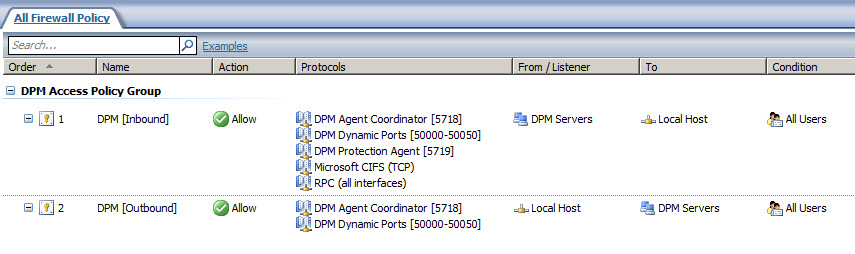
Next, create an access rule called DPM [Inbound]. The action will be allow and the protocols will include the three new protocols you just created, along with Microsoft CIFS (TCP) and RPC (all interfaces). The source will be the DPM server and the destination will be Local Host for all users. Now right-click on the access rule and choose Configure RPC protocol.

Uncheck the box next to Enforce strict RPC compliance and choose Ok.

Create another access rule called DPM [Outbound]. The action will be allow and the protocols will include only DPM Agent Coordinator [5718] and DPM Dynamic Ports [50000-50050]. The source will be Local Host and the destination will be the DPM server for all users. Once complete the rule set should look like this:
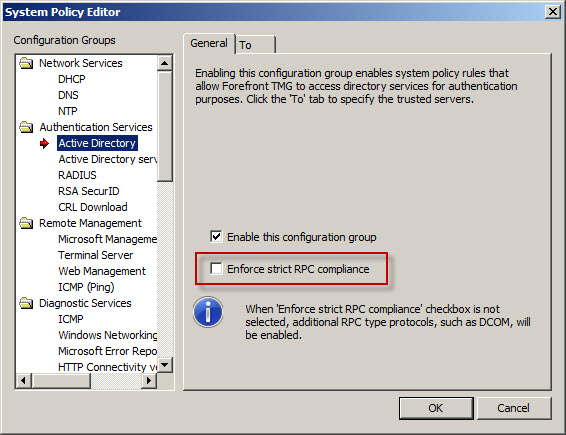
Next, right-click the Firewall Policy node in the TMG management console navigation tree and select All Tasks | System Policy | Edit System Policy. Under the Authentication Services configuration group highlight Active Directory. Select the General tab and uncheck the box next to Enforce strict RPC compliance.
The last step required to allow the DPM server to communicate with a Protection Agent installed on the TMG firewall involves making registry changes to restrict RPC communication to a specific range of ports. This is necessary because, as I mentioned earlier, the TMG RPC filter does not fully support DCOM and is unable to manage the dynamic port assignments required for this communication. This change must be made to both the TMG firewall and the DPM server. To make this change, open the registry editor on each system and navigate to the HKLM\Software\Microsoft\Rpc\Internet key.
Create the following new keys:
Ports – REG_MULTI_SZ, 50000-50050
PortsInternetAvailable – REG_SZ, Y
UseInternetPorts – REG_SZ, Y
You can download a .reg file and the TMG access policies here.
Note: For this limited demonstration I have chosen to restrict the dynamic port range to 50 ports. In a real production environment, you may need to increase this limit. An excellent reference article that includes a formula to determine the number of ports required can be found here.
Once the registry changes have been made, the system will have to be restarted for the changes to take effect. After both systems are back online, install the Protection Agent manually on the TMG firewall and then attach the agent in the DPM management console. You can now manage TMG firewall protection in DPM just as you would any other Windows system.
Connect


 Richard Hicks' Forefront TMG Blog