Archive
Configuring Forefront TMG for Microsoft System Center Data Protection Manager (DPM) 2010
Microsoft System Center Data Protection Manager (DPM) 2010 is a management product that provides data protection for Windows systems. More advanced than Windows Backup, DPM uses Protection Agents that provide advanced capabilities. Getting the DPM server to communicate with the Protection Agent installed on a Forefront TMG 2010 firewall can be challenging, however. DPM server-to-agent communication takes place over several non-standard ports, and it also relies on DCOM. Unfortunately the Forefront TMG RPC filter does not fully support DCOM , so we’ll need to employ a workaround to ensure that DPM communication works correctly.
[Note: Many resources that I found on the Internet detailing how to configure TMG for DPM were incorrect and didn’t work. Those that did work didn’t explain why, involved unnecessary steps, or included very broad rule sets that allowed more access to the TMG firewall than absolutely necessary. In this post I’ll provide a definitive and comprehensive guide to preparing the TMG firewall to work with DPM and its Protection Agent, while at the same time adhering to the principle of least privilege and maintaining the lowest possible attack surface.]
As stated, DPM uses Protection Agents installed on each system it manages and protects. This agent can be deployed remotely from the DPM console or installed manually and later ‘attached’. When installing the Protection Agent on a Forefront TMG 2010 firewall it is recommended that the agent be installed manually following the instructions here. Since there is no system policy access rule for DPM, we’ll need to configure access rules to allow the required communication to and from the Protection Agent on the TMG firewall and the DPM server. Begin by creating three new protocols as follows:
DPM Agent Coordinator – TCP 5718 outbound
DPM Protection Agent – TCP 5719 outbound
DPM Dynamic Ports – TCP 50000-50050 outbound
Create a Computer or a Computer Set network object that includes the IP address of your DPM server. DO NOT add the DPM server to the Enterprise Remote Management Computers or Remote Management Computers network objects.
Next, create an access rule called DPM [Inbound]. The action will be allow and the protocols will include the three new protocols you just created, along with Microsoft CIFS (TCP) and RPC (all interfaces). The source will be the DPM server and the destination will be Local Host for all users. Now right-click on the access rule and choose Configure RPC protocol.

Uncheck the box next to Enforce strict RPC compliance and choose Ok.

Create another access rule called DPM [Outbound]. The action will be allow and the protocols will include only DPM Agent Coordinator [5718] and DPM Dynamic Ports [50000-50050]. The source will be Local Host and the destination will be the DPM server for all users. Once complete the rule set should look like this:
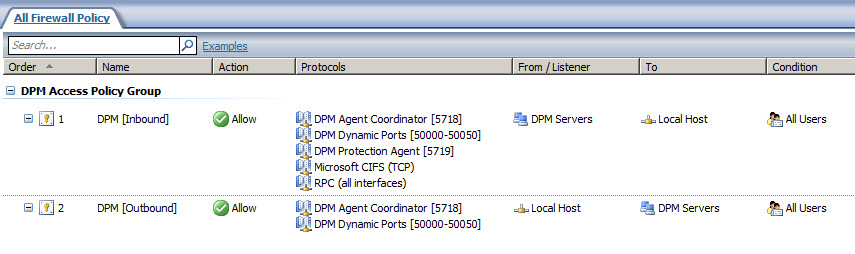
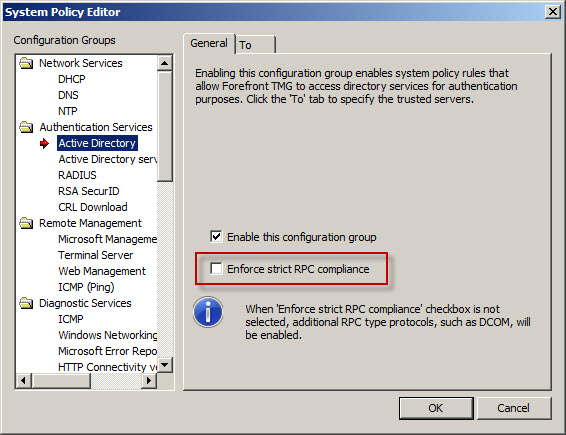
Next, right-click the Firewall Policy node in the TMG management console navigation tree and select All Tasks | System Policy | Edit System Policy. Under the Authentication Services configuration group highlight Active Directory. Select the General tab and uncheck the box next to Enforce strict RPC compliance.
The last step required to allow the DPM server to communicate with a Protection Agent installed on the TMG firewall involves making registry changes to restrict RPC communication to a specific range of ports. This is necessary because, as I mentioned earlier, the TMG RPC filter does not fully support DCOM and is unable to manage the dynamic port assignments required for this communication. This change must be made to both the TMG firewall and the DPM server. To make this change, open the registry editor on each system and navigate to the HKLM\Software\Microsoft\Rpc\Internet key.
Create the following new keys:
Ports – REG_MULTI_SZ, 50000-50050
PortsInternetAvailable – REG_SZ, Y
UseInternetPorts – REG_SZ, Y
You can download a .reg file and the TMG access policies here.
Note: For this limited demonstration I have chosen to restrict the dynamic port range to 50 ports. In a real production environment, you may need to increase this limit. An excellent reference article that includes a formula to determine the number of ports required can be found here.
Once the registry changes have been made, the system will have to be restarted for the changes to take effect. After both systems are back online, install the Protection Agent manually on the TMG firewall and then attach the agent in the DPM management console. You can now manage TMG firewall protection in DPM just as you would any other Windows system.
More about Determining TMG Version Numbers
A common method for determining the version number for an instance of Forefront Threat Management Gateway (TMG) 2010 is to open the TMG management console and from the drop down menu select Help and About Forefront Threat Management Gateway…
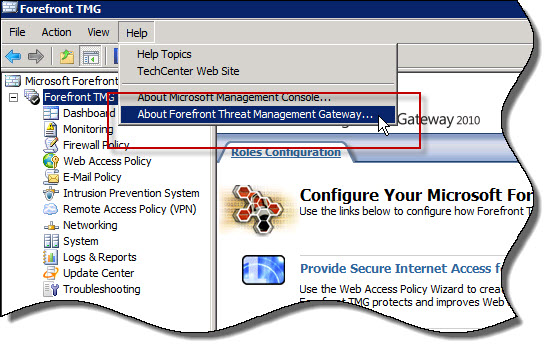

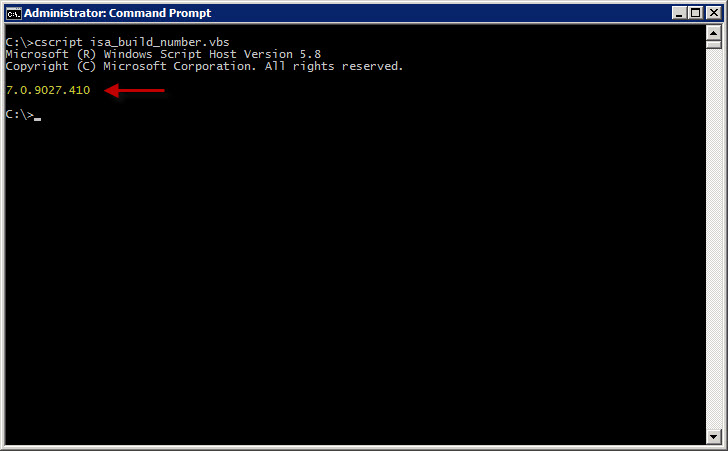
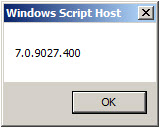
Recently I discovered that this method may not be the most reliable way to determine the TMG version number. After installing Update 2 for TMG SP 1 (version number 7.0.9027.410) I noticed that the TMG management console was still reporting the build number from the previous update (7.0.9027.400 as shown above). However, using the script I demonstrated in a previous blog post the build number is reported correctly as 7.0.9027.410.
To verify the version number once more, I highlighted the System node in the navigation tree and clicked the Servers tab. Here the version number is again displayed correctly as 7.0.9027.410.

The moral of the story here is not to rely only on the Help | About Forefront Threat Management Gateway… drop down menu in the TMG management console to determine the version number. To accurately determine the TMG version, check the version number in the Servers tab of the System node in the TMG management console or use the COM script.
Installing TMG on Windows Server 2008 R2 Core
Sounds like a great idea, right? I agree! If you found this post hoping to learn how to install Microsoft Forefront Threat Management Gateway (TMG) 2010 on Windows Server core, then I apologize for misleading you. Sadly, the reality is that TMG cannot be installed on any version of Windows Server core. It would seem to be a natural choice as the underlying operating system for the TMG firewall since it has fewer installed services, which reduces patching requirements and minimizes the attack surface. Unfortunately TMG has dependencies on roles and features, namely the Network Policy Server (NPS) and the Routing and Remote Access Service (RRAS) that are not available on Windows Server core installations.
Personally I love Windows Server core. Since I began working with computers many years before Windows arrived on the scene, I’m more than comfortable at the command line. I use Windows Server core in my virtual labs for infrastructure services such as domain controllers, DNS servers, and even certificate services (which is not trivial to get working correctly!). Having Windows Server core as the supporting operating system for a TMG firewall would be wonderful, however, in my discussions with the TMG development team it appears that updating TMG to run on Windows Server core would be a difficult (if not impossible) task. Given that there has been little demand for TMG on Windows Server core, I don’t expect this to be a supported configuration any time soon. If future versions of Windows Server core include support for NPS and RRAS (and why not, it would be a great idea!) then perhaps we’ll see TMG supported on Windows Server core in the future.
A Word about Network Interface Port Speed and Duplex Settings
When configuring network interface settings on a Forefront Threat Management Gateway (TMG) 2010 firewall, I strongly recommend that the port speed and duplex settings on all active network interfaces be manually configured. Although autonegotiation is typically enabled by default, and in most cases works without issue, I prefer to eliminate any possibility that a slower link speed or incorrect duplex setting is negotiated in error by configuring these settings explicitly.
Some believe you can configure one side of a link (either the host or the switch) manually and leave the other side set to autonegotiate. The theory is that the host set to autonegotiate will determine what settings the other side has configured and automatically choose those. This is not completely true and doesn’t work as expected. When one side of a link is set for autonegotiation and the other side is not (or doesn’t support it), a process called parallel detection takes place whereby the device that is configured to autonegotiate can determine the port speed of the other device, but it cannot determine the duplex settings and defaults to half duplex. Often this results in a duplex mismatch, which will cause extremely poor performance.
So, when configuring port speed and duplex settings, always remember that BOTH sides of the link should be configured identically. That is, if the switch is configured for 100Mbps/full duplex operation, the network interface on the TMG firewall should be configured the same. On some systems (mostly older ones), when attempting to change these settings, you might notice that there is no option to enable 1000Mbps (gigabit) at full duplex operation. The only available option is autonegotiate 1000Mbps.
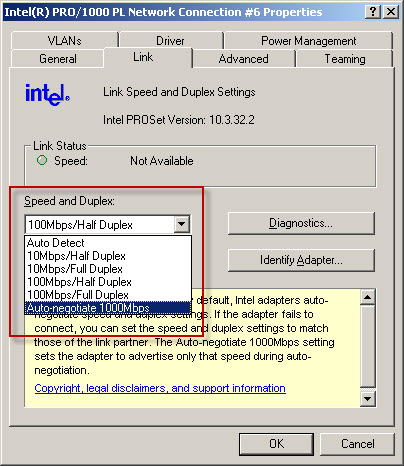
Why is there no option to select 1000Mbps and full duplex? Because the designers of the 1000BASE-T specification (IEEE 802.3ab) made duplex autonegotiation mandatory when operating at 1000Mbps port speed over copper cabling. For this reason some network interface management software may limit your choices and not allow you to select this option. In my experience it appears that adherence to this mandate has been relaxed as most newer systems I have worked with now give you the option of configuring 1000Mbps and full duplex operation with copper cabling. If you have an older system and don’t have the option to specify 1000Mbps/full duplex on the network interface, I would recommend updating your network interface device drivers. If you still don’t have the option to specify 1000Mbps/full duplex you may need to replace the network interface card itself.
Fwengmon.exe and Forefront Threat Management Gateway (TMG) 2010
For engineers performing advanced troubleshooting on TMG, you have likely noticed that fwengmon.exe, a utility that you used with previous versions of ISA, no longer functions with TMG.
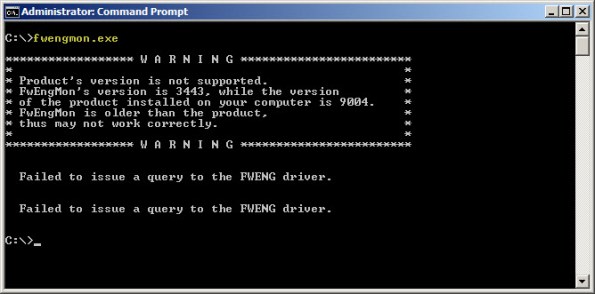
Not to worry! This detailed information is readily accessible using netsh.exe in the tmg context. The following is a list of common commands and their fwengmon.exe equivalents (where applicable):
To view creation objects, active sessions, NLB hook rules, NLB server assigned ranges, and dynamic and persistent allowed ranges:
netsh tmg show all
To view connections only (fwengmon.exe /session or /s):
netsh tmg show connections
To view detailed information about a specific connection (fwengmon.exe /s <ID>):
netsh tmg show connections <connection_number>
To view firewall creation elements (fwengmon.exe /creations or /c):
netsh tmg show creations
Note: You can sort and filter output from show connections or show creations by source IP address, source port, destination IP address, destination port, or protocol using the sort and filter parameters (fwengmon.exe /organize or /o, or fwengnmon.exe /filter or /f). You can also limit the number of connections or creations displayed using the display parameter. Type netsh tmg show connections ? or netsh tmg show creations ? for more information.
To show NLB hook rules (fwengmon.exe /querynlb or /n):
netsh tmg show nlbhookrules
To view packets held in kernel mode:
netsh tmg show holdpackets
To view packets held in user mode:
netsh tmg show usermodepackets
To view global firewall engine driver settings:
netsh tmg show global
To specify a temporary address range to exempt from firewall filtering (fwengmon.exe /allow or /a):
netsh tmg add allowedrange <beginning_ip> <ending_ip>
To specify a permanent address range to exempt from firewall filtering (fwengmon.exe /allow or /a):
netsh tmg add allowedrange <beginning_ip> <ending_ip> persistent
Note: netsh tmg add allowedrange allows all traffic to and from hosts within the IP address range specified to bypass stateful firewall inspection completely. It should be used for troubleshooting purposes only.
To delete a temporary address range (fwengmon.exe /noallow):
netsh tmg delete allowedrange id=<id>
To delete a permanent address range (fwengmon.exe /noallow):
netsh tmg delete allowedrange id=<id> persistent
Mail and OCS Server Publishing using TMG on Forefront Unified Access Gateway (UAG) 2010
In a recent post I outlined some of the basic differences between Forefront Threat Management Gateway (TMG) 2010 and Unified Access Gateway (UAG) 2010. Although I indicated that UAG includes TMG under the covers, TMG is intended to provide protection for the UAG host only. It cannot be used to provide firewall, outbound proxy, or VPN services. There are specific instances when leveraging the underlying TMG services is allowed and supported. As the UAG Support Boundaries indicate, you can use TMG on UAG for Exchange mail server publishing (SMTP/SMPTS, POP3/POP3S, and IMAP/IMAPS) and Office Communications Server (OCS) SIP traffic publishing (Communicator Web Access (CWA) should be published using UAG). This means that if you are planning to publish Exchange and OCS, you can accomplish this using UAG alone. You are not required to deploy TMG or another firewall to provide secure access to mail server-to-server communication or OCS SIP traffic.
TMG and IANA Unallocated Reserved Networks
Recently the engineers at Celestix UK brought an interesting issue to my attention. They were working with a customer to configure TMG to protect an internal network using the address space 192.0.0.0/24. When attempting to assign an IP address from this network to the Internal network interface of the TMG firewall they would receive the following error:
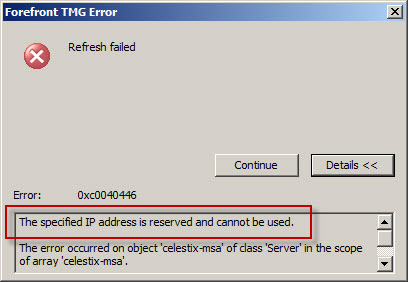
As it turns out, the 192.0.0.0/24 network is IANA reserved and not allocated (which is different than reserved allocated networks like RFC 1918 private address ranges, APIPA, loopback, multicast, etc.). This was news to me! As we discovered, you cannot configure any network interface on the TMG firewall using an address from any unallocated reserved network. Interestingly enough, my good friend Ed Horley pointed out there are many more IANA reserved networks that I was completely unaware of. You can find more information about those networks here.
If you have to configure a TMG firewall to protect an unallocated reserved network, your only options are to readdress the network using an allocated address range or place a router in front of TMG.
How to Determine TMG Version
Recently Tarek Majdalani, one of my fellow Forefront Edge Security MVPs, published an informative article detailing several ways to determine which version of TMG is installed. One additional method you can use to determine the version of TMG you are running is by using COM. The VBScript code looks like this:
Option Explicit

Dim Root, Server

Set Root = CreateObject("FPC.Root")
Set Server = Root.GetContainingServer

WScript.Echo Server.ProductVersion

Set Server = Nothing
Set Root = Nothing
Copy the code above and save it in a file with a .vbs extension, or download the script file here.
You can execute the script from the command line using cscript.exe using the following syntax:
cscript.exe <path_to_script_file>
The output of the command includes the TMG version and build number information.
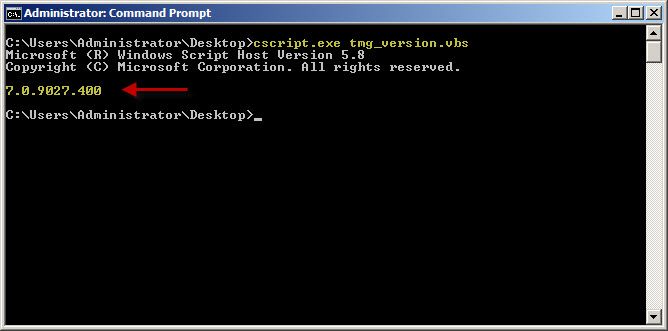
You can also double-click the script file in the GUI and a Windows message box will appear with the TMG version and build number information.
What are the Differences between TMG and UAG?
I am frequently asked “What are the differences between TMG and UAG?” and “Which one should I deploy?” In this post I will provide some background information that will hopefully answer those questions for you. This is not intended to be a comprehensive side-by-side feature comparison. It is only meant to provide a high-level overview of the basic differences between TMG and UAG.
Let’s begin by examining the features of each product:
- Microsoft Forefront Threat Management Gateway (TMG) 2010 is an integrated edge security gateway. It is a Common Criteria certified (EAL4+) enterprise-class application layer firewall that includes support for proxy services (forward and reverse proxy), content caching, and VPN (both remote access and site-to-site). It can be deployed in all of these roles, or any subset of them.
- Microsoft Forefront Unified Access Gateway (UAG) 2010 is a dedicated remote access gateway. It is Common Criteria certified (EAL2+) and provides browser-based remote access to published applications via an SSL VPN portal. It includes limited support for traditional client access VPN with Secure Socket Tunneling Protocol (SSTP) and Network Connector (a proprietary UAG component that provides network-level access). UAG can also serve as a DirectAccess gateway, a deployment scenario for which the UAG provides incredible value.
Fundamentally, TMG is a network-centric access control solution. With it you can provide fine-grained control over all types of communication going through the firewall, both web-based and non web-based protocols. TMG controls access inbound and outbound, and allows for the configuration of multiple perimeter (DMZ) networks.
By contrast, UAG is an application-centric remote access solution. It provides inbound access only; there are no outbound access capabilities provided by UAG. This is a common source of confusion, as UAG includes TMG under the hood. Many administrators mistakenly believe they can leverage the underlying TMG installation to provide forward proxy or VPN services. This is not supported. Other than mail server publishing, TMG may not be used for any other purpose. It is installed to provide protection for the UAG application only.
UAG takes one of the TMG deployment roles, the VPN/remote access role, and supercharges it. UAG includes advanced application publishing capabilities not provided by TMG, such as endpoint configuration and health detection, customizable data manipulation, session clean up, and more. For example, an administrator can allow full access to a published application to any system that has anti-virus software running and up-to-date, has the firewall enabled, and has the latest system updates applied. If the system does not meet these requirements, the administrator can determine if access should be granted with reduced privileges, or perhaps denied access altogether. An administrator might mask specific data sent to a user (such as credit card numbers, social security numbers, etc.) if the user is accessing the published web application from an untrusted device (non-managed workstation, kiosk, etc.). When the user closes their session, all temporarily downloaded files are removed from the workstation, ensuring that no sensitive data is left behind.
So when do you deploy TMG and when do you deploy UAG? If you want to control outbound web access (forward proxy or firewall), TMG is your only option. If you want to publish multiple applications with a single URL (an application portal), UAG is the answer. There are, however, areas where there is overlap between TMG and UAG capabilities. For example, let’s say you want to publish a single application such as Outlook Web App (OWA). Which solution do you choose? TMG can publish OWA quite capably, as can UAG. The answer depends on your specific requirements. If you need to restrict access to only those systems that meet your specific configuration requirements, publishing OWA with UAG is the solution. If you wish to grant access to OWA to anyone who authenticates successfully, then TMG will suffice.
Licensing often plays a role in determining which solution to deploy for remote access. UAG is licensed using Client Access Licenses, or CALs. Each user of the system is required to have a UAG CAL. The UAG CAL is included in the Microsoft Enterprise CAL (eCAL), so this may not be an issue for larger enterprises. TMG is licensed per processor. There are no CALs required for users of TMG (advanced web protection features do require the Web Protection Services Subscription license, however, which is licensed per user or per device annually). For more information, refer to the licensing FAQs for TMG and UAG.
In summary, TMG is a rock-solid firewall, proxy, content cache, and VPN access gateway that has basic support for application publishing. UAG is an advanced remote access gateway dedicated to application publishing, and is highly customizable and limited in functionality only by your programming skills, creativity, and imagination.
In a nutshell, think of TMG and UAG like this:
TMG – Keeps the bad guys out.
UAG – Lets the good guys in.
Microsoft Most Valuable Professional (MVP) 2010
I am very excited to announce that I have been awarded the Microsoft Most Valuable Professional (MVP) award for 2010! This is my second award, and it is a tremendous honor to be recognized for my efforts in promoting Microsoft Forefront edge security products worldwide. It is a wonderful privilege to be included among so many great professionals. Thank you to Microsoft for this prestigious award, and special thanks to my employer, Celestix Networks, who makes it possible for me to travel the world extoling the virtues of these great Microsoft security solutions. See you at the MVP summit in February 2011!

Connect


 Richard Hicks' Forefront TMG Blog