Archive
Load Balancing and Forefront TMG Firewall Clients
Recently I encountered an issue where TMG firewall clients were experiencing intermittent connectivity issues. Clients were sometimes able to connect to a remote RDP server, and other times they were not. Web proxy clients were working perfectly. After looking carefully at the network and TMG firewall configuration, everything appeared to be in order with no apparent issues. In this particular instance, two TMG firewalls were configured in a multi-homed, standalone array with Network Load Balancing (NLB) enabled on both the Internal and External networks. Clients connect to the array using a hostname that resolves to the virtual IP address (VIP) assigned to the Internal network.
Although this configuration works just fine for web proxy clients, it poses a particular problem for the TMG Firewall Client because the Firewall Client uses a control channel to facilitate authentication and communication with the TMG firewall. For proper operation, Firewall Clients must be configured to communicate directly with the TMG firewall’s dedicated IP address (DIP). For this reason, the use of NLB and third-party hardware load balancers is not supported for load balancing TMG Firewall Clients. The only form of load balancing that is supported for TMG Firewall Clients is DNS round-robin.
To learn more about the TMG Firewall Client and how it functions, please refer to Jim Harrison’s excellent series of articles about this topic on TechNet.
Introduction to the ISA Server Firewall Client and Forefront TMG Client
Introduction to Remote Winsock (RWS) Protocol Analysis
Observing Firewall Client Single-connection HTTP Traffic
Observing Firewall Client Single-connection DNS Traffic
How to Slipstream Service Pack 1 for TMG
Now that SP1 for Forefront Threat Management Gateway (TMG) 2010 is available, several people have asked if it is possible to slipstream this service pack into the installation bits. The answer is yes! For someone like me this is a tremendous time saver, as I typically install and configure TMG several times a week. Having SP1 integrated with the installation media ensures that I always have the latest version of TMG installed right from the start, eliminating the extra step of having to install the update each time I build a new system.
To slipstream TMG SP1, begin by copying the contents of the installation media to a folder on your hard drive. Next, open a command prompt and navigate to the \FPC folder, then execute the following command:
msiexec /a ms_fpc_server.msi /p <path_to_tmg_sp1>
For example…
msiexec /a ms_fpc_server.msi /p e:\tmg_sp1\tmg-kb981324-amd64-enu.msp
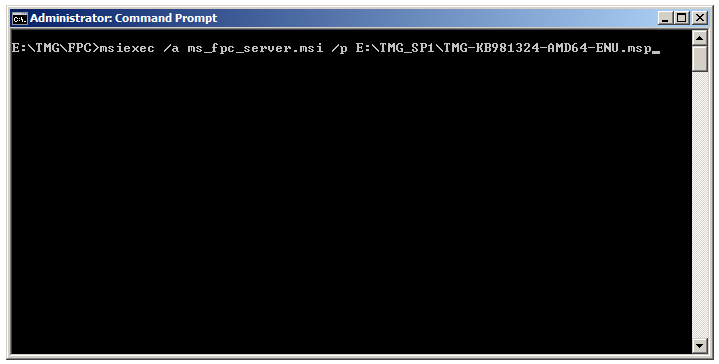
Complete the integration by following the prompts provided by the Microsoft Forefront TMG Service Pack 1 Installation Wizard (accept the defaults). Once complete you can burn the files to DVD or use your favorite utility to create an ISO image file.
Forefront TMG Service Pack 1 – Now Available!
Service Pack 1 for Microsoft Forefront Threat Management Gateway (TMG) 2010 is now available! In addition to the usual bug fixes included in a service pack, this update also includes new features and functionality. Included in TMG SP1 are enhancements to URL filtering, including user override for blocked categories and enterprise-level category override configuration. Reporting has been improved, with a new overall look-and-feel and a user activity report option. In addition, there are new branch office capabilities including support for installing TMG on a domain controller and integration with Windows BranchCache. Also, publishing SharePoint 2010 is now fully supported. For more information, read my full preview of TMG SP1 at ISAserver.org, and download Forefront TMG 2010 SP1 today!
Configuring Forefront Threat Management Gateway (TMG) URL Filtering to Fail Closed
The URL filtering feature in Microsoft Forefront Threat Management Gateway (TMG) 2010 leverages the Microsoft Reputation Services (MRS) for URL categorization. MRS is a cloud-based, multi-vendor URL database that is supplemented by intelligence gathered from various Microsoft online service offerings, telemetry from TMG, and direct user feedback. At a high level, when a request is made for a public URL, the firewall service will contact MRS to determine which category or categories the URL belongs to. TMG then compares this against the configured firewall policy to determine if the request is allowed or denied (this categorization is cached locally, so subsequent requests for the same URL do not require another trip to the cloud).
What happens if TMG cannot contact the MRS services to categorize a URL? By default, if TMG does not receive a reply from MRS the URL is categorized as Unknown and an alert is raised. In essence, the fail open or fail closed policy can be determined by either allowing or denying the category unknown. Allow the unknown category to fail open, or deny it to fail closed.
Of course there are some implications to denying the unknown category. There may be legitimate sites that users visit that are not yet categorized by MRS. Although you could manually categorize these URLs in the TMG management console, doing so would be a tedious and time consuming process. Blocking access to unknown sites until an administrator could categorize them manually would also be intrusive and disruptive, and a potential productivity killer.
A better solution to enable a fail closed policy would be to configure the URL Categorization Server Unavailable alert to stop the TMG firewall service when triggered. To do this, open the TMG management console and highlight the monitoring node in the navigation tree.
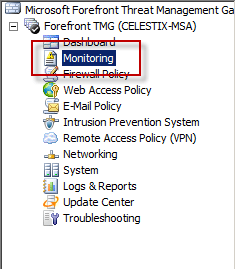
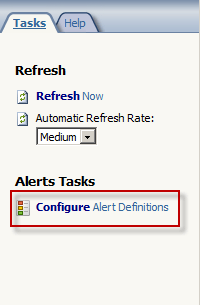
Select the alerts tab and in the tasks pane click the Configure Alert Definitions link.
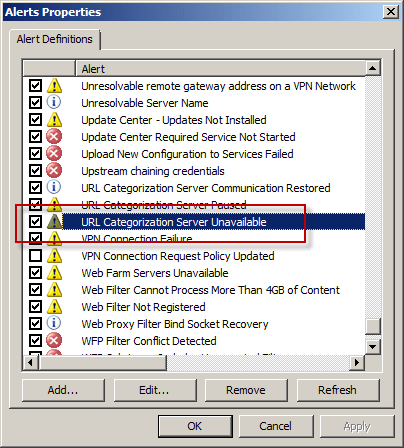
Highlight the URL Categorization Server Unavailable alert and choose Edit…
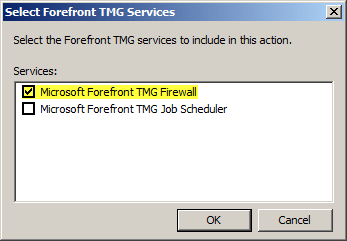
Select the Actions tab, and then check the Stop selected services option and choose Select…
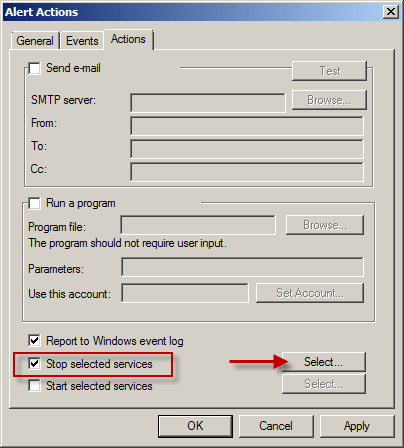
Select Microsoft Forefront TMG Firewall.
For Enterprise arrays, consider creating separate alerts for each array member. In the event a single array member is unable to contact MRS, only that firewall will stop processing traffic. To do this, select the Events tab and select an array member from the By server: dropdown box.
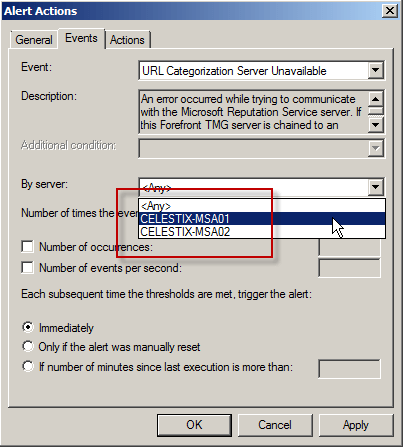
Note: To avoid interrupting service due to temporary unavailability of MRS, you may want to configure the alert to be triggered after a certain number of occurrences, and perhaps specify the number of minutes since the last execution of the event occurred.
Once complete, create an identical alert for each of the remaining array members. You can do this by choosing clicking the Configure Alert Definitions link and selecting Add…, then follow the New Alert Configuration Wizard.
TechNet Edge Interview – TMG and UAG Deployment Options
Recently I had the pleasure of sitting down with David Tesar from TechNet Edge to discuss deployment options for TMG and UAG. I had the opportunity to talk about some of the potential pitfalls to deploying TMG and UAG on a virtual infrastructure, specifically relating to security and performance. You can watch the video here. Enjoy!

Creating User Mode Process Dumps in Microsoft Forefront Threat Management Gateway (TMG) 2010
In a recent post on his blog, Yuri Diogenes shared with us how to create a manual dump of the wspsrv.exe process in TMG by using the Windows Task Manager. This is tremendously helpful in many situations, but there are scenarios that require more flexibility. For this I use procdump.exe from Sysinternals. To create a dump of a user mode process, enter the following command:
procdump <process>
For example, creating a dump of the wspsrv.exe process would look like this:
procdump wspsrv
This will immediately generate a dump file called wspsrv.dmp.
Procdump provides additional flexibility by allowing you to trigger a dump based on specific thresholds. This is extremely useful when troubleshooting intermittent high CPU utilization issues with TMG. For example, if you wanted to create a dump of the wspsrv.exe process when CPU utilization reaches 90% for more than 5 seconds, enter the following command:
procdump –c 90 –s 5 c:\wspsrv.dmp
When CPU utilization stays at or above 90% for more than 5 seconds, a user mode process dump will be generated and saved in the file c:\wspsrv.dmp. This can be beneficial in situations where high CPU utilization prevents you from using the mouse or typing commands at the command prompt. Automating the task of capturing dumps based on triggers also frees the administrator from having to be at the console when the symptom occurs. Additional command line switches allow you to create multiple dumps, increasing your chances of collecting accurate data for troubleshooting.
Configuring Syslog on ISA and TMG with Splunk Log Management
[Updated July 26, 2011: You can also use the Splunk Universal Forwarder to deliver Microsoft ISA Server and Forefront TMG 2010 log files to a Splunk indexing server. More details here.]
In a recent ISAServer.org article I wrote about the enhancements made to the logging infrastructure in Microsoft Forefront Threat Management Gateway (TMG) 2010. With regard to logging, one commonly requested feature for ISA and TMG is integration with syslog. Many organizations collect log data from numerous systems and network devices in their environment and aggregate that data in a central repository. This makes auditing, reporting, and event correlation with multiple systems much easier.
Although ISA and TMG do not support syslog natively, this functionality is available by using a free third-party utility. Snare Epilog for Windows is a tool that takes data from ISA and TMG log files and exports them to a syslog server such as Splunk.
Before installing Snare Epilog for Windows you will need to change the Firewall and Web Proxy logging properties to use the text file format. Be advised that when you do this, you will no longer be able to view historical log data in the ISA or TMG management console.
Configure Logging
To configure TMG for text file logging, open the management console and highlight Logs & Reports in the console tree, then select the Logging tab.

To configure ISA for text file logging, open the management console and highlight Monitoring in the console tree, then select the Logging tab.

For both ISA and TMG, click Configure Firewall Logging or Configure Web Proxy Logging in the Tasks pane.

Select the File option and choose W3C Extended Log File Format. Do the same for Web Proxy Logging.

Configure Syslog Access Rule
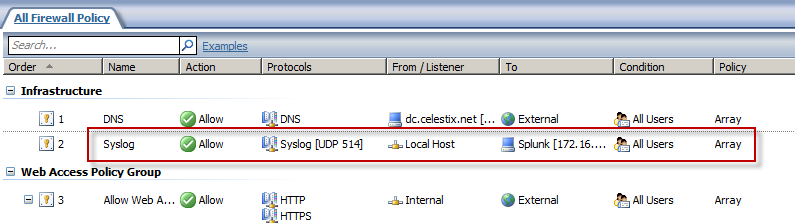
To allow ISA or TMG to communicate with a remote syslog server, an access rule must be created that allows syslog traffic from the Local Host to the syslog server. This will require a new custom protocol to support syslog (UDP 514) with a direction of send.

Once completed, the access rule should look like this.
Installing and Configuring Snare Epilog for Windows
Download and install Snare Epilog for Windows on the ISA or TMG firewall. For ISA or TMG arrays, install Epilog on each array member. Installation is simple and straightforward – just accept the defaults until completed.
To configure Epilog to send log data to a remote syslog server, such as a Splunk log management server, navigate to Start/All Programs/InterSect Alliance and select Epilog for Windows. On the left side, click Log Configuration.

Click Add, and then in the drop-down box, select Microsoft ISA Firewall Logs.

In the Log File or Directory field, enter the location of the firewall logs. For TMG, the default log folder is C:\Program Files\Microsoft Forefront Threat Management Gateway\Logs. For ISA, the default log folder is C:\Program Files\Microsoft ISA Server\ISALogs. In the Log Name Format: field, enter *FWS*.w3c. Click Change Configuration when finished.
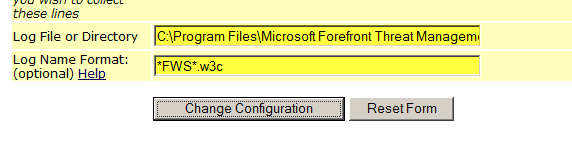
To add Web Proxy log files, repeat the steps above, selecting Microsoft ISA Web Logs as the log type and specifying *WEB*.w3c for the log name format.
Note: For demonstration purposes I have used the default location for the ISA and TMG log files. Best practices dictate that the log files be located on a separate physical disk from the system partition, however.
Click Network Configuration.

Enter the IP address and destination port for your syslog server, and then click Change Configuration.
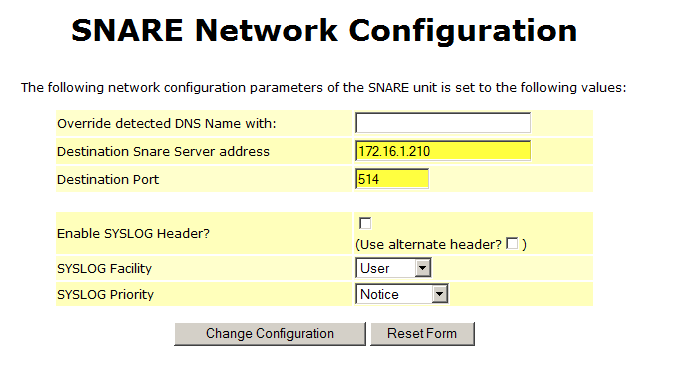
After completing the log and network configuration, click Apply the Latest Audit Configuration to complete the process.

To confirm that Epilog for Windows is configured correctly, click Latest Events to view the current events. Epilog will display any monitored log information.

If everything is configured correctly and working properly, you should now see ISA or TMG log data in your syslog console. If you do not see log data in your syslog console, you may need to restart the Epilog service on the ISA or TMG firewall.

Migrating from ISA Server to Forefront Threat Management Gateway
For organizations that currently have a Microsoft ISA Server 2004/2006 deployment, performing an in-place upgrade to Forefront Threat Management Gateway (TMG) 2010 is not an option. ISA only runs on 32-bit Windows, while TMG runs exclusively on 64-bit Windows. Since there is no direct upgrade path from 32-bit to 64-bit Windows, migrating policies and configuration settings from ISA to TMG is the only alternative. Migration to TMG is supported from the following versions of ISA Server:
ISA Server 2004 Standard/Enterprise with Service Pack 3
ISA Server 2006 Standard/Enterprise with Service Pack 1
Depending on the version of ISA Server you are running, there are four migration paths available when migrating from ISA to TMG (not including TMG MBE):
ISA Server 2004/2006 Standard Edition to TMG Standard Edition
ISA Server 2004/2006 Standard Edition to TMG Enterprise Edition (standalone)
ISA Server 2004/2006 Enterprise Edition (single array/single array member) to TMG Enterprise Edition (standalone)
ISA Server 2004/2006 Enterprise Edition (single or multi-array) to TMG Enterprise Edition (EMS-managed)
Preparation
Migrating from previous versions of ISA server to TMG requires careful planning, consideration, and attention to detail. You should consider thoroughly documenting your existing environment as part of the migration process. This will include:
IP Addressing – Document IP addresses for all network interfaces, including the intra-array interface and any virtual IP addresses when using NLB. If you are using VPN services, be sure to record IP address ranges for remote access clients and site-to-site networks.
Routing – Document any static routes required for “network behind a network” scenarios.
DNS – Record any and all A host records or CNAME alias records in DNS associated with your ISA firewall. This will include statically configured host records for the ISA firewalls themselves, alias records for the proxy array, or WPAD records for client configuration.
WPAD – If you are using DHCP for client configuration, be sure to plan for those changes as well.
Certificates – Be sure to export any and all certificates (along with the private keys) required for operation. This includes machine certificates in a workgroup scenario and SSL certificates used for HTTPS publishing rules. Be advised that Windows Server 2008R2 includes fewer trusted root CA’s by default, so check your certificates carefully.
Active Directory – If you have published web sites utilizing Kerberos Constrained Delegation (KCD), configure the computer account of the new system for delegation. If you have created a Service Principal Name (SPN) entry in the Kerberos database for the Configuration Storage Server (CSS), review and update that information as necessary.
Third-party Plug-ins – If any third-party plug-ins are installed on ISA they will be disabled after being migrated to TMG. Visit the vendor’s web site to see if an updated plug-in for TMG is available.
Scheduled and Custom Reports – Document all reports, as they will not be migrated to TMG.
Do not assume that migrating to TMG will resolve any existing problems in your current environment. Use the ISA Best Practices Analyzer to perform a system health check and resole any outstanding issues prior to migration.
System capacity should be evaluated when planning a migration from ISA to TMG. Although there are performance benefits when running on the latest 64-bit Windows operating system, TMG includes many new advanced protection features, and these capabilities consume additional resources. Use the Forefront TMG 2010 Capacity Planning Tool to determine if you have adequate hardware resources to support your implementation requirements.
Once the planning phase has been completed and the configuration of the new TMG system has passed initial testing, you can begin the actual migration from ISA to TMG.
Exporting from ISA
On the source (ISA 2004/2006 Standard Edition) system, open the management console and highlight the root node. Right-click and choose Export (Backup)…
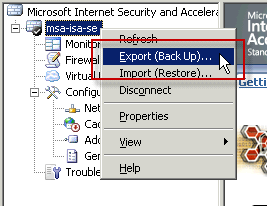
For ISA Enterprise Edition, be sure to select the root node for the Enterprise, as shown here.
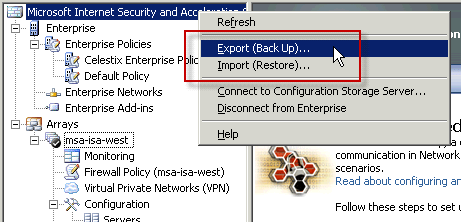
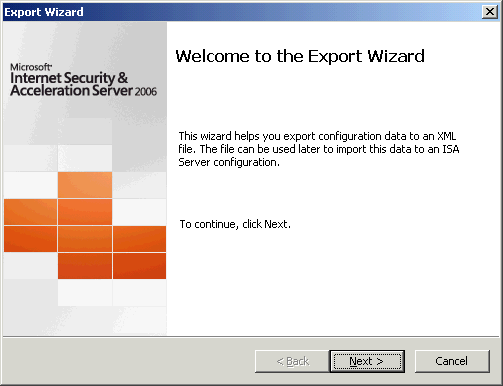
The Export Wizard dialog box opens.
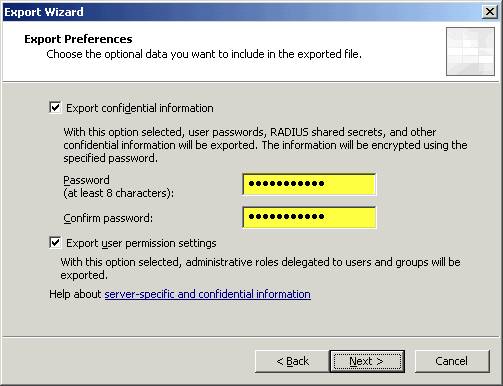
Select the option to Export confidential information and enter a strong password, then select the option to Export user permission settings.
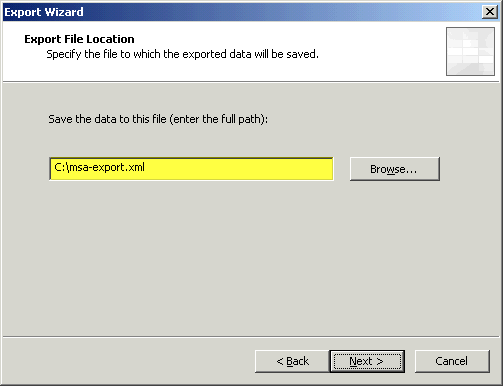
Specify a location to save the XML export file. This file will be copied to the TMG system for import later.
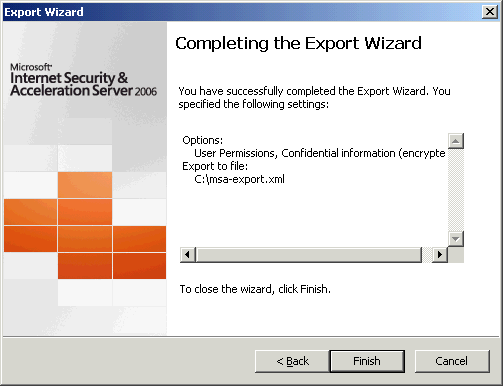
Review the settings and then choose Finish to begin the export.
Importing to TMG
Before importing a configuration to TMG, make certain that the Getting Started Wizard has not been run. This wizard will configure basic access rules that may prevent a configuration from importing properly. If the wizard has been used, remove any existing access policies created by the wizard prior to importing a configuration.
Note: When migrating from ISA Server 2004/2006 Enterprise Edition to TMG Enterprise Edition (EMS-managed) you must import the configuration on the EMS prior to creating an array or adding array members. Also, migrating from ISA Enterprise Edition (single array/single array member) to TMG Enterprise Edition in standalone mode requires an additional step before importing to TMG. For more information, please refer to the note at the end of this post.
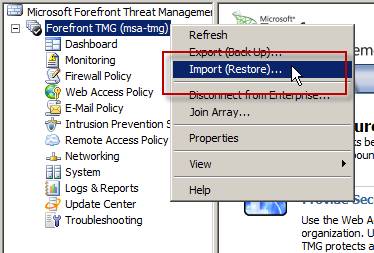
On the target (TMG Standard or Enterprise standalone) system, open the management console and highlight the root node. Right-click and choose Import (Restore)…
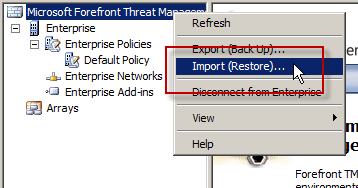
For TMG Enterprise Edition (EMS-managed only), be sure to select the root node for the Enterprise, as show here.
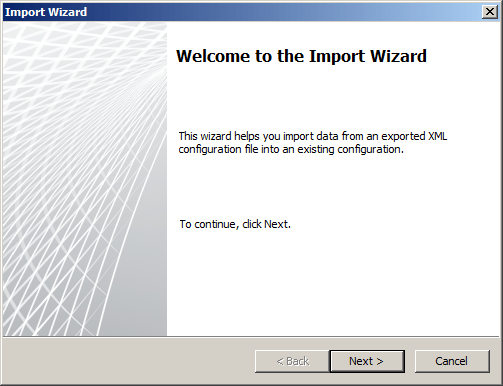
The Import Wizard dialog box opens.
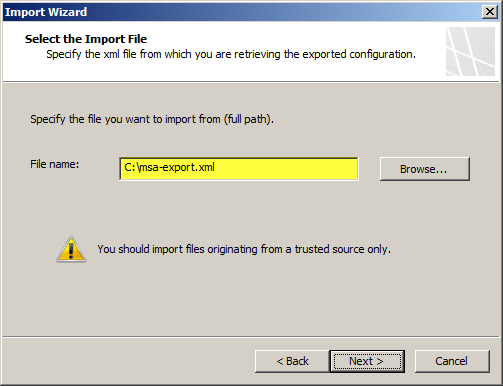
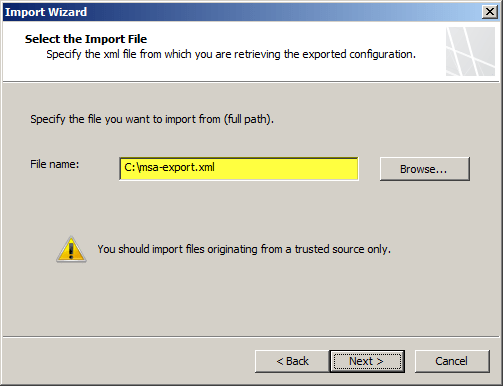
Copy the previously exported XML file to the local TMG system, and then specify that location here.
TMG indicates that the export file is from an earlier version and that it will be upgraded to Forefront TMG.
Enter the password created during the original export.

Review the settings and then choose Finish to begin the import.
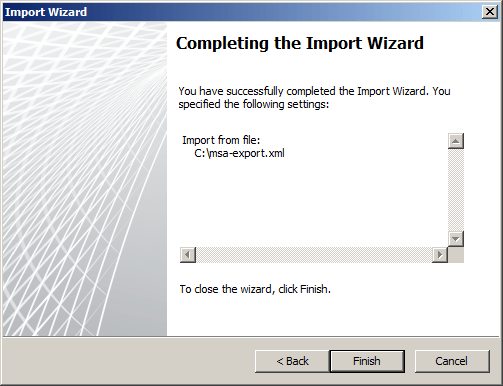
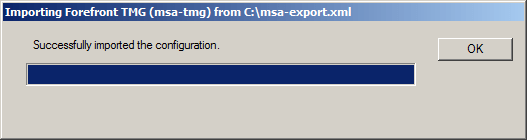
Import complete.
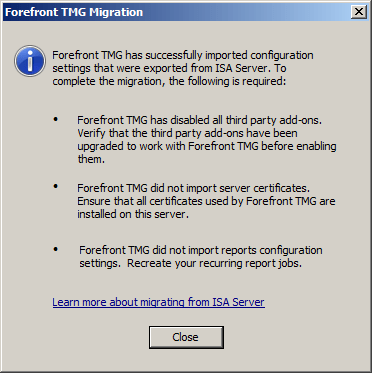
After successfully completing the migration process, TMG indicates that additional steps may be required. Address any issues as necessary.
Click Apply to save changes and update the configuration.
Note: If you have imported any web publishing rules that use HTTPS, verify that the correct SSL certificate is bound to the appropriate web listener used by the publishing rule before applying the configuration.
Exporting from ISA Enterprise (single array/single array member)
Before importing the configuration from ISA Enterprise (with a single array and a single array member) to TMG Enterprise standalone, it will first be necessary to convert the export file to a format recognized by TMG Enterprise standalone. This is required because the ISA Enterprise export contains Enterprise-level configuration and policies which are not supported by TMG Enterprise standalone. To convert the file, download and install the EE Single Server Conversion Tool for Forefront TMG included in the Forefront TMG Tools and SDK.
After installing the conversion tool and copying the ISA Enterprise configuration file to the TMG system, open a command prompt and navigate to C:\Program Files (x86)\Microsoft Forefront TMG Tools\EESingleServerConversion and enter the following command:
EESingleServerConversion.exe /s <source XML file> /t <target XML file>
This will convert the ISA Enterprise configuration file to a format supported on TMG Enterprise standalone. Once the file conversion is complete, the process of importing from ISA Enterprise single array/single array member to TMG Enterprise standalone is the same as importing from ISA Standard Edition.
Using the Windows Command-line FTP Client with Forefront Threat Management Gateway (TMG) 2010
When using the Windows command-line FTP client (ftp.exe) behind a TMG firewall, you may encounter the following errors:
502 Active FTP not allowed
425 Use PORT or PASV first
With the Firewall Client installed and enabled, you may receive the following message:
ftp: bind :Address already in use
If you attempt to send the PASV command, you’ll see that the remote FTP server accepts the command and enters passive mode. However, you will still be unable to list the working directory, with the connection failing or receiving one of the messages listed above.
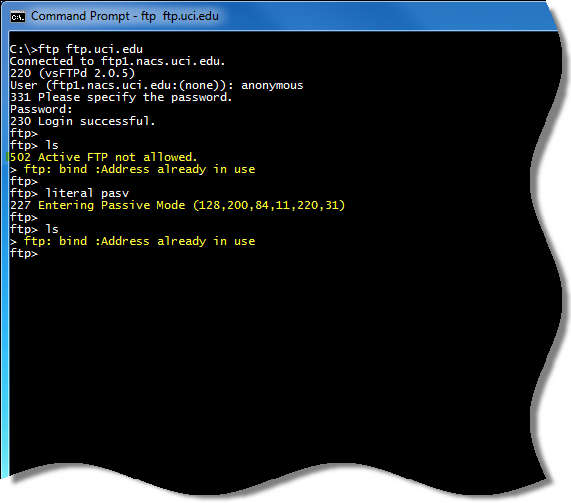
By default, TMG does not support active mode FTP. I won’t go in to all of the details of the FTP protocol here, but understand that FTP is a complex protocol that uses a control channel and a data channel. With active mode FTP, the data connection is initiated by the FTP server, not the client. With passive mode FTP, the data connection is initiated by the client, which is not only more secure, but also more firewall and NAT friendly. You can learn more about the difference between active and passive mode FTP here.
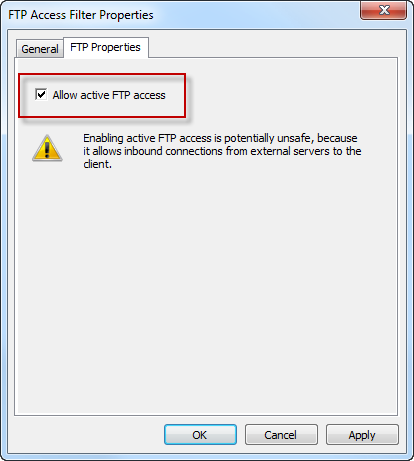
The real problem is that the Windows command-line FTP client does not support passive mode FTP. The best way to resolve this issue is to use a client that supports passive mode FTP. If you must use the Windows command-line FTP client, you can configure the TMG firewall to support active mode FTP. As Yuri Diogenes points out in a recent blog post, this can be accomplished by opening the TMG management console, highlighting the System node in the navigation pane, then right-clicking on the FTP Access Filter and choosing properties. Select the Properties tab and check the box next to Allow active FTP access.
Forefront Threat Management Gateway (TMG) 2010 and Windows Firewall Integration
With previous versions of Microsoft ISA Server running on Windows Server 2003, the Windows Firewall and Internet Connection Sharing (ICS) services were disabled by default.

After installing Microsoft Forefront Threat Management Gateway (TMG) 2010, you may have noticed that the Windows Firewall service is still enabled.

The reason for this is that the TMG Firewall integrates with the local Windows firewall instead of replacing it. This is made possible by the Windows Filtering Platform (WFP) which makes incorporating firewall services in to the operating system’s networking stack much easier. If you take a closer look you will see that TMG is simply a Windows Filtering Platform registrant.
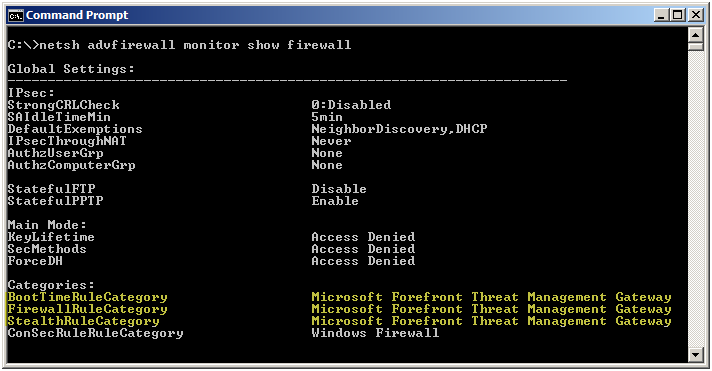
Having the Windows Firewall service running on a TMG firewall is by design. Since TMG depends on the Windows Firewall service for operation, and the Windows Firewall service can be configured via Active Directory Group Policy, there is the potential for conflict that may result in the TMG firewall not working correctly. To avoid this scenario, create a separate OU dedicated to the TMG firewall systems and filter out any GPOs that make changes to the Windows Firewall configuration.
Connect


 Richard Hicks' Forefront TMG Blog