Archive
Forefront TMG Performance Troubleshooting with PAL v2.x Part 1 – Data Collection
Troubleshooting performance issues on any system, especially a Forefront Threat Management Gateway (TMG) 2010 firewall can be a significant challenge for many administrators. The primary tool used for this task is the Windows Performance Monitor. This tool allows the administrator to monitor virtually every aspect of the operating system, applications, and hardware. However, deciding which objects and counters to monitor and how to interpret the data can be difficult.
That’s where Performance Analysis of Logs (PAL) comes in. Created by Microsoft Premiere Field Engineer (PFE) Clint Huffman, this free tool automates the analysis of logged data collected using Performance Monitor. PAL uses templates along with user input to analyze and report on the collected log information. It eliminates guesswork by highlighting counters that exceed predefined thresholds. PAL has been around for many years, but until recently has lacked support for Forefront TMG. Thanks to the effort and hard work by some Forefront PFE’s and CSS engineers, the recent release of PAL v2.0.7 now fully supports Forefront TMG.
PAL can be found at http://pal.codeplex.com/. It is available for 32- and 64-bit systems, and requires that Microsoft .NET Framework 3.5 SP1, Microsoft Chart Controls for .NET Framework 3.5, and PowerShell v2.0 be installed.
In this first part of a two-part series we’ll first look at how to use PAL to configure Performance Monitor to collect the necessary data. In the second part will use PAL to analyze the data and generate a report.
Collecting Data
Enabling private Performance Monitor counters is required to fully analyze performance on the Forefront TMG firewall. Enabling private Performance Monitor counters is accomplished be creating the following registry key on the Forefront TMG firewall:
HKLM\SOFTWARE\Microsoft\RAT\Stingray\Debug\FWSRV
"FWS_PRIVATE_PERFORMANCE_COUNTERS"=dword:00000001
Download .reg file here.
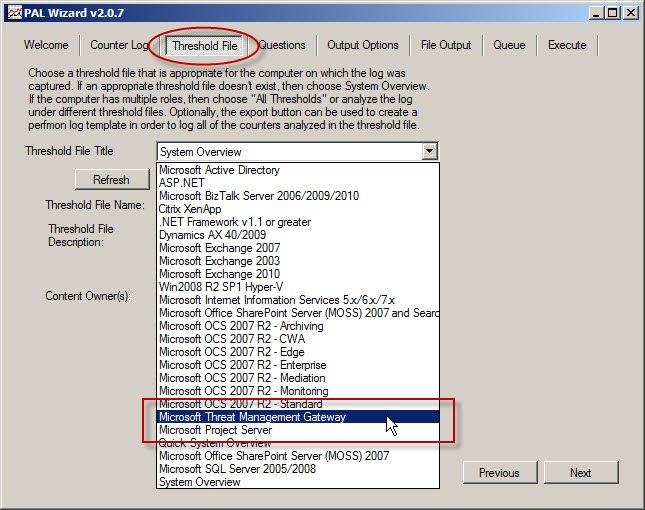
To begin collecting performance data on the Forefront TMG firewall, open the PAL tool and select the Threshold File tab, then click the drop-down box and choose Microsoft Threat Management Gateway.
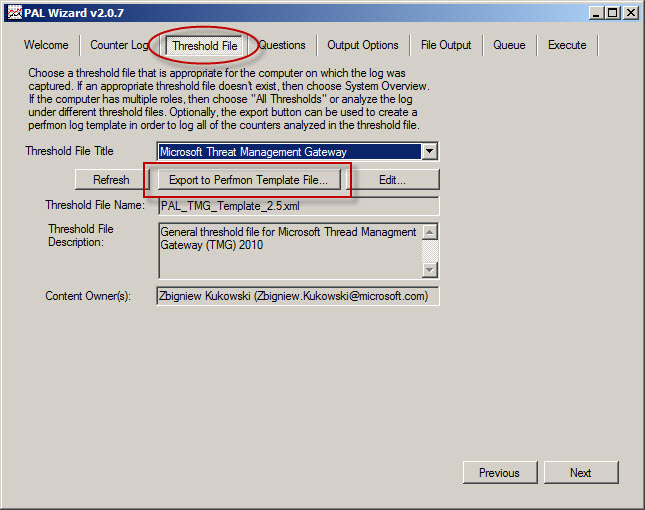
Click Export to Perfmon Template File… and save the file.
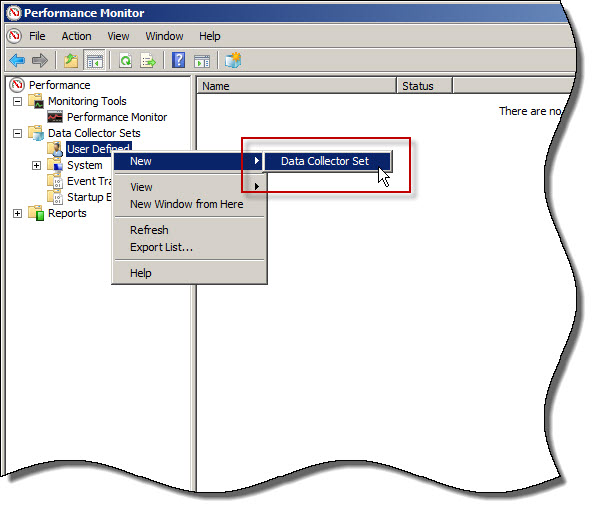
On the TMG firewall, open the Performance Monitor, expand Data Collector Sets, and then right-click User Defined and choose New -> Data Collector Set.
Give the new data collector set a descriptive name, select the option to Create from a template, then click Next.

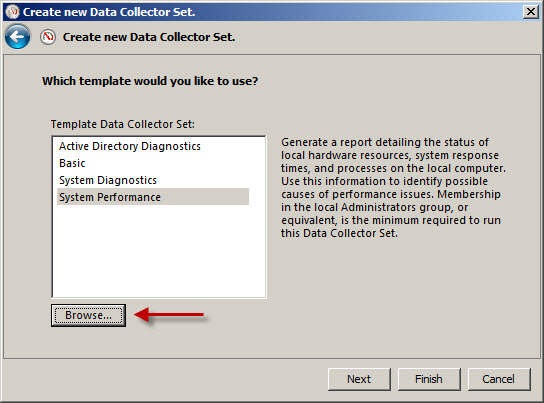
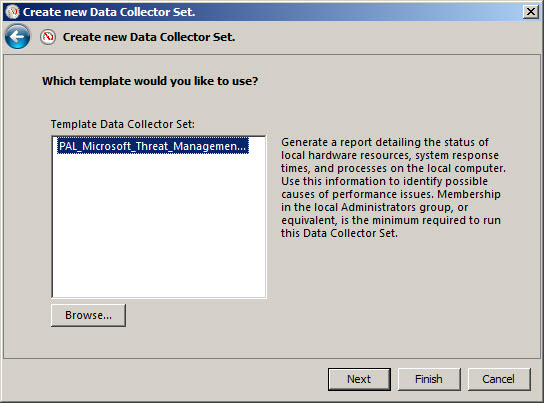
When the wizard prompts for which template to use, click Browse…, then select the PAL template file exported earlier.
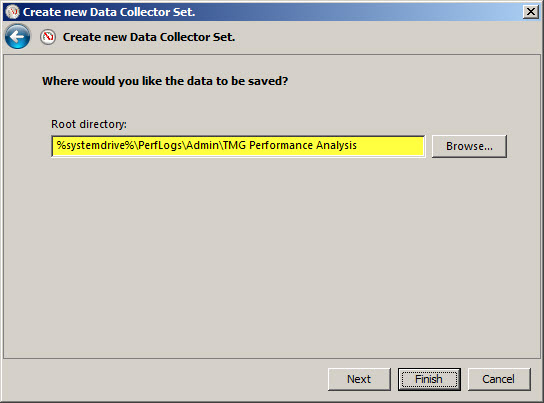
Specify the folder where the logged data will be saved and click Finish.
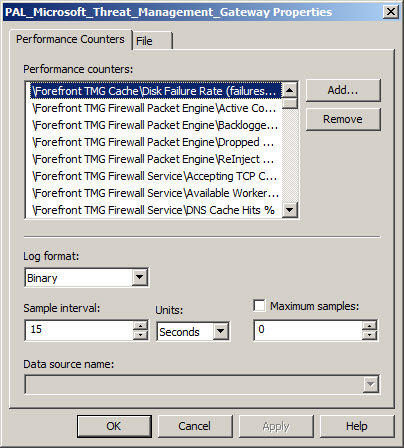
Once complete, the new data collector set will appear. If you right-click the new collector set and choose Properties… you will see that it contains all of the necessary Performance Monitor objects and counters required to perform an in-depth performance analysis of the Forefront TMG firewall. Here you can also change parameters such as the log format (binary log format is recommend, however) and sample interval. You can also change file parameters such as the log file name, the file name format, and the logging mode (overwrite, append, or circular).

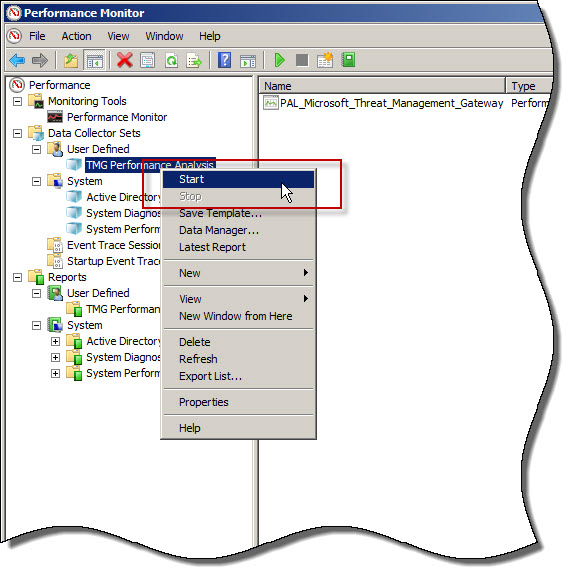
To start collecting data, right-click the data collector set and choose Start. Once the capture has started, you can right-click and select Stop to stop the capture.
You can also schedule data collection by right-clicking the data collector set and choosing Properties, clicking the Schedule tab, and then clicking Add.

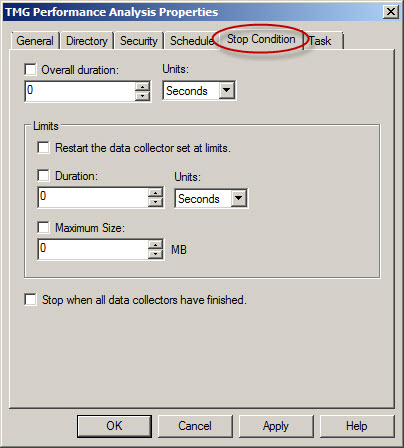
You can also specify a stop condition that will cease data collection based on any number of different parameters including duration and size of the log file.
In the second part of this two-part series we’ll outline how to use PAL to analyze and generate reports of the Performance Monitor data.
Forefront TMG Performance Troubleshooting with PAL v2.x Part 1 – Data Collection
Forefront TMG Performance Troubleshooting with PAL v2.x Part 2 – Data Analysis and Reporting
Configuring Site-to-Site VPN with Forefront TMG and Cisco PIX and ASA
Forefront Threat Management Gateway (TMG) 2010 supports several protocols for establishing a site-to-site (LAN to LAN) VPN, including PPTP, L2TP, and IPsec. Of these, IPsec is the only supported protocol for establishing site-to-site VPN connections with third-party VPN devices such as Cisco PIX and ASA. In this post I will demonstrate how to configure Forefront TMG and the Cisco PIX/ASA to create a site-to-site VPN for the following branch office deployment scenario:
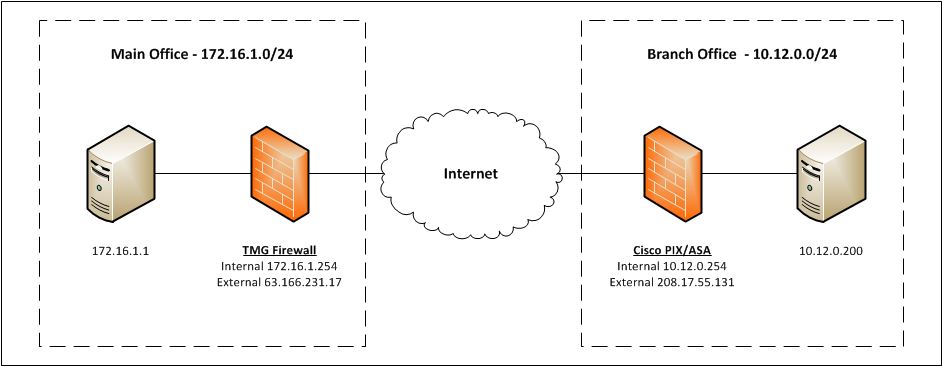
[Note: Site-to-site VPN in TMG is supported only in multi-homed network configurations. The TMG firewall must be configured with a minimum of two network interfaces to function as a site-to-site VPN gateway.]
Configuring the TMG Firewall
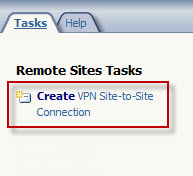
Open the TMG management console and highlight the Remote Access Policy (VPN) node in the navigation tree, then select the Remote Sites tab in the main window. In the Tasks pane on the right side, click Create VPN Site-to-Site Connection.
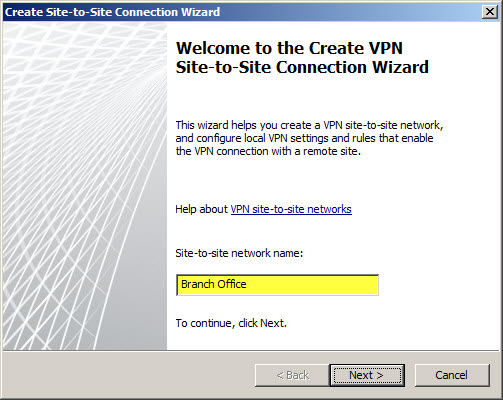
The Site-to-Site Connection Wizard will collect the necessary information to establish the VPN tunnel. Enter a descriptive name when prompted.
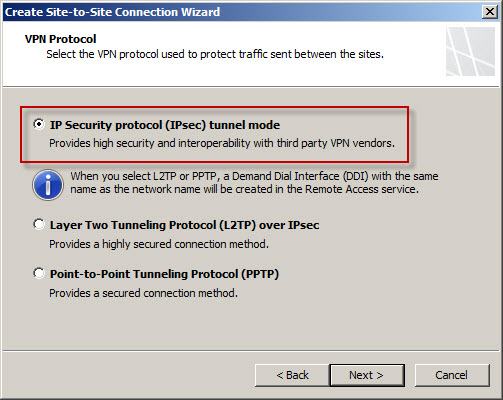
Select IP Security protocol (IPsec) tunnel mode.
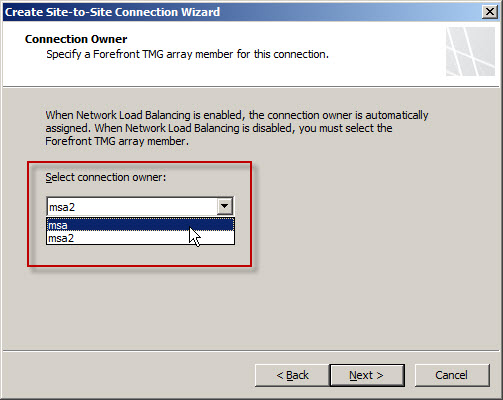
If the TMG firewall is a member of an array that does not have Network Load Balancing (NLB) enabled, select a node to be the connection owner. If NLB is enabled, the connection owner is assigned automatically. [Note: When configuring a site-to-site VPN connection on a TMG firewall that is a member of an array and NLB is not enabled, hosts that are accessed via the tunnel must be configured with a default gateway or static route that will direct traffic back to the array member chosen as the connection owner.]
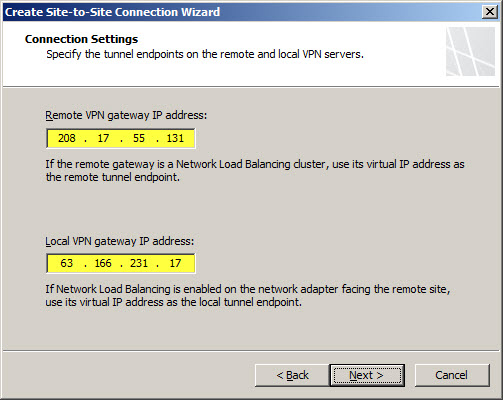
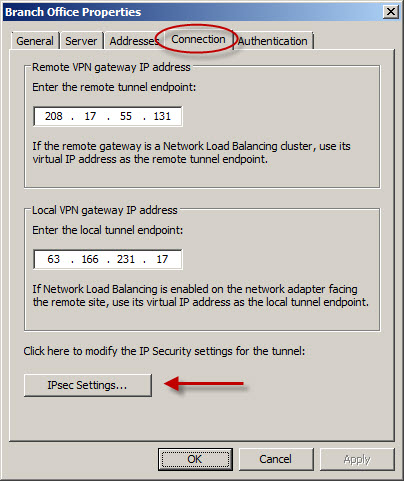
Enter the IP addresses of the remote and local VPN gateways. The remote VPN gateway IP address will be the IP address assigned to the outside network interface on the Cisco PIX/ASA firewall. The local VPN gateway IP address will be the IP address assigned to the External network interface on the TMG firewall. If the TMG firewall is part of an NLB-enabled array, specify the Virtual IP (VIP) address assigned to the External network of the array.
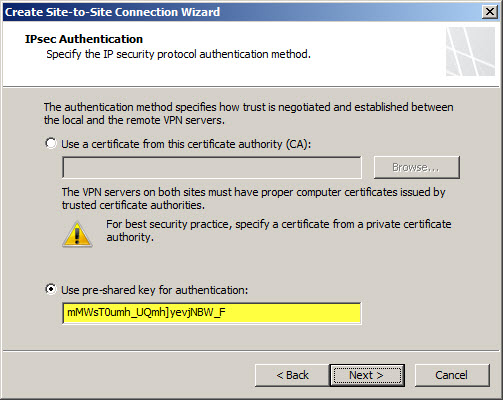
Certificates are the most secure and preferred method for authenticating tunnel endpoints, but because they are more complex and difficult to configure, many security administrators opt instead to use pre-shared keys. When choosing a key, be sure it is very long and complex (up to 128 characters – it is a good idea to use a random password generator for this task). Although using special characters is an excellent idea for complex keys, avoid using the question mark as the PIX and ASA object to this.
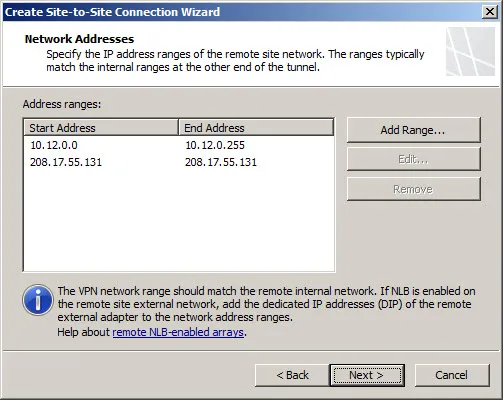
Add the address range(s) of the remote site network(s). It is recommended that these addresses be configured along subnet boundaries.
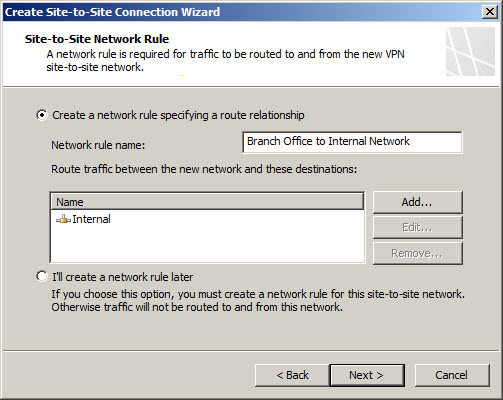
A network relationship needs to be established between the Internal network and the remote site network. The wizard automatically establishes a route relationship between these two networks.
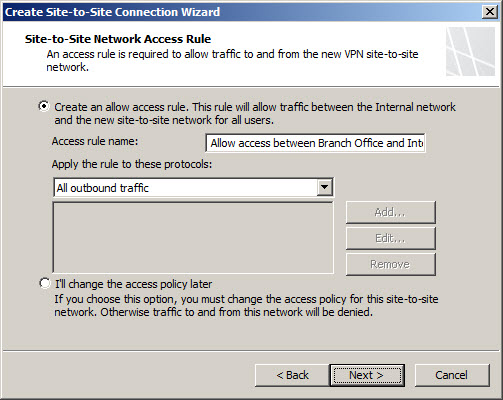
An access rule is required to allow communication between the Internal network and the remote site network. If this is a fully trusted remote network (e.g. branch office), select all outbound traffic. If the remote network is untrusted (e.g. business partner), specify which protocols and ports are allowed.
Review the configuration and select Finish.
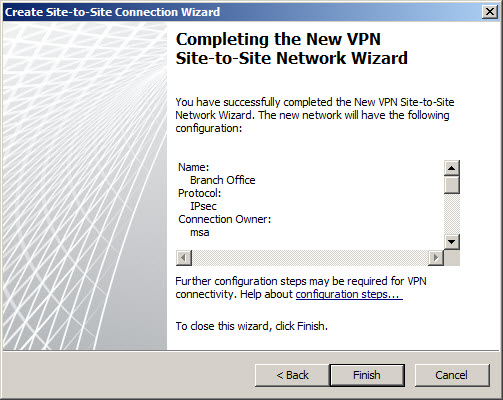
Do not apply the configuration now. The default encryption settings chosen by TMG are incompatible with the Cisco PIX and ASA. To change these settings to match the settings on the PIX/ASA, right-click the remote site and choose properties. Choose the Connection tab and then click IPsec Settings.
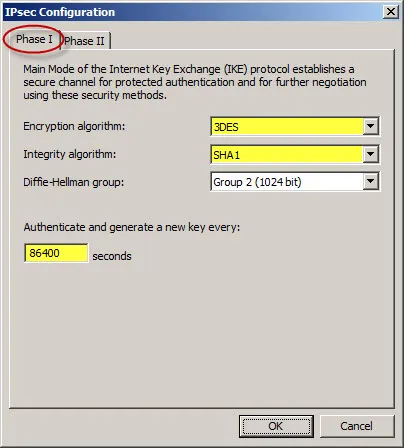
For the Phase I settings, change the Encryption algorithm to 3DES, the Integrity algorithm to SHA1, and the Authenticate and generate a new key every: to 86400 seconds (24 hours).
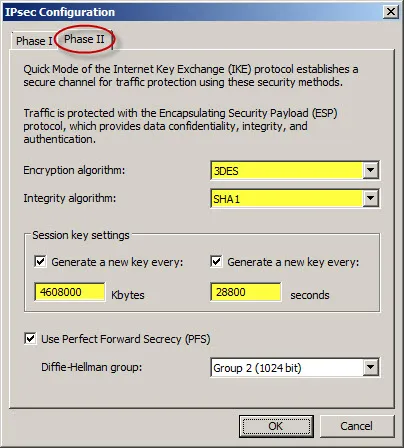
For the Phase II settings, change the Encryption algorithm to 3DES and the Integrity algorithm to SHA1. Change the Session key settings so that a new key is generated every 4608000 Kbytes or 28800 seconds (8 hours).
Once complete, save and apply the changes.
Configuring the Cisco ASA 7.x
Connect to the ASA with administrative privileges and enter enable mode. To configure the management connection (phase 1) parameters, establish an ISAKMP policy and set the parameters to use a pre-shared key, use 3DES/SHA for encryption and integrity, specify the use of Diffie-Hellman group 2 (1024-bit) and authenticate and generate a new key every 86400 seconds (24 hours).
crypto isakmp policy 10
authentication pre-share
encryption 3des
hash sha
group 2
lifetime 86400
crypto isakmp enable outside
Configure a tunnel-group for the remote peer and establish authentication using a pre-shared key.
tunnel-group 63.166.231.17 type ipsec-l2l
tunnel-group 63.166.231.17 ipsec-attributes
pre-shared-key mMWsT0umh_UQmh]yevjNBW_F
For the data connection (phase 2) create an access rule that defines which traffic to protect using this tunnel. In this example, create an access rule that defines all IP traffic going from 10.12.0.0/24 to 172.16.1.0/24.
access-list branch_office extended permit ip 10.12.0.0 255.255.255.0 172.16.1.0 255.255.255.0
Create a NAT rule to exempt any traffic matching this access rule from NAT.
nat (inside) 0 access-list branch_office
Define which encryption algorithms will be used to protect this traffic. In this example specify the use of 3DES and SHA1.
crypto ipsec transform-set branch_office esp-3des esp-sha-hmac
Build the crypto map, indicating that any traffic that matches the branch_office ACL is sent to the specified remote peer using the encryption algorithm defined in the brach_office transform set with Perfect Forward Secrecy (PFS) enabled using Diffie-Hellman Group 2.
crypto map branch_office_map 1 match address branch_office
crypto map branch_office_map 1 set pfs group2
crypto map branch_office_map 1 set peer 63.166.231.17
crypto map branch_office_map 1 set transform-set branch_office
Activate the crypto map on the ASA’s outside interface.
crypto map branch_office_map interface outside
Configuring the Cisco PIX 6.x
Creating a site-to-site VPN connection on a Cisco PIX is similar but slightly different than configuring an ASA. For example, when configuring the management connection (phase 1) parameters using the same configuration used previously, use the following commands:
crypto isakmp policy 10 authen pre-share
crypto isakmp policy 10 encrypt 3des
crypto isakmp policy 10 hash sha
crypto isakmp policy 10 group 2
crypto isakmp policy 10 lifetime 86400
crypto isakmp key mMWsT0umh_UQmh]yevjNBW_F address 63.166.231.17 netmask 255.255.255.255
crypto isakmp enable outside
Create the access rule defining which traffic to protect using this tunnel.
access-list branch_office permit ip 10.12.0.0 255.255.255.0 172.16.1.0 255.255.255.0
Exempt this traffic from NAT.
nat (inside) 0 access-list branch_office
Protect this traffic using 3DES and SHA1.
crypto ipsec transform-set branch_office esp-3des esp-sha-hmac
Build the crypto map.
crypto map branch_office_map 1 ipsec-isakmp
crypto map branch_office_map 1 match address branch_office
crypto map branch_office_map 1 set peer 63.166.231.17
crypto map branch_office_map 1 set transform-set branch_office
crypto map branch_office_map 1 set pfs group2
Activate the crypto map on the PIX outside interface.
crypto map branch_office_map interface outside
Unlike the ASA, the PIX requires an access rule to allow tunneled traffic to cross the firewall. For the branch office scenario (fully trusted network), allow all IP traffic from the 172.16.1.0/24 network to reach the 10.12.0.0/24 network and assign that access rule to the outside interface.
access-list main_office_in permit ip 172.16.1.0 255.255.255.0 10.12.0.0 255.255.255.0
access-group main_office_in in interface outside
Due to formatting issues, some of the text in the PIX and ASA command examples may be truncated. You can download the script files for these examples here: PIX | ASA.
HTTP to HTTPS Redirection Options in Forefront TMG and UAG
When publishing SSL-protected web sites such as Microsoft Outlook Web App with Forefront Threat Management Gateway (TMG) 2010 or Unified Access Gateway (UAG) 2010, it is often desirable to allow clients to enter the URL of the site without specifying the HTTPS protocol explicitly. For example, when publishing Outlook Web App (OWA) 2010 where the full URL is https://mail.celestix.net/owa/, for convenience an administrator might want to redirect non-secure requests for http://mail.celestix.net/owa/ to use the secure HTTPS protocol automatically. This can be done in a number of ways, depending on which Forefront solution is used for publishing.
Forefront TMG
With TMG, HTTPS redirection can be enabled by opening the properties of the web listener used in the publishing rule and selecting Enable HTTPS connections on port: and Redirect authenticated traffic from HTTP to HTTPS.
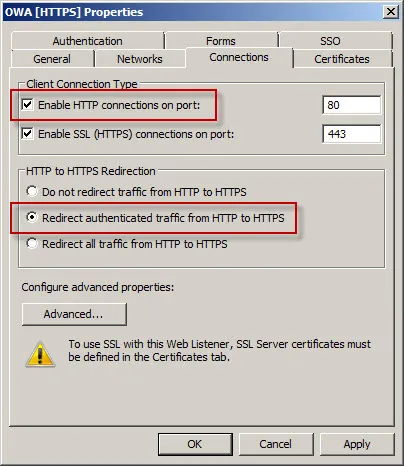
Now when users request the non-secure http://mail.celestix.net/owa/ they will automatically be redirected to the secure https://mail.celestix.net/owa/.
Even more convenient is to redirect requests for the base URL http://mail.celestix.net/ to the correct path https://mail.celestix.net/owa/. The easiest way to accomplish this is to create a new publishing rule that denies requests to http://mail.celestix.net/ and redirects them to https://mail.celestix.net/owa/. To enable this functionality, use the Web Site Publishing Wizard to create a publishing rule that denies access to http://mail.celesitx.net/ and redirects those requests to https://mail.celestix.net/owa/.
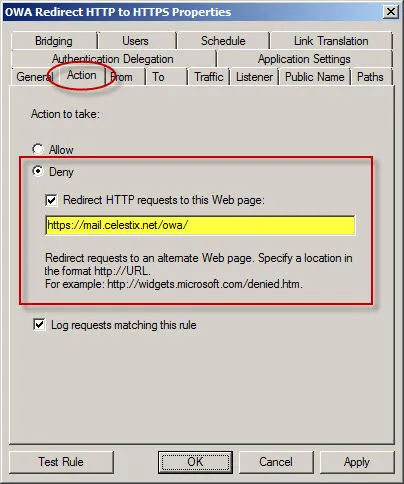
Be sure to place this rule before the publishing rule allowing access to the SSL-protected web site.
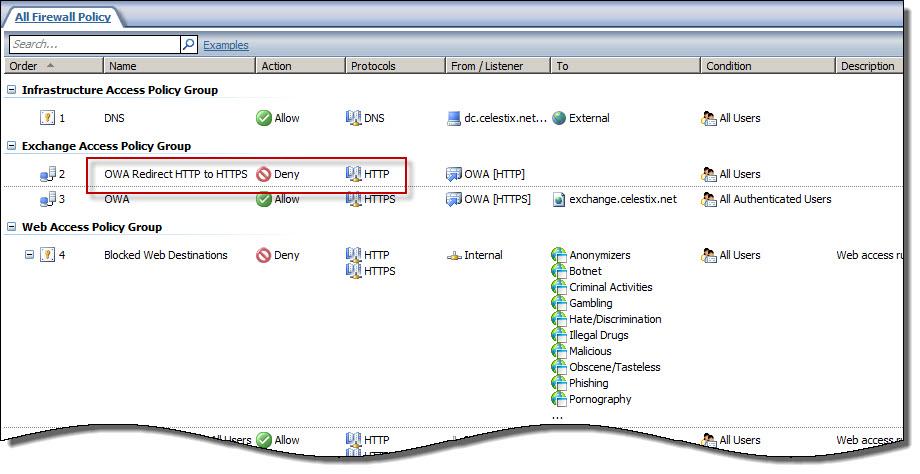
Now when users request the non-secure http://mail.celestix.net/ they will automatically be redirected to the secure https://mail.celestix.net/owa/.
Forefront UAG
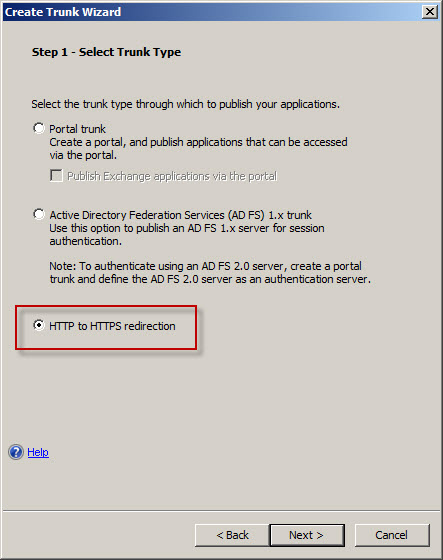
Configuring Forefront UAG to redirect HTTP to HTTPS is even simpler. After you’ve created a trunk and published OWA, right-click HTTP Connections in the UAG management console navigation tree, select New Trunk, and then select the HTTP to HTTPS redirection option.
Configuring Forefront TMG for Microsoft System Center Data Protection Manager (DPM) 2010
Microsoft System Center Data Protection Manager (DPM) 2010 is a management product that provides data protection for Windows systems. More advanced than Windows Backup, DPM uses Protection Agents that provide advanced capabilities. Getting the DPM server to communicate with the Protection Agent installed on a Forefront TMG 2010 firewall can be challenging, however. DPM server-to-agent communication takes place over several non-standard ports, and it also relies on DCOM. Unfortunately the Forefront TMG RPC filter does not fully support DCOM , so we’ll need to employ a workaround to ensure that DPM communication works correctly.
[Note: Many resources that I found on the Internet detailing how to configure TMG for DPM were incorrect and didn’t work. Those that did work didn’t explain why, involved unnecessary steps, or included very broad rule sets that allowed more access to the TMG firewall than absolutely necessary. In this post I’ll provide a definitive and comprehensive guide to preparing the TMG firewall to work with DPM and its Protection Agent, while at the same time adhering to the principle of least privilege and maintaining the lowest possible attack surface.]
As stated, DPM uses Protection Agents installed on each system it manages and protects. This agent can be deployed remotely from the DPM console or installed manually and later ‘attached’. When installing the Protection Agent on a Forefront TMG 2010 firewall it is recommended that the agent be installed manually following the instructions here. Since there is no system policy access rule for DPM, we’ll need to configure access rules to allow the required communication to and from the Protection Agent on the TMG firewall and the DPM server. Begin by creating three new protocols as follows:
DPM Agent Coordinator – TCP 5718 outbound
DPM Protection Agent – TCP 5719 outbound
DPM Dynamic Ports – TCP 50000-50050 outbound
Create a Computer or a Computer Set network object that includes the IP address of your DPM server. DO NOT add the DPM server to the Enterprise Remote Management Computers or Remote Management Computers network objects.
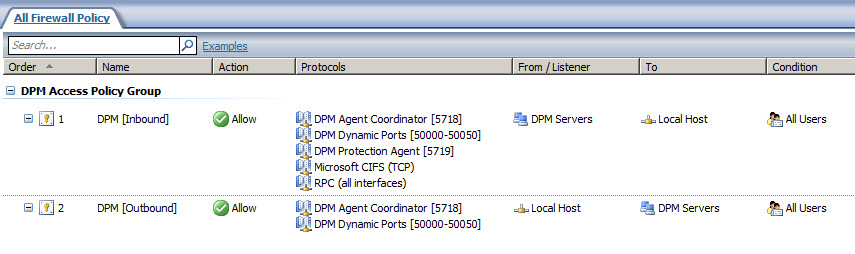
Next, create an access rule called DPM [Inbound]. The action will be allow and the protocols will include the three new protocols you just created, along with Microsoft CIFS (TCP) and RPC (all interfaces). The source will be the DPM server and the destination will be Local Host for all users. Now right-click on the access rule and choose Configure RPC protocol.

Uncheck the box next to Enforce strict RPC compliance and choose Ok.

Create another access rule called DPM [Outbound]. The action will be allow and the protocols will include only DPM Agent Coordinator [5718] and DPM Dynamic Ports [50000-50050]. The source will be Local Host and the destination will be the DPM server for all users. Once complete the rule set should look like this:
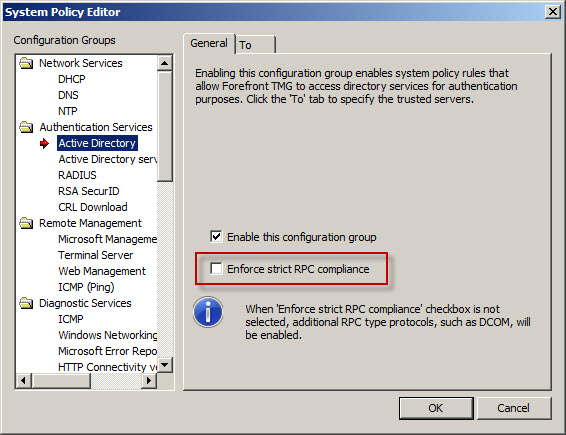
Next, right-click the Firewall Policy node in the TMG management console navigation tree and select All Tasks | System Policy | Edit System Policy. Under the Authentication Services configuration group highlight Active Directory. Select the General tab and uncheck the box next to Enforce strict RPC compliance.
The last step required to allow the DPM server to communicate with a Protection Agent installed on the TMG firewall involves making registry changes to restrict RPC communication to a specific range of ports. This is necessary because, as I mentioned earlier, the TMG RPC filter does not fully support DCOM and is unable to manage the dynamic port assignments required for this communication. This change must be made to both the TMG firewall and the DPM server. To make this change, open the registry editor on each system and navigate to the HKLM\Software\Microsoft\Rpc\Internet key.
Create the following new keys:
Ports – REG_MULTI_SZ, 50000-50050
PortsInternetAvailable – REG_SZ, Y
UseInternetPorts – REG_SZ, Y
You can download a .reg file and the TMG access policies here.
Note: For this limited demonstration I have chosen to restrict the dynamic port range to 50 ports. In a real production environment, you may need to increase this limit. An excellent reference article that includes a formula to determine the number of ports required can be found here.
Once the registry changes have been made, the system will have to be restarted for the changes to take effect. After both systems are back online, install the Protection Agent manually on the TMG firewall and then attach the agent in the DPM management console. You can now manage TMG firewall protection in DPM just as you would any other Windows system.
More about Determining TMG Version Numbers
A common method for determining the version number for an instance of Forefront Threat Management Gateway (TMG) 2010 is to open the TMG management console and from the drop down menu select Help and About Forefront Threat Management Gateway…
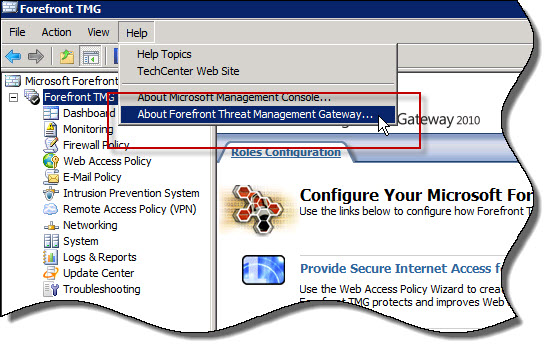

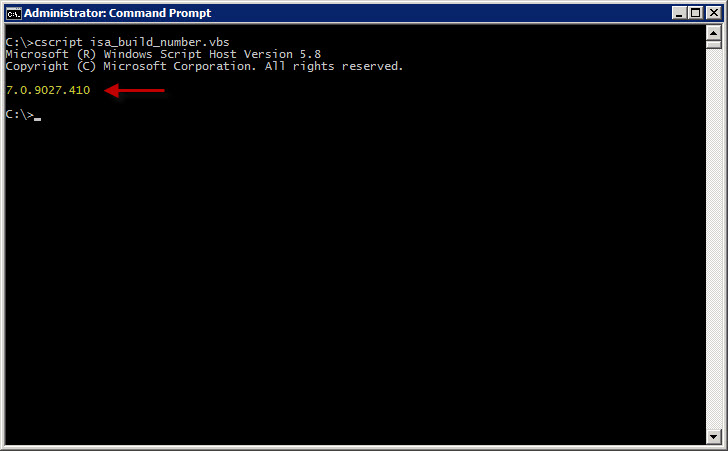
Recently I discovered that this method may not be the most reliable way to determine the TMG version number. After installing Update 2 for TMG SP 1 (version number 7.0.9027.410) I noticed that the TMG management console was still reporting the build number from the previous update (7.0.9027.400 as shown above). However, using the script I demonstrated in a previous blog post the build number is reported correctly as 7.0.9027.410.
To verify the version number once more, I highlighted the System node in the navigation tree and clicked the Servers tab. Here the version number is again displayed correctly as 7.0.9027.410.

The moral of the story here is not to rely only on the Help | About Forefront Threat Management Gateway… drop down menu in the TMG management console to determine the version number. To accurately determine the TMG version, check the version number in the Servers tab of the System node in the TMG management console or use the COM script.
Installing TMG on Windows Server 2008 R2 Core
Sounds like a great idea, right? I agree! If you found this post hoping to learn how to install Microsoft Forefront Threat Management Gateway (TMG) 2010 on Windows Server core, then I apologize for misleading you. Sadly, the reality is that TMG cannot be installed on any version of Windows Server core. It would seem to be a natural choice as the underlying operating system for the TMG firewall since it has fewer installed services, which reduces patching requirements and minimizes the attack surface. Unfortunately TMG has dependencies on roles and features, namely the Network Policy Server (NPS) and the Routing and Remote Access Service (RRAS) that are not available on Windows Server core installations.
Personally I love Windows Server core. Since I began working with computers many years before Windows arrived on the scene, I’m more than comfortable at the command line. I use Windows Server core in my virtual labs for infrastructure services such as domain controllers, DNS servers, and even certificate services (which is not trivial to get working correctly!). Having Windows Server core as the supporting operating system for a TMG firewall would be wonderful, however, in my discussions with the TMG development team it appears that updating TMG to run on Windows Server core would be a difficult (if not impossible) task. Given that there has been little demand for TMG on Windows Server core, I don’t expect this to be a supported configuration any time soon. If future versions of Windows Server core include support for NPS and RRAS (and why not, it would be a great idea!) then perhaps we’ll see TMG supported on Windows Server core in the future.
A Word about Network Interface Port Speed and Duplex Settings
When configuring network interface settings on a Forefront Threat Management Gateway (TMG) 2010 firewall, I strongly recommend that the port speed and duplex settings on all active network interfaces be manually configured. Although autonegotiation is typically enabled by default, and in most cases works without issue, I prefer to eliminate any possibility that a slower link speed or incorrect duplex setting is negotiated in error by configuring these settings explicitly.
Some believe you can configure one side of a link (either the host or the switch) manually and leave the other side set to autonegotiate. The theory is that the host set to autonegotiate will determine what settings the other side has configured and automatically choose those. This is not completely true and doesn’t work as expected. When one side of a link is set for autonegotiation and the other side is not (or doesn’t support it), a process called parallel detection takes place whereby the device that is configured to autonegotiate can determine the port speed of the other device, but it cannot determine the duplex settings and defaults to half duplex. Often this results in a duplex mismatch, which will cause extremely poor performance.
So, when configuring port speed and duplex settings, always remember that BOTH sides of the link should be configured identically. That is, if the switch is configured for 100Mbps/full duplex operation, the network interface on the TMG firewall should be configured the same. On some systems (mostly older ones), when attempting to change these settings, you might notice that there is no option to enable 1000Mbps (gigabit) at full duplex operation. The only available option is autonegotiate 1000Mbps.
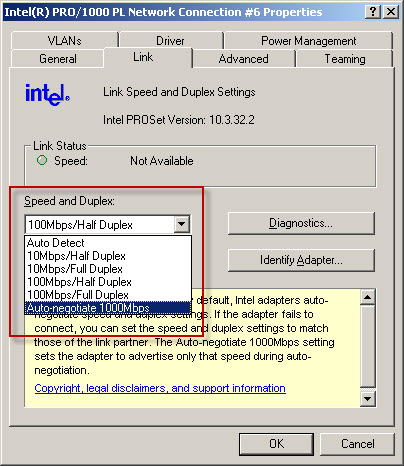
Why is there no option to select 1000Mbps and full duplex? Because the designers of the 1000BASE-T specification (IEEE 802.3ab) made duplex autonegotiation mandatory when operating at 1000Mbps port speed over copper cabling. For this reason some network interface management software may limit your choices and not allow you to select this option. In my experience it appears that adherence to this mandate has been relaxed as most newer systems I have worked with now give you the option of configuring 1000Mbps and full duplex operation with copper cabling. If you have an older system and don’t have the option to specify 1000Mbps/full duplex on the network interface, I would recommend updating your network interface device drivers. If you still don’t have the option to specify 1000Mbps/full duplex you may need to replace the network interface card itself.
Fwengmon.exe and Forefront Threat Management Gateway (TMG) 2010
For engineers performing advanced troubleshooting on TMG, you have likely noticed that fwengmon.exe, a utility that you used with previous versions of ISA, no longer functions with TMG.
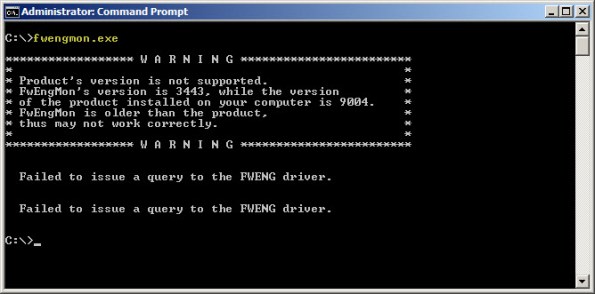
Not to worry! This detailed information is readily accessible using netsh.exe in the tmg context. The following is a list of common commands and their fwengmon.exe equivalents (where applicable):
To view creation objects, active sessions, NLB hook rules, NLB server assigned ranges, and dynamic and persistent allowed ranges:
netsh tmg show all
To view connections only (fwengmon.exe /session or /s):
netsh tmg show connections
To view detailed information about a specific connection (fwengmon.exe /s <ID>):
netsh tmg show connections <connection_number>
To view firewall creation elements (fwengmon.exe /creations or /c):
netsh tmg show creations
Note: You can sort and filter output from show connections or show creations by source IP address, source port, destination IP address, destination port, or protocol using the sort and filter parameters (fwengmon.exe /organize or /o, or fwengnmon.exe /filter or /f). You can also limit the number of connections or creations displayed using the display parameter. Type netsh tmg show connections ? or netsh tmg show creations ? for more information.
To show NLB hook rules (fwengmon.exe /querynlb or /n):
netsh tmg show nlbhookrules
To view packets held in kernel mode:
netsh tmg show holdpackets
To view packets held in user mode:
netsh tmg show usermodepackets
To view global firewall engine driver settings:
netsh tmg show global
To specify a temporary address range to exempt from firewall filtering (fwengmon.exe /allow or /a):
netsh tmg add allowedrange <beginning_ip> <ending_ip>
To specify a permanent address range to exempt from firewall filtering (fwengmon.exe /allow or /a):
netsh tmg add allowedrange <beginning_ip> <ending_ip> persistent
Note: netsh tmg add allowedrange allows all traffic to and from hosts within the IP address range specified to bypass stateful firewall inspection completely. It should be used for troubleshooting purposes only.
To delete a temporary address range (fwengmon.exe /noallow):
netsh tmg delete allowedrange id=<id>
To delete a permanent address range (fwengmon.exe /noallow):
netsh tmg delete allowedrange id=<id> persistent
Mail and OCS Server Publishing using TMG on Forefront Unified Access Gateway (UAG) 2010
In a recent post I outlined some of the basic differences between Forefront Threat Management Gateway (TMG) 2010 and Unified Access Gateway (UAG) 2010. Although I indicated that UAG includes TMG under the covers, TMG is intended to provide protection for the UAG host only. It cannot be used to provide firewall, outbound proxy, or VPN services. There are specific instances when leveraging the underlying TMG services is allowed and supported. As the UAG Support Boundaries indicate, you can use TMG on UAG for Exchange mail server publishing (SMTP/SMPTS, POP3/POP3S, and IMAP/IMAPS) and Office Communications Server (OCS) SIP traffic publishing (Communicator Web Access (CWA) should be published using UAG). This means that if you are planning to publish Exchange and OCS, you can accomplish this using UAG alone. You are not required to deploy TMG or another firewall to provide secure access to mail server-to-server communication or OCS SIP traffic.
TMG and IANA Unallocated Reserved Networks
Recently the engineers at Celestix UK brought an interesting issue to my attention. They were working with a customer to configure TMG to protect an internal network using the address space 192.0.0.0/24. When attempting to assign an IP address from this network to the Internal network interface of the TMG firewall they would receive the following error:
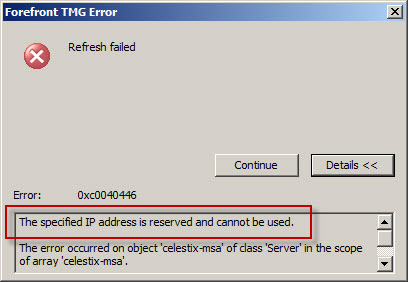
As it turns out, the 192.0.0.0/24 network is IANA reserved and not allocated (which is different than reserved allocated networks like RFC 1918 private address ranges, APIPA, loopback, multicast, etc.). This was news to me! As we discovered, you cannot configure any network interface on the TMG firewall using an address from any unallocated reserved network. Interestingly enough, my good friend Ed Horley pointed out there are many more IANA reserved networks that I was completely unaware of. You can find more information about those networks here.
If you have to configure a TMG firewall to protect an unallocated reserved network, your only options are to readdress the network using an allocated address range or place a router in front of TMG.
Connect


 Richard Hicks' Forefront TMG Blog