Access to the Web Proxy Filter on Forefront TMG 2010 is Denied
Frequently I am asked to review Forefront TMG 2010 firewall logs for suspicious behavior. Often times a security administrator will express concerns about many instances of denied requests by clients attempting to connect to Forefront TMG’s web proxy service. On busy TMG firewalls there may be hundreds or even thousands of instances where the following access denied record appears in the Web Proxy logs:
Status: 12209 Forefront TMG requires authorization to fulfill the request.
Access to the Web Proxy filter is denied.

On a Forefront TMG 2010 firewall where web access rules require authentication, this behavior is expected and by design. It does not indicate an attack of any type on the Forefront TMG firewall or its web proxy service. The root cause for the flood of access denied messages has to do with how the Web Proxy client behaves when accessing resources via an authenticating web proxy like the Forefront TMG 2010 firewall. When a Web Proxy client sends its initial request for a resource it will always attempt to do so anonymously. Only when prompted for authentication by the firewall will the web proxy client provide the credentials of the logged on user.
Consider a scenario where Forefront TMG is configured to only allow authenticated users to access the Internet. The firewall policy might look something like this:
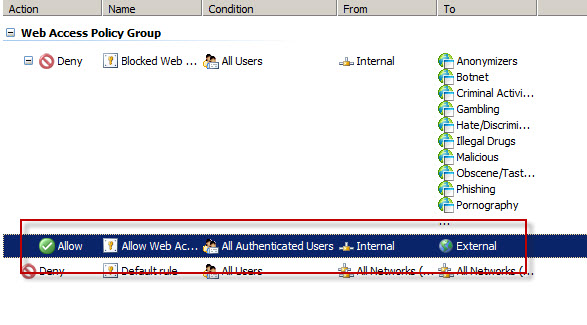
Below is a network trace taken from a client attempting to access http://www.bing.com/ through a TMG firewall as configured above.

We can see that the first three packets of the trace are the TCP three-way handshake taking place between the web proxy client and the Forefront TMG firewall. Once a connection to the web proxy listener has been established, in packet 8 the client sends an HTTP GET request for http://www.bing.com/. In packet 13 you’ll see that the Forefront TMG firewall denied the request and replied with an HTTP 407 response, indicating that proxy authentication was required. This was done because the Forefront TMG firewall did not have any access rules which would allow the anonymous request. It did, however, have access rules that might apply to this request, depending on who the user is. This response also includes which authentication methods the web proxy listener is configured to accept.
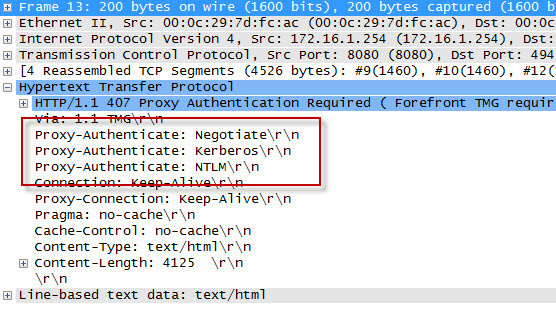
In packet 15 the web proxy client again submits its HTTP GET request for http://www.bing.com/, this time indicating that it would like to use the NTLM Secure Service Provider (SSP). In packet 16 the Forefront TMG web proxy denies the request yet again and replies with another HTTP 407 response, this time including the NTLM challenge. In packet 17 the client submits an HTTP GET request for http://www.bing.com/ and supplies the credentials in the form of an NTLM response.
As you can see, each time a web proxy client requests a resource through a Forefront TMG firewall that requires NTLM authentication the client is actually denied twice during the transaction before being successfully authenticated and allowed access. If this sounds like a lot of overhead for authenticated proxy traffic, you are right. Denying each request twice consumes additional resources on the Forefront TMG firewall and introduces some latency for clients as well. In addition, the burden of authenticating the user is placed on the TMG firewall when using NTLM, as the firewall itself must contact a domain controller to authenticate the user. You can reduce the authentication load on the Forefront TMG firewall considerably by enabling Kerberos authentication. When the Forefront TMG firewall is configured to use Kerberos there is only a single denied request and HTTP 407 response. The client must then contact a domain controller and obtain a Kerberos ticket to present to the TMG firewall to gain access to the resource. Information on how to configure Microsoft ISA Server and Forefront TMG 2010 to use Kerberos authentication can be found here.
Additional information…
HTTP response codes – http://www.w3.org/Protocols/rfc2616/rfc2616-sec10.html
NTLM challenge/response – http://en.wikipedia.org/wiki/NTLM
Forefront TMG 2010 Network Inspection System and Custom Protocols
An intrusion detection and prevention system (IDS/IPS) is an essential component of a modern secure web gateway. The Network Inspection System (NIS) in Forefront Threat Management Gateway (TMG) 2010 is a unique implementation of IDS/IPS. NIS is focused specifically on detecting and preventing attacks on Microsoft operating systems and applications. NIS uses signatures that are developed by the Microsoft Malware Protection Center (MMPC) and are distributed through Windows Update or WSUS.
NIS in Forefront TMG 2010 provides protection by performing low-level network protocol inspection. Each packet is analyzed for protocol state, message structure, and message content. When a packet is received, NIS will inspect it only after the firewall policy has allowed it, and only after any associated web or application filters have processed it.
There is one caveat, however. A custom protocol is not subject to NIS inspection by the Forefront TMG firewall unless it is associated with a standard protocol. Often a Forefront TMG firewall administrator will create a custom protocol for a standard protocol that uses a non-standard port. One of the most common protocols to be configured to use non-standard ports is the HTTP protocol. For example, if an administrator defines a custom protocol to support a web-based application that uses the non-standard TCP port 62112, by default NIS will not inspect this traffic even though the communication is HTTP, a protocol which NIS normally inspects when it takes place over the standard TCP port 80.
To apply Forefront TMG NIS inspection to a custom protocol it must first be associated with a standard protocol. In our example we’re using HTTP over a non-standard port, so we need to associate our custom protocol with the Web Proxy Filter.
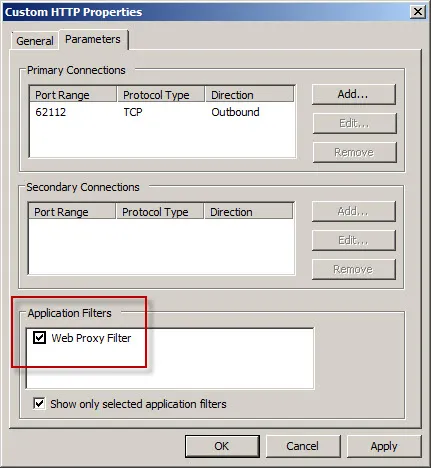
Next, associate the custom protocol with a standard protocol definition, in this case HTTP Proxy.
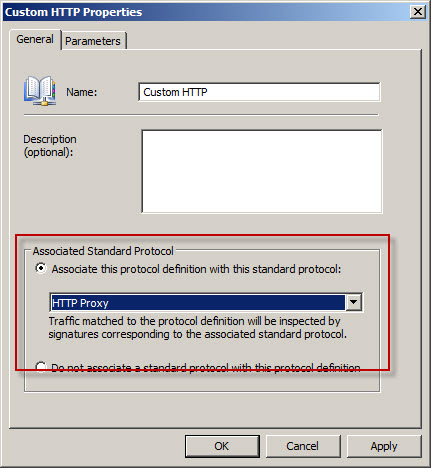
Once complete, Forefront TMG NIS inspection will be applied to the custom protocol and policy will be enforced according to the current NIS configuration.
Forefront TMG NIS additional information:
Configuring Splunk Universal Forwarder on Forefront TMG 2010
Aggregating logged data from security devices such as the Forefront Threat Management Gateway (TMG) 2010 firewall is a top priority for many security engineers. Forefront TMG and its predecessor, ISA Server, have always lacked an integrated facility to forward logged data to an external event management system. Often the administrator will have to devise an elaborate process that consists of batch files or scripts that collect firewall and web proxy logs and copy them to another location where they can be consumed. In the past I’ve demonstrated how third-party utilities can convert firewall log data to the syslog format as well.
Splunk is one of the more popular log management systems in use today, and to make it easier to get Forefront TMG log data in to Splunk we can use the Splunk Universal Forwarder. The Universal Forwarder is a utility that installs on the Forefront TMG firewall and monitors the folder containing W3C formatted text log files. The Universal Forwarder has a small footprint and consumes few resources, making it the ideal method to collect Forefront TMG log data and deliver it to the Splunk indexing server for analysis and archiving. The Splunk Universal Forwarder can be downloaded here.
Configuring Forefront TMG 2010
Before installing the Universal Forwarder, the Forefront TMG firewall must be configured to log to text file format. To change the log file format, open the Forefront TMG management console and highlight the Logs & Reports node in the navigation tree, select the Logging tab in the center console window, and then click Configure Firewall Logging in the Tasks pane on the right.
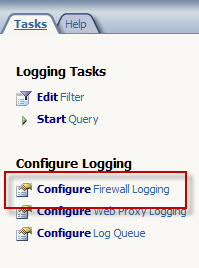
Select the option to log to File and choose the W3C extended log file format from the drop down box below. Repeat these steps to configure web proxy logging.
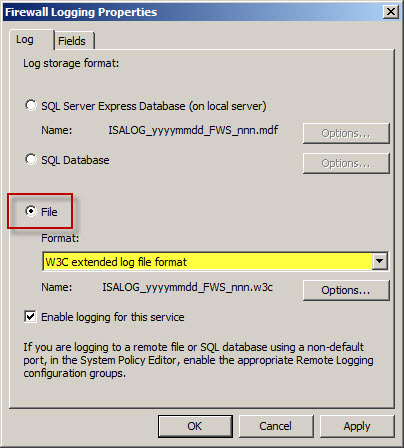
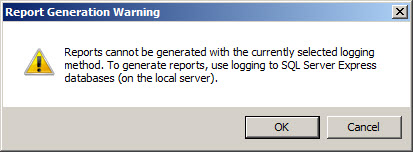
When the option to log to text file format is chosen, native Forefront TMG reports cannot be generated and access to historical log data in the Forefront TMG management console is no longer possible. Clicking Ok will generate the following warning message:
Reports cannot be generated with the currently selected logging
method. To generate reports, use logging to SQL Server Express
databases (on the local server).
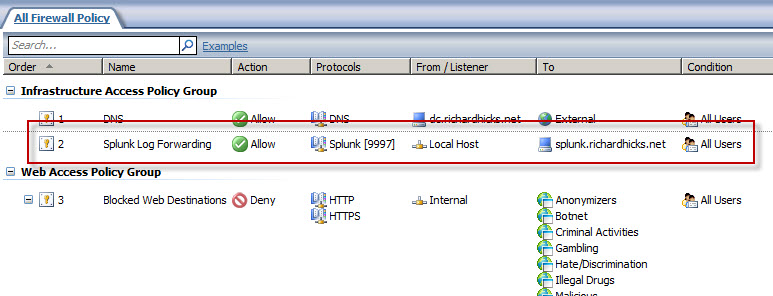
An access rule must be created to allow the Splunk Universal Forwarder to communicate with the Splunk indexing server. The source will be the local host network, the destination will be the Splunk indexing server, and the protocol will be TCP 9997 (outbound), which is the default port used by the Splunk Universal Forwarder.
Configuring Splunk Universal Forwarder
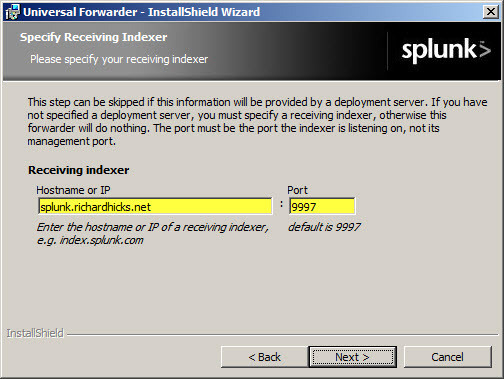
Next, install the Splunk Universal Forwarder on the Forefront TMG firewall. When prompted, enter the hostname, FQDN, or IP address of your indexing server and specify a TCP port to use (the default is TCP port 9997).
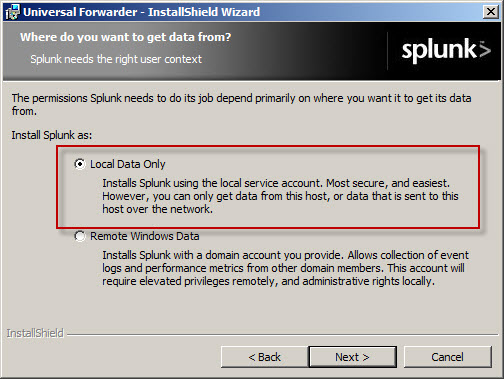
Select the option to forward Local Data Only.
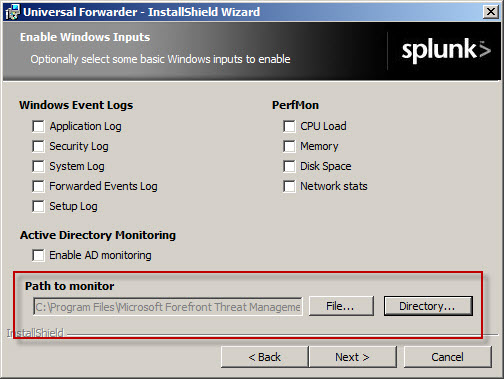
The Forefront TMG firewall will create new text log files each day and store them in the specified log files folder. Specify a Path to monitor by clicking Directory… and selecting C:\Program Files\Microsoft Forefront Threat Management Gateway\Logs (or the path where your log files are stored, if different from the default).
Configure Splunk Indexing Server
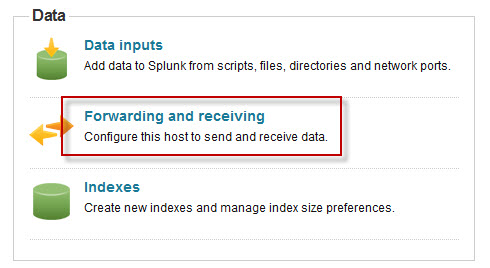
Once the installation is complete, open the Splunk Manager and click Forwarding and receiving.
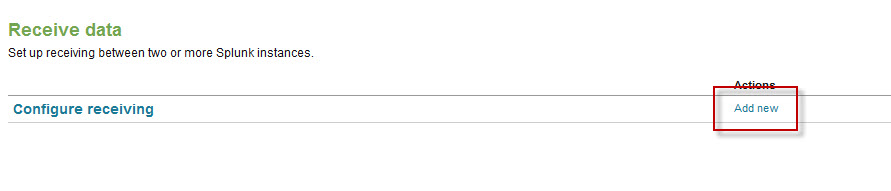
Click the Add new link next to Configure receiving.
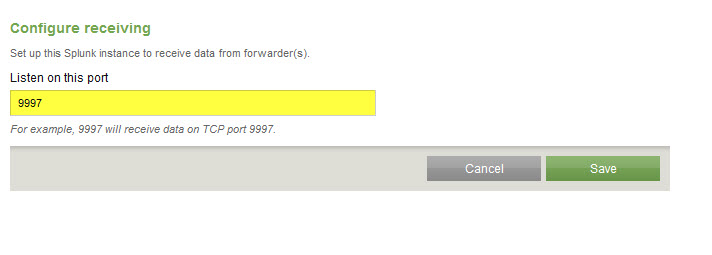
Configure the indexing server to Listen on this port and enter 9997.
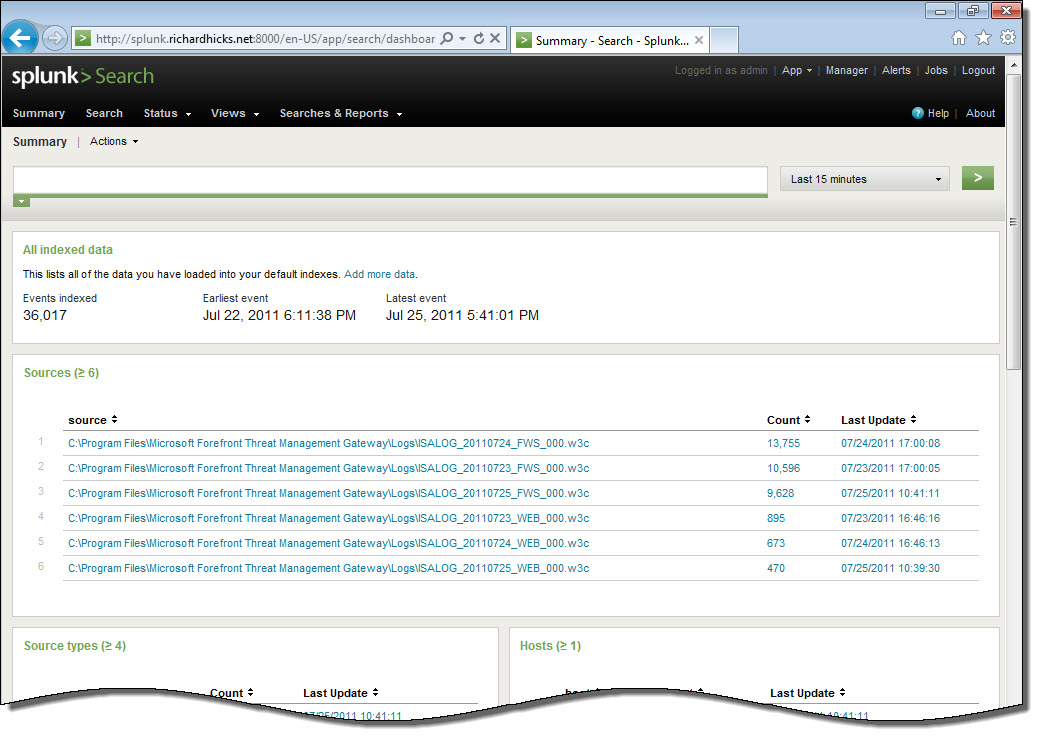
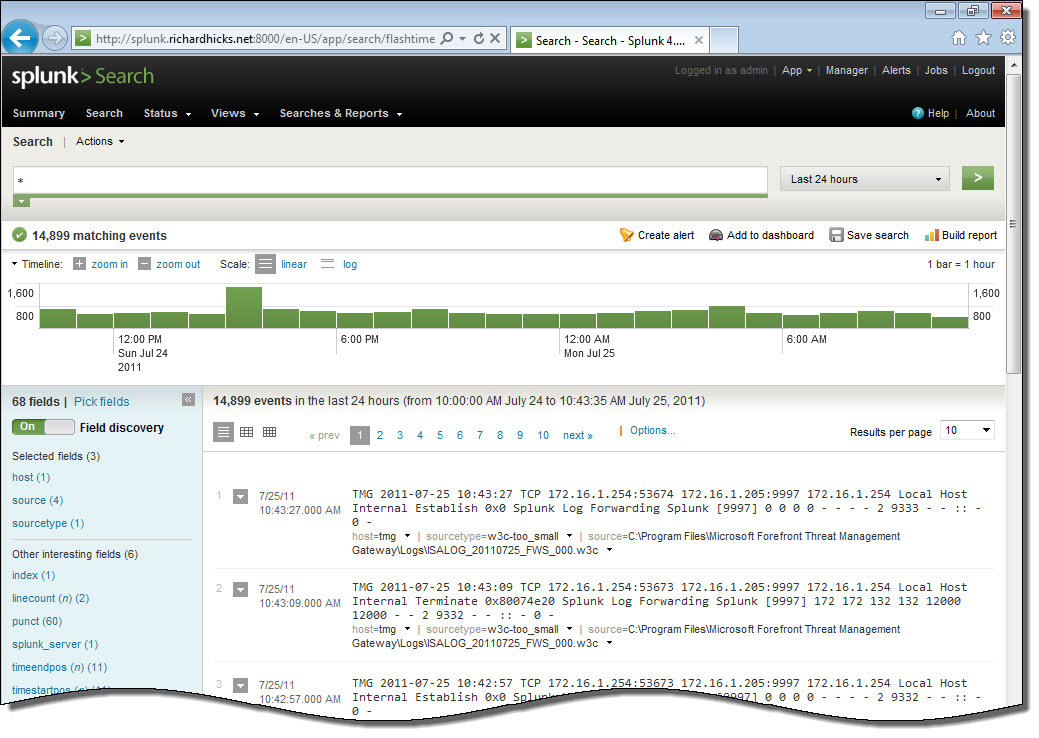
Once you’ve configured Splunk to receive data from the forwarder, Forefront TMG firewall and web proxy log data should appear on the indexing server.
Integrating Websense Web Security and Web Filter v7.6 with Forefront TMG 2010
For customers currently running Microsoft ISA Server 2004 or 2006 with integrated Websense Web Security or Web Filter, the options for migrating to Forefront Threat Management Gateway (TMG) 2010 have historically been limited. Until recently, Websense provided only limited support for integrating with Forefront TMG. However, beginning with the release of Websense Web Security/Web Filter v7.6, Websense now provides full support for integrating with Forefront TMG 2010 running on the latest Windows Server 2008 R2 operating system.
Integrating Websense Web Security/Web Filter with Forefront TMG is accomplished by installing the Websense filtering plug-in on the TMG firewall. The plug-in will communicate with external Websense components to provide URL filtering capabilities. Before installing the Websense filtering plug-in on the TMG firewall, install the Websense infrastructure and Web Security/Web Filter components (policy server, policy broker, filtering service, etc.) on a separate system.
Note: This post is intended to provide installation and configuration tips for firewall administrators who wish to integrate Websense Web Security/Web Filter v7.6 with Forefront TMG 2010. It is not meant to be a comprehensive Websense installation guide. For more information on installing and configuring Websense Web Security/Web Filter v7.6, please refer to the Websense Deployment and Installation Center documentation provided by Websense.
Policy/Filtering Server
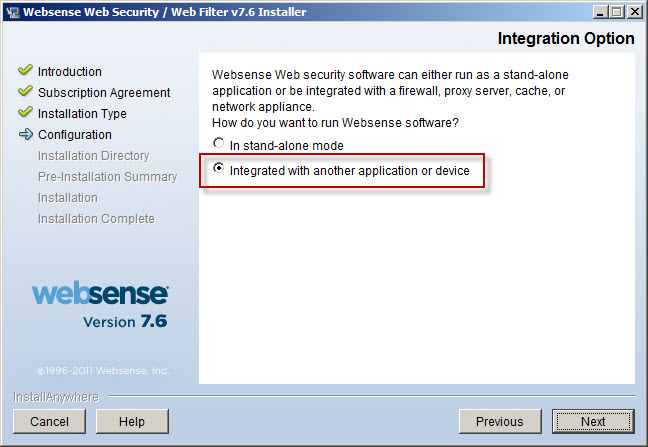
When installing the Websense Web Security/Web Filter components, be sure to select the option to integrate with another application or device.
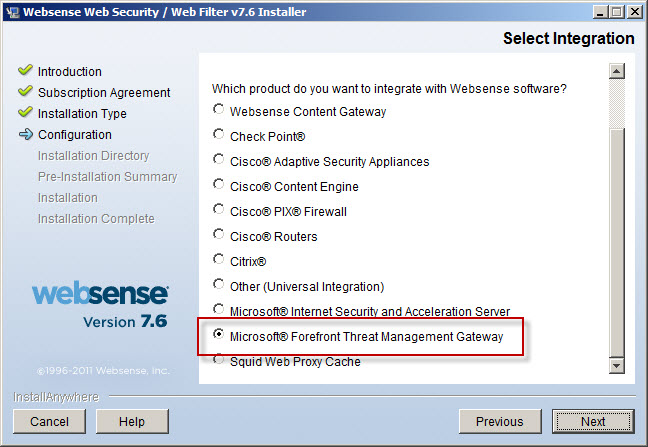
Scroll down and select Microsoft Forefront Threat Management Gateway.
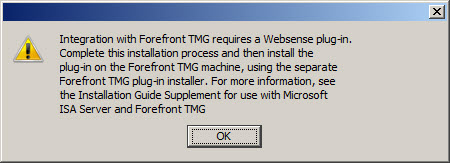
The installer will remind you that integrating with Forefront TMG requires a separate Websense plug-in to be installed on the TMG firewall.
Integration with Forefront TMG requires a Websense plug-in.
Complete this installation process and then install the
plug-in on the Forefront TMG machine, using the separate
Forefront TMG plug-in installer. For more information, see
the Installation Guide Supplement for use with Microsoft
ISA Server and Forefront TMG.
Filtering Plug-In
Note: The filtering plug-in for Forefront TMG 2010 is available as a separate download apart from the Websense Web Security/Web Filter v7.6 installer. It can be downloaded after logging in to my.websense.com.
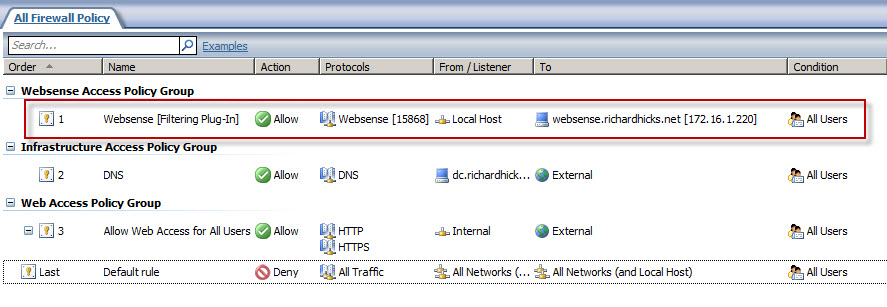
An access rule is required to allow the filtering plug-in to communicate with the Websense filtering service. Before installing the plug-in, create a rule on the Forefront TMG firewall allowing the local host network to communicate with the Websense policy/filtering server on TCP port 15868.
If you attempt to use the Websense Web Security/Web Filter v7.6 installer to install the filtering plug-in on the Forefront TMG fireall, you will only see the option to integrate with Microsoft ISA Server. If you continue anyway, the installation wizard will prompt with the following reminder:
Note: If integrating with Microsoft Forefront TMG, a separate
installer is used to install the required plug-in on the Forefront
TMG machine. Click Help for more information.
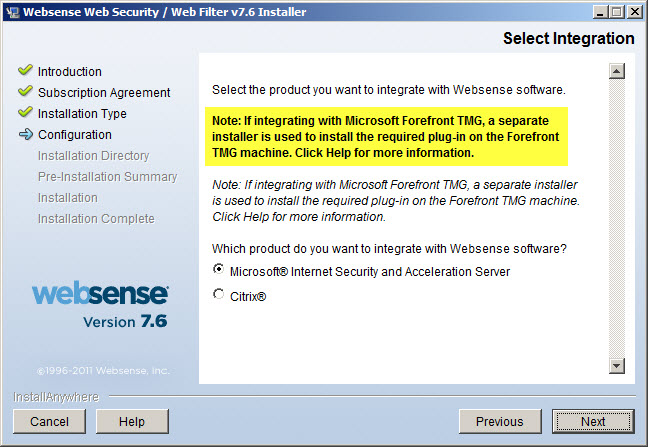
If you proceed, the installation wizard will stop and generate the following error message:
Setup cannot detect Microsoft Internet Security and
Acceleration Server installed on this machine. The ISAPI
Filter plug-in must be installed on a machine running
Microsoft Internet Security and Acceleration Server.
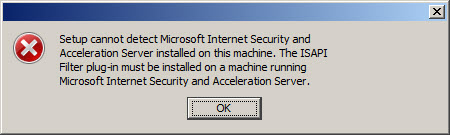
Once you have downloaded the Websense filtering plug-in for Forefront TMG, installation is simple and straightforward. Run the installation wizard and provide the IP address of the Websense policy/filtering server and accept the default port.
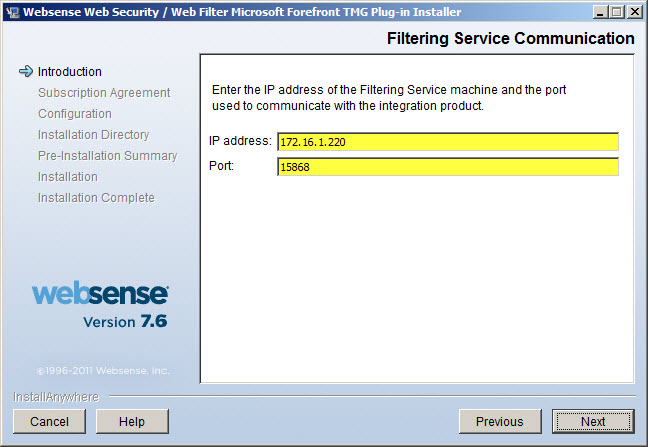
If the Websense policy/filtering server is not reachable or unavailable you will receive the following error message:
Filtering Service not found. Make sure the Filtering
Service is running, or specify a valid address.
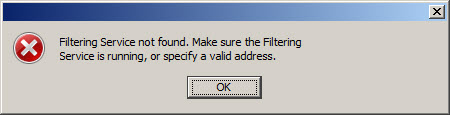
Verify that you have specified the correct IP address for the policy/filtering server, that it is online and reachable, and that your access rule is configured correctly.
During the plug-in installation process it is necessary to stop the Forefront TMG firewall service. Remember that stopping the Forefront TMG firewall service will place the firewall in lockdown mode, preventing normal Internet access. You can stop the firewall service by using the Services MMC, or you can simply open an elevated command prompt and issue the following command:
net stop fwsrv
After the plug-in has been installed successfully you can restart the firewall service by issuing the following command:
net start fwsrv
For Forefront TMG 2010 Enterprise arrays, the Websense Web Security/Web Filter plug-in must be installed on each array member. Once you’ve completed the installation of the Websense filtering plug-in you should now be able to create, apply, and enforce URL filtering policies using the Websense management console.
Additional Notes
Don’t forget to ensure complete filtering coverage for Forefront TMG SecureNAT and Firewall clients by creating the ignore.txt file in C:\Windows\System32 that includes the hostname of the TMG firewall in UPPERCASE. For enterprise arrays this must be completed on each array member.
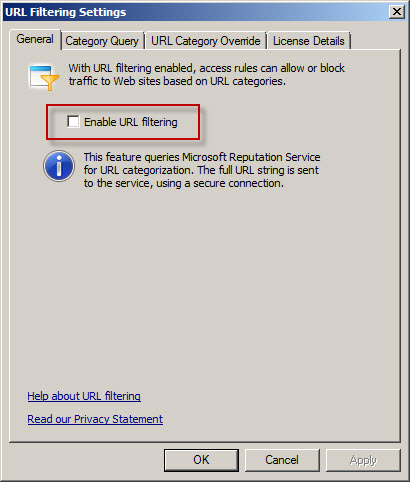
Another important point to remember is that the native Forefront TMG URL filtering must be disabled with integrated Websense Web Security/Web Filter v7.6 to prevent unexpected behavior. You can disable TMG URL filtering by highlighting the Web Access Policy node in the navigation tree, then clicking the Configure URL filtering link in the Tasks pane and unchecking the option to Enable URL filtering.
Virus/malware scanning, Network Inspection System (NIS), and HTTPS inspection are all compatible with Websense Web Security/Web filter v7.6, and having these features enabled is highly recommended to provide the most complete protection.
If you have to uninstall the Websense filtering plug-in for any reason, be sure to use the Add/Remove programs control panel applet. Removing the filter manually will cause problems for the Websense policy and filtering server. Do not remove the filter manually or reset your appliance image/VM snapshot without uninstalling the plug-in first to avoid these issues.
Security Configuration Wizard for Forefront TMG 2010 and Windows Server 2008 R2 SP1
Security hardening and attack surface reduction is an important step in preparing a Forefront TMG 2010 firewall. To accomplish this task, the tool of choice is the Security Configuration Wizard (SCW). In one of my ISAserver.org articles I demonstrated how to use this tool to properly configure the underlying operating system to support the Forefront TMG 2010 firewall role. Since the native Windows SCW does not include support for the Forefront TMG role, the TMGRolesForSCW.exe utility included in the Forefront TMG Tools and SDK is required. This tool was released prior to service pack 1 for Windows Server 2008 R2 and does not include a template that works correctly out of the box. When you attempt to register the Windows Server 2008 R2 template on a system with SP1 installed you will receive the following error:
Command completed with error.
The parameter is incorrect.
Please check log file(s) under the following directory:
%windir%\security\msscw\logs
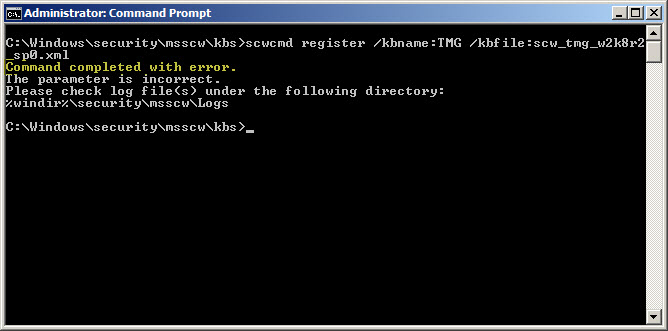
To resolve this issue, create a copy of the template file SCW_TMG_W2K8R2_SP0.xml and name it SCW_TMG_W2K8R2_SP1.xml. Open this file with any text editor and navigate to the SCWKBRegistrationInfo node (line 2). Change the value of ServicePackMajorVersion from “0” to “1” and save the file. Register the template using the following command:
scwcmd register /kbname:TMG /kbfile:scw_tmg_w2k8r2_sp1.xml
Continue using the SCW to configure and apply a security template to your TMG firewall following the instructions in my ISAserver.org article.
Vulnerability in the Forefront TMG 2010 Client Could Allow Remote Code Execution
It is extremely rare to see a security update for anything relating to the Forefront TMG firewall. However, the June 2011 security bulletin includes update MS11-040 that addresses a privately reported vulnerability in the Forefront TMG client that could allow remote code execution. This security update applies only to the Forefront TMG client, not the firewall itself. Also, it does not apply to previous versions of the ISA firewall client.
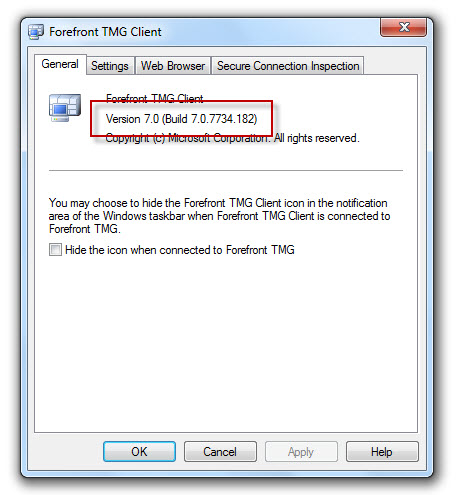
Before applying the MS11-040 update, the latest version of the Forefront TMG client was build 7.0.7734.100. After applying the MS11-040 update, the new build number will be 7.0.7734.182.
Forefront TMG 2010 Web Proxy Auto Detect Fails
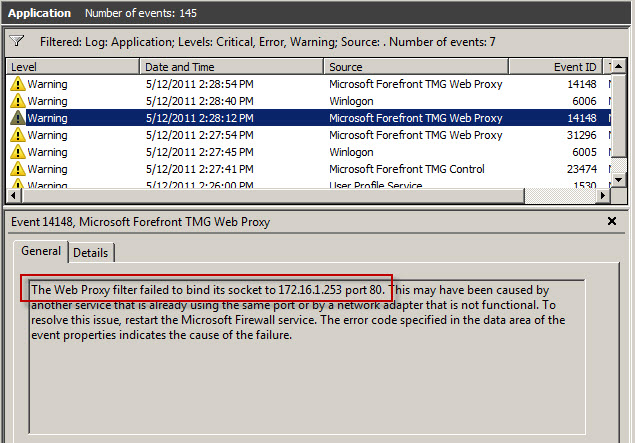
Recently I received a call from a customer who was trying to resolve an issue where all web proxy clients that were configured to use Web Proxy Auto Discovery (WPAD) with DNS suddenly stopped working. We began troubleshooting by confirming that the hostname WPAD resolved to the internal IP address of the Forefront TMG firewall, which it did correctly. Next we used a telnet client to confirm that the TMG firewall was listening on TCP port 80 (used by TMG for DNS WPAD clients) and indeed it was responsive. A scan of the event logs on the firewall turned up the following warning message:
“The Web Proxy filter failed to bind its socket to 172.16.1.253 port 80. This may have been caused by another service that is already using the same port or by a network adapter that is not functional. To resolve this issue, restart the Microsoft Firewall service. The error code specified in the data area of the event properties indicates the cause of the failure.”
Something was listening on TCP port 80, so we opened a command prompt and entered the following command in order to determine which process was listening on this port:
netstat –ano | findstr :80
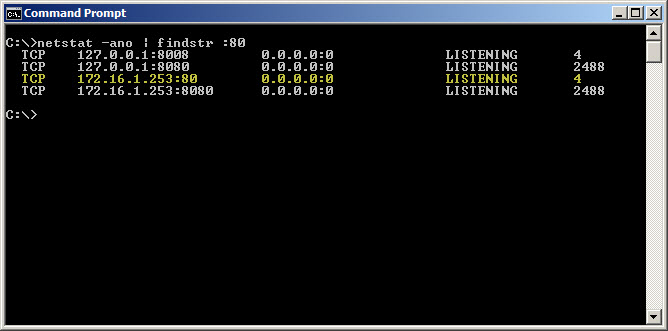
Netstat was reporting that TCP port 80 was in a listening state and bound to the IP address 172.16.1.253. The process using this port was the System process (PID 4). This is unexpected, because the Forefront TMG web proxy service (wspsrv.exe) should be bound and listening on this port. Clearly this was a web service hijacking this port, so to find out more we entered the following command at a command prompt:
netsh http show servicestate
The output of this command revealed a valuable clue. Notice the registered URL below…

HTTP://172.16.1.253:80:172.16.1.253/REPORTSERVER_ISARS/
As it turns out, this customer had attempted to change the SQL Reporting Services Web Service URL. By assigning the Forefront TMG firewall’s internal IP address and changing the port to 80 in the Reporting Service Configuration Manager, this caused a conflict with the Forefront TMG web proxy filter, which requires TCP port 80 to provide WPAD for DNS.
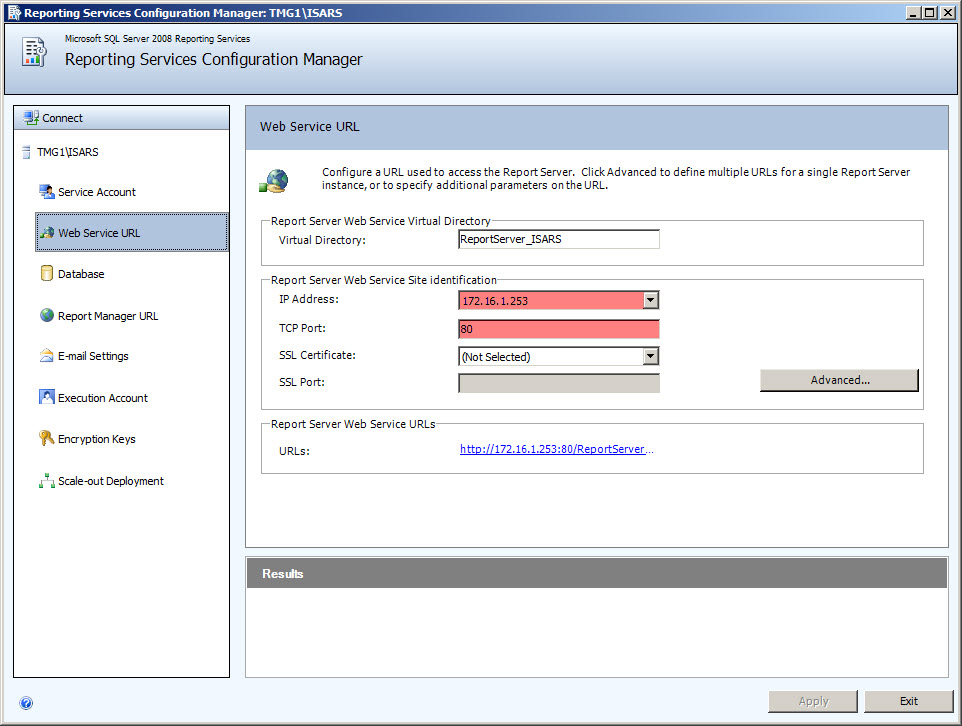
To resolve the issue, the administrator chose a TCP port other than 80 and restarted the system.
Forefront TMG 2010 Configuration Error Alert
On a Forefront Threat Management Gateway (TMG) 2010 firewall you may encounter a Configuration Error alert like this:
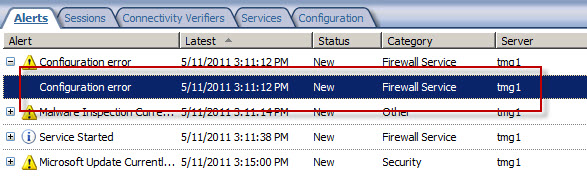
The alert description states:
“The routing table for the network adapter Internal includes IP address ranges that are not defined in the array-level network Internal, to which it is bound. As a result, packets arriving at this network adapter from the IP address ranges listed below or sent to these IP address ranges via this network adapter will be dropped as spoofed. To resolve this issue, add the missing IP address ranges to the array network.
The following IP address ranges will be dropped as spoofed:
External:172.16.2.0-172.16.3.255;
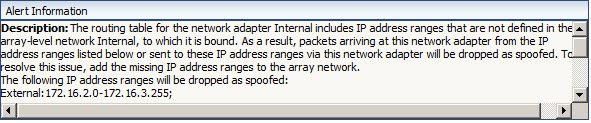
This alert is the result of the Forefront TMG firewall’s routing table and network definition being out of sync with each other. In this example, the routing table looks like this:

However, the Forefront TMG Internal network definition looks like this:
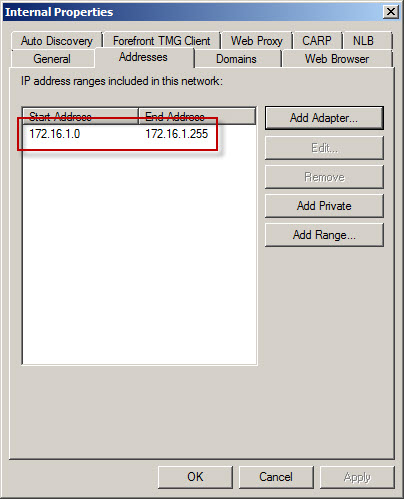
As you can see, the Forefront TMG firewall is configured with an Internal network IP address range of 172.16.1.0/24. However, the routing table contains additional static routes that also make the 172.16.2.0/24 and 172.16.3.0/24 networks reachable.
To resolve this issue, highlight the Networking node in the navigation tree, select the Networks tab in the center window, then highlight the network that corresponds to the IP address range contained in the alert. In our example the address range 172.16.2.0-172.16.3.255 also belongs to the Internal network. Right-click the Internal network and choose properties, choose the Addresses tab, then remove all address ranges previously configured. Next, choose Add Adapter and choose the network adapter for this network.
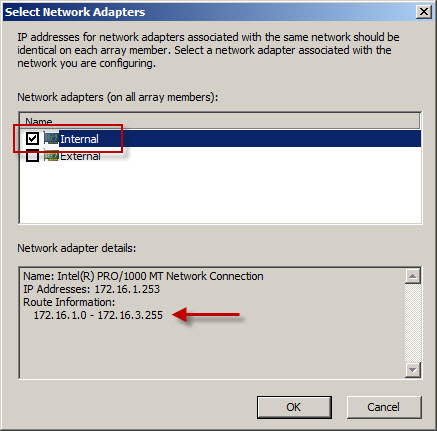
Using this method the IP address range for this network is built using the routing table for the network interface. This is the preferred method for defining IP address ranges for Forefront TMG networks. Save the changes and apply the configuration.
For more information on configuring network interfaces for Forefront TMG 2010 firewalls, please refer to Jason Jones’ excellent documentation on the subject here:
Recommended Network Adapter Configuration for Forefront TMG Standard Edition Servers
Recommended Network Adapter Configuration for Forefront TMG Enterprise Edition Servers
Relocating SQL Database Files on Forefront TMG 2010
When Forefront Threat Management Gateway (TMG) 2010 is installed, an instance of SQL Server 2008 Express is included for Forefront TMG firewall and web proxy logging. By default, the log database files are installed on the system partition, which is less than ideal. Best practices dictate that log database files should reside on a separate, dedicated partition.
I’ve had many people ask how to move these database files once the product is installed. Most assume that the process involves using SQL database management tools to detach the database and manually move the database files to a new partition. Not true! Since Forefront TMG handles all of the underlying SQL database management, the process is actually quite simple.
To move the log database files, first create a folder to store them in the new location. Next, open the Forefront TMG management console, highlight Logs & Reports in the navigation tree, select the Logging tab in the center console window, then click Configure Firewall Logging in the Tasks pane on the right.

Click the Options… button, then select This folder (enter the full path): and enter the new path to store the log database files.

For EMS-managed or standalone arrays, make certain this path exists on each array member. If it does not, the service will not start. If the folder does not exist, TMG will complain.

Repeat this process to move the web proxy log database files. In addition, it would be an excellent idea to also move the Log Queue Storage Folder. This folder should be located on a partition that is separate from the one used to store the log database files. For optimum availability this will be a separate physical disk, allowing for Forefront TMG to continue logging to the queue even in the event of a physical disk failure where the log database files are stored. As with the log database files, this folder must exist on each array member.

A system variable can be used to specify the path to log database or log queue files. For example, %LOGDRIVE%\FWS, where %LOGDRIVE% can be a different drive letter and path on each array member, if necessary. To create a system variable, open the advanced system properties and click Environment Variables….

Under System variables click New…, enter the variable name (e.g. LOGDRIVE), and specify the location where the log files should be stored on this array member (e.g. D:\TMGLogs). Repeat these steps on each array member, specifying the local path where log database files are to be stored.

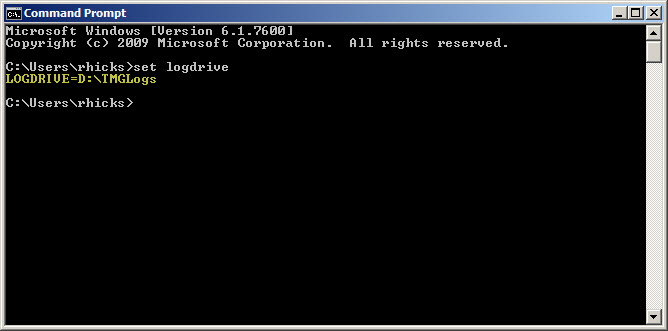
Confirm the system variable was created properly by opening a command prompt and entering the following command:
set logdrive
The output for our example should appear as follows:
LOGDRIVE=D:\TMGLogs
Network Egress Filtering and the RSA SecurID Attack
Reading details about the recent attack and compromise at SecurID, I was dumbfounded when I came across the following:
“The attacker then used FTP to transfer many password protected RAR files from the RSA file server to an outside staging server at an external, compromised machine at a hosting provider. The files were subsequently pulled by the attacker and removed from the external compromised host to remove any traces of the attack.”
I’m not surprised at all that an attacker was able to infiltrate the RSA private network. However, with this and myriad similar attacks I’ve read about over the past few years, one thing that consistently amazes me is the relative ease with which attackers can get back out.
It appears in this case that RSA allows outbound FTP to anywhere on the Internet. Clearly this is not good security practice. This is not to say that an attacker couldn’t use another channel to exfiltrate stolen data, but having such generous outbound access rules for file transfer protocols makes it that much easier for the criminals.
To provide better protection from these types of attacks, security policy should be updated to disallow unrestricted outbound FTP access to the general Internet. Following the principle of least privilege, outbound FTP access should be granted only to certain users and to specific sites, and only after it is determined there is a business requirement for such access. This access should be reviewed on a periodic basis.
Using Forefront TMG 2010 and leveraging the TMG Firewall Client, it is possible to create outbound FTP access rules and enforce user and group authentication. Although this won’t necessarily prevent an attacker from uploading data through the gateway, it presents yet another hurdle for the attacker to clear in order to extract data. If the attacker is still successful, the access logs on the Forefront TMG firewall will include valuable forensic data, including the name of the application used to transfer data and the account information used by the attacker, in addition to the usual log detail (e.g. source and destination IP addresses, etc.).
State-of-the art perimeter defense technology is not enough. Security policy and strong network egress filtering are essential to prevent data loss. I’d suggest reviewing your outbound access policies today.
Connect


 Richard Hicks' Forefront TMG Blog