DNS Resolver Behavior in Windows Vista
Recently while working with one of my customers I came across some odd behavior on a Windows Vista client workstation. We noticed that Windows Vista workstations that were configured as Web Proxy and Firewall Clients only (no default gateway) were unable to access non-web based remote resources (e.g. RDP and FTP) by hostname (single label or fully qualified). They could, however, connect by IP address. The odd thing was that Windows XP clients configured in the identical manner did not exhibit this behavior. Windows XP clients configured as Web Proxy and Firewall Clients without a default gateway could access non-web based remote resources without issue, by hostname or IP. In either case, web proxy communication (HTTP, HTTPS, tunneled FTP) worked perfectly.
Name resolution on the Windows Vista client worked flawlessly, so I opened a case with Microsoft so they could shed some light on this for me. After some additional research on their part they were able to determine that this was expected behavior on Windows Vista. Apparently the DNS resolver in Windows Vista filters out hostnames for destinations that are not reachable from the local host. Without a default gateway, Vista had determined that it couldn’t connect to the resource because it had no route to the remote network (obviously not aware of the Firewall Client) and so communication fails.
The resolution was simple enough…add static routes to any remote internal networks, or if Winsock access to the general internet was required, then add a default gateway. And while you may not encounter this particular scenario in complex, large scale corporate networks, it is fairly common in small, flat networks deployed at many SMB’s. If you are like me and have recommended in these scenarios that you deploy only the Firewall Client, it appears that option is no longer available.
Using DHCP to Assign Static Routes
In order to facilitate testing in a lab environment, I make extensive use of virtual machine technology. Today I employ a combination of VMWare Workstation and VMWare ESX Server in order to simulate distributing computing environments. Included with these technologies is virtual networking, which is tremendously useful when creating complex routed networks in my lab.
There are times when I will add static routes (host routes or network routes) to my local workstation in order to conduct testing. Occasionally there will be times when I forget the ‘-p’ switch to make the route persistent, then I find myself wondering why my connectivity to my test environment isn’t working. Another common scenario is when I grab another system (a laptop or another VM perhaps) and I end up having to manually add more routes before testing can resume.
Recently I decided to make my life easier and use DHCP to add these routes to all of my workstations. Configuring static routes using DHCP is quick and simple. You can add a static route by configuring a DHCP option 249 on Windows Server 2003 DHCP servers, or option 121 on Windows Server 2008 DHCP servers. You can configure the option at the server level, but it is more likely that you will configure the option at the scope level, or as I often do, on a specific reservation.
For demonstration purposes here we’ll make this change at the scope level. To begin, right-click Scope Options and choose Configure Options…. On Windows Server 2003 DHCP servers, select option 249 Classless Static Routes (Option 121 on Windows Server 2008 DHCP servers).
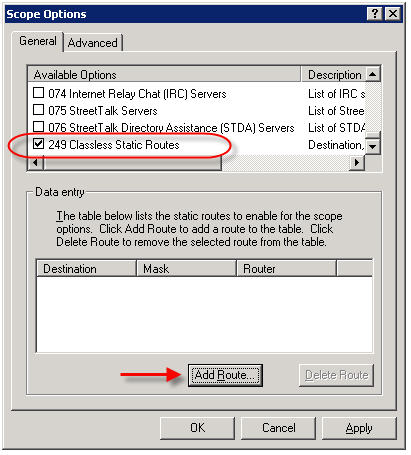
Click Add Route…, then enter the static route you wish to configure.
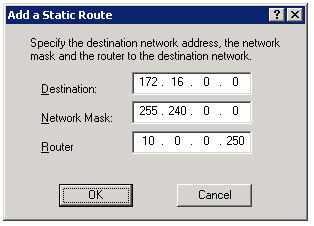
Now, regardless of which system I log on to, I am assured that I will have connectivity to all of my virtual environments.
Note: DHCP Option 121 is ignored by DHCP clients prior to Windows Server 2008 and Windows Vista. This may not work if you are using a Windows Server 2008 DHCP server to assign networking configuration to these clients. Windows Vista and Windows Server 2008 DHCP clients use both Option 121 and Option 249.
Importing Hammer of God Country IP Block Network Sets Into ISA Enterprise Policies
Recently I was called upon to assist a customer with configuring their ISA firewall to block all traffic to or from specific country IP address blocks. Fortunately this task is made much simpler thanks to the wonderful work by Thor at Hammer of God. At the Hammer of God web site you can download pre-configured ISA computer sets that you can easily import in to your ISA firewall configuration.
These networks sets were exported from ISA 2006 Standard edition. If you are importing these computer sets in to the Standard version of Microsoft ISA Server, the process is very straightforward. Simply download the computer set for the country you wish to block and import them in to your policy. If you wish to import these computer sets in to ISA 2006 Enterprise, that’s a little different. ISA does not support importing/exporting objects to/from Standard and Enterprise versions natively. There is a workaround, however. It can be accomplished easily by changing the fpc4:Edition element in the XML export file from “16” to “32”, as shown here…

…but that will only allow you to import the network set in to an array policy. If you would like to import these network sets in to an an enterprise policy, you can follow the procedures outlined here.
Start by downloading a network set from Hammer of God. For demonstration purposes here I have chosen the network block for the country of Albania (nothing personal against Albania, it’s just that the network set was small and convenient!).
1. Create a computer set at the enterprise level. Give the computer set a descriptive name, then choose ‘Ok’ to continue.
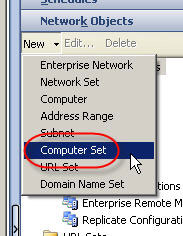
2. Hightlight the computer set you just created, then right-click on the computer set and choose ‘export selected’.
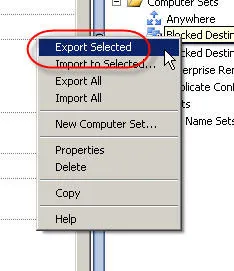
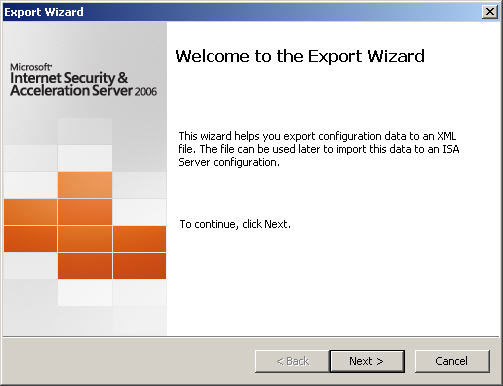
3. The ‘Welcome to the Export Wizard’ dialog box appears. Choose ‘Next’ to continue.
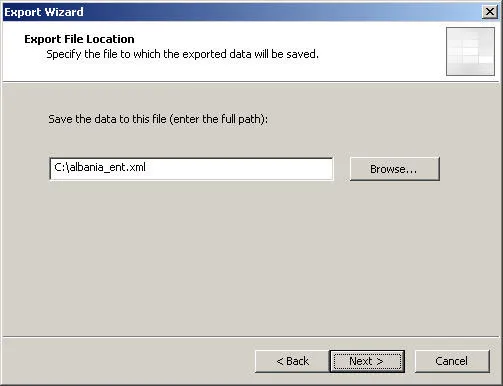
4. Specify the file name and location to save the export to. Choose ‘Next’ to continue.
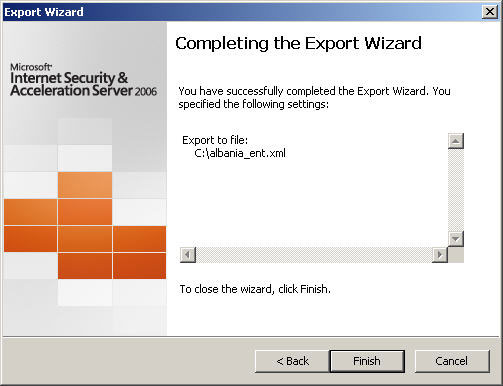
5. Choose ‘Finish’ to complete the export.
6. Next, open the network set downloaded from Hammer of God with an XML editor or Notepad. Select and copy all of the data between and including the fpc:4AddressRanges tags…
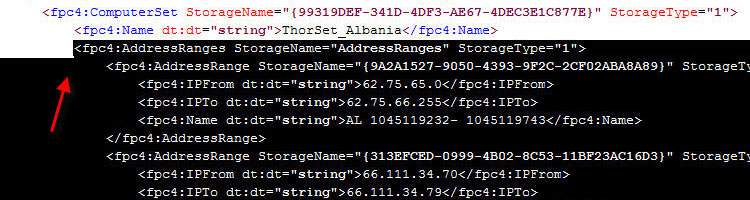
…clip…
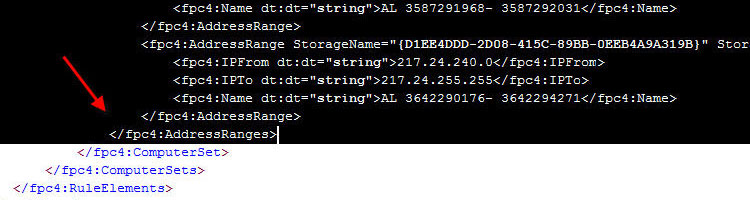
7. Open the blank enterprise network set export created earlier with an XML editor or Notepad. Highlight and select the entire following line:

Paste the data you copied previously here, then save the file.
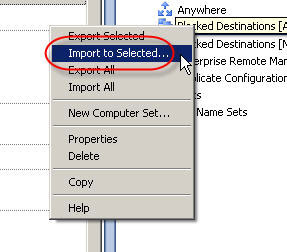
8. In the ISA Management console, highlight the blank enterprise network set created earlier and choose ‘import to selected’.
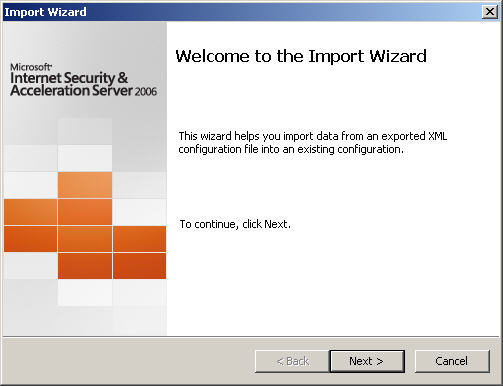
9. The ‘Welcome to the Import Wizard’ dialog box appears. Choose ‘Next’ to continue.
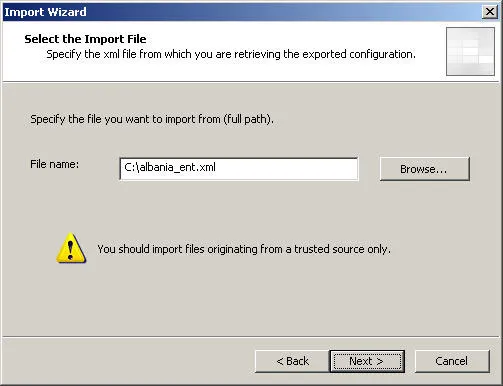
10. Specify the location of the file you just saved, then choose ‘Next’ to continue.
11. Choose ‘Finish’ to complete the import, then apply the changes to the enterprise configuration.
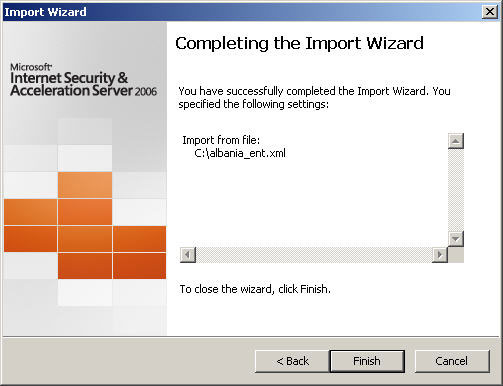
Your enterprise network set is now populated with information and is ready to be used in both enterprise policies and array policies.
It Starts…
After many years of consuming blog information from a variety of different sources, I have finally decided to become a contributor by creating this blog. My plan is to share with you some of the knowledge and experience I have gathered in working with Microsoft ISA Server for over ten years (dating back to Proxy 2.0!). I am currently employed by Celestix Networks as a Senior Sales Engineer, specializing in the MSA security appliance featuring Microsoft ISA Server 2006. I will endeavor to share with you relative, pertinent information that you will hopefully find useful. One of my mottos is “you can’t fix something if you don’t know how it works correctly in the first place”, so in support of that you will likely find references to information that I consider to be fundamental. A strong, foundational knowledge of any complex system is essential to any troubleshooting that takes place, and that is especially true in the world of enterprise networking.
Connect


 Richard Hicks' Forefront TMG Blog