Archive
Enable Hybrid Cloud with Forefront TMG 2010 and Windows Azure
Earlier this year I published an article on ISAserver.org on how to enable cross-premises network connectivity to Windows Azure using Forefront TMG 2010. When I wrote that piece, Windows Azure virtual networking was still in preview (beta). Since that time, Windows Azure virtual networking has been officially released, with some significant changes in features, functionality, and configuration steps. Many people noticed that their existing Forefront TMG 2010 to Windows Azure site-to-site VPN stopped working at this time and assumed that support for TMG had been dropped. Not so! Forefront TMG 2010 site-to-site VPN does work with Windows Azure virtual networks, and is indeed supported as it meets the minimum requirements for VPN devices connecting to Windows Azure virtual networks outlined here.
Configuring site-to-site VPN connectivity between the Forefront TMG 2010 firewall and Windows Azure virtual networks is not without a minor drawback, however. One of the new features of Windows Azure virtual networking is point-to-site VPN using SSTP. Unfortunately this feature requires that you configure dynamic routing on your Windows Azure virtual network, and dynamic routing makes use of IKEv2, which the Forefront TMG 2010 firewall does not support. So, if you want to enable cross-premises network connectivity to Windows Azure using Forefront TMG 2010, you will not be able to take advantage of this new point-to-site VPN connectivity option.
Important Note: Windows Azure virtual networking site-to-site VPN requires that your VPN endpoint have a public IPv4 address assigned to it’s external network interface. If your Forefront TMG 2010 firewall is located behind a border router or edge firewall performing NAT, site-to-site VPN connectivity with Windows Azure will not be possible.
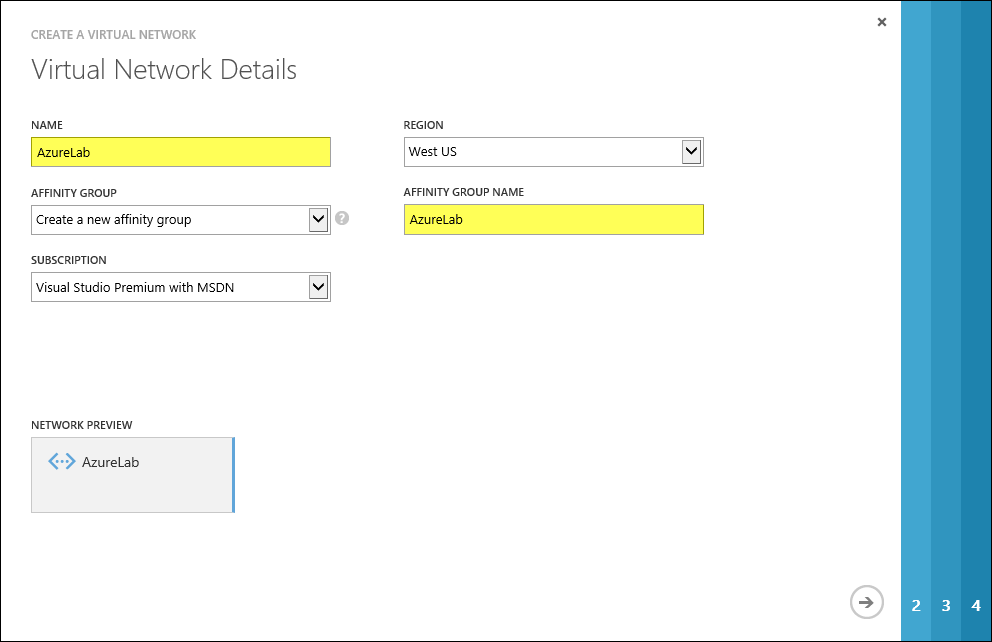
To configure cross-premises network connectivity with Windows Azure, log in to the Windows Azure portal and select Networks in the navigation pane, then click on Create Virtual Network. Enter a Name for the virtual network, specify a Region, and provide an Affinity Group Name and select the appropriate Subscription.
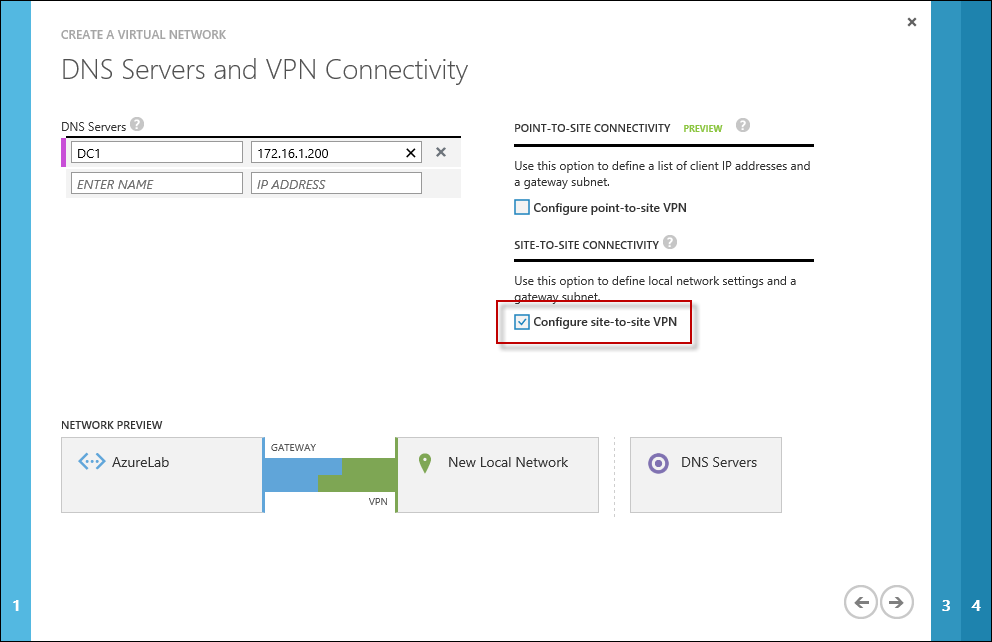
Enter the names and IP addresses of any DNS servers to be used by machines in this virtual network and select the option to Configure site-to-site VPN. Do NOT select the option to Configure point-to-site VPN.
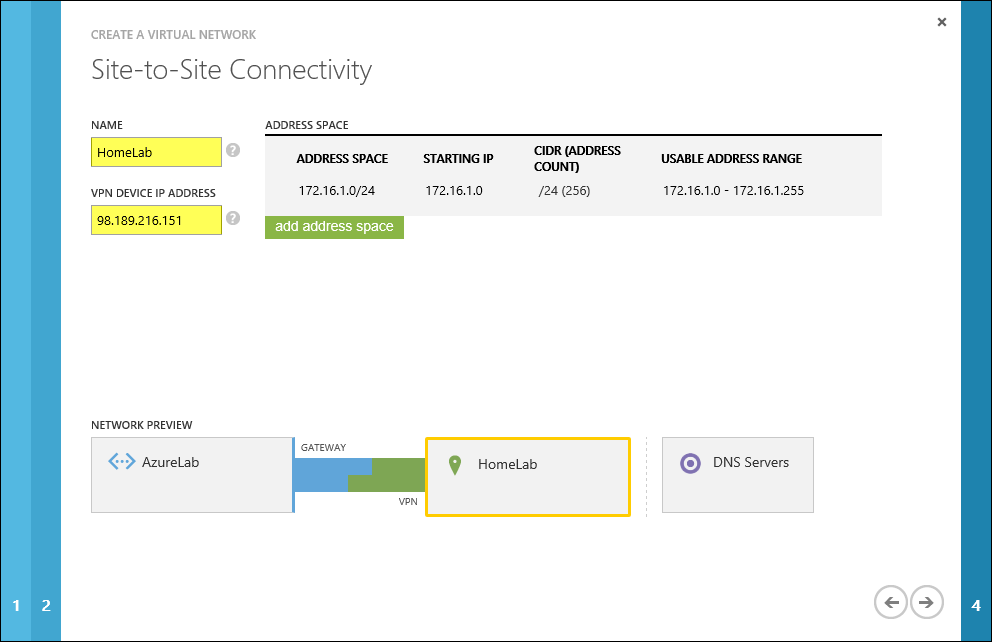
Provide a name for the site-to-site connection and enter the IP address assigned to the external network interface of the Forefront TMG firewall. In addition, specify the network address space in use on the private, on-premises side of the connection.
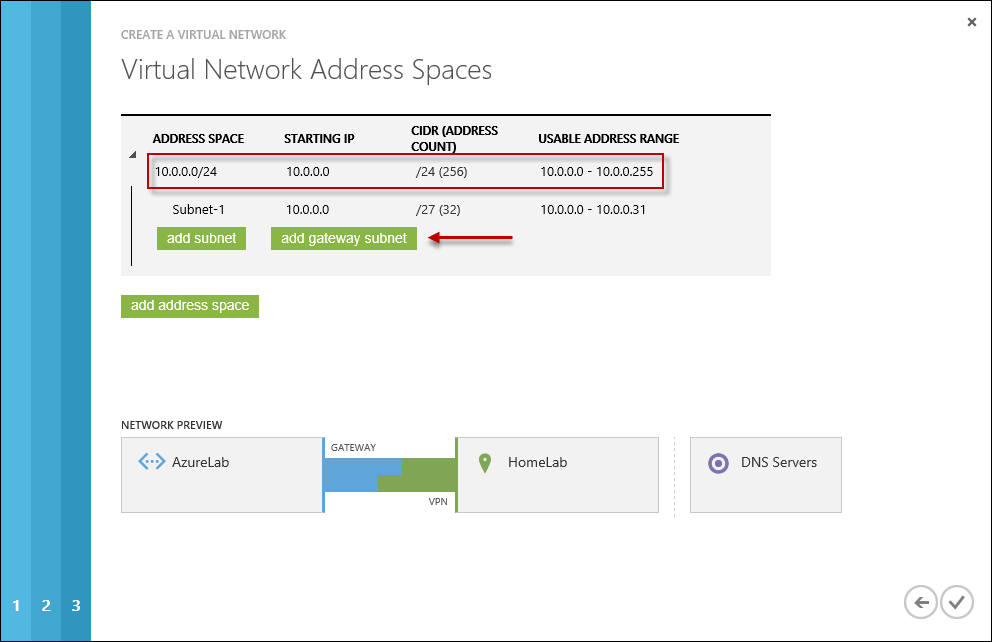
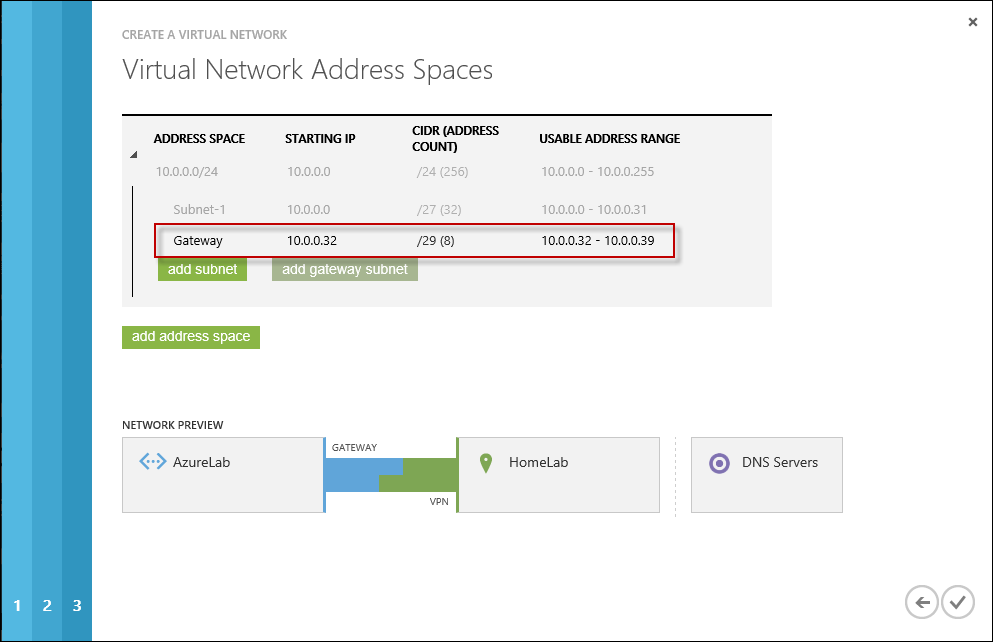
Define your virtual network subnet as required. Here I’ve chosen to use the 10.0.0.0/24 address space. Define any additional subnets as necessary and then click Add gateway subnet.
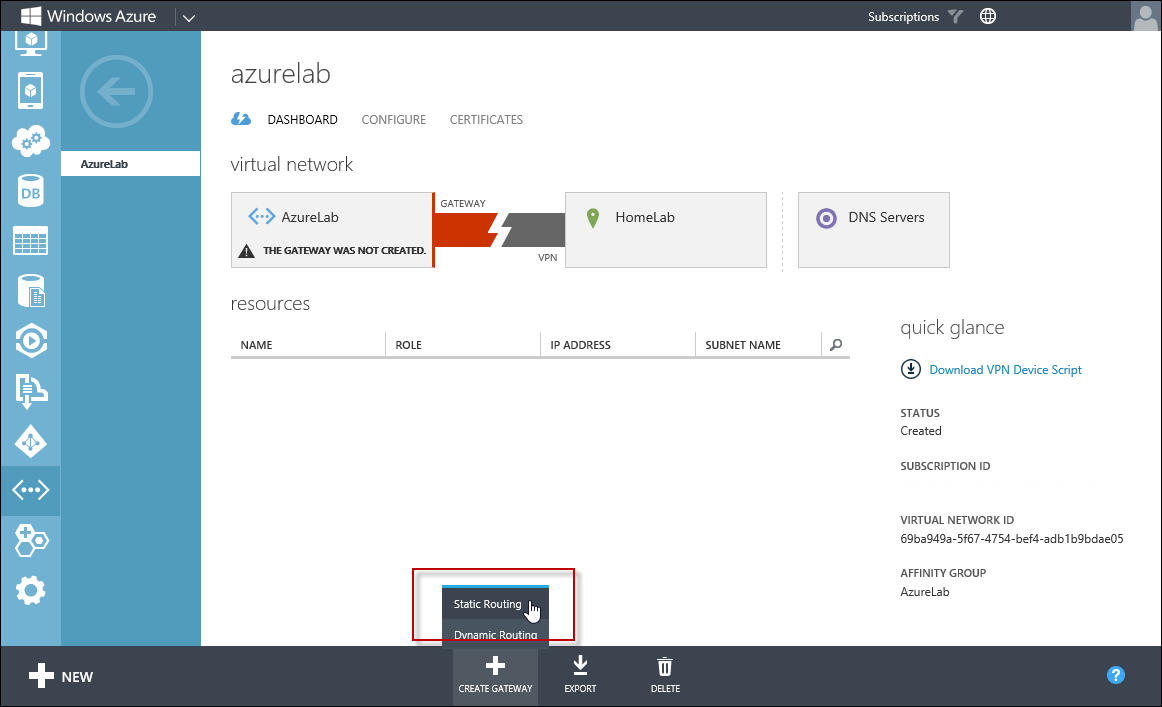
Click on the newly created virtual network and then click on Dashboard. Click Create Gateway and choose Static Routing.
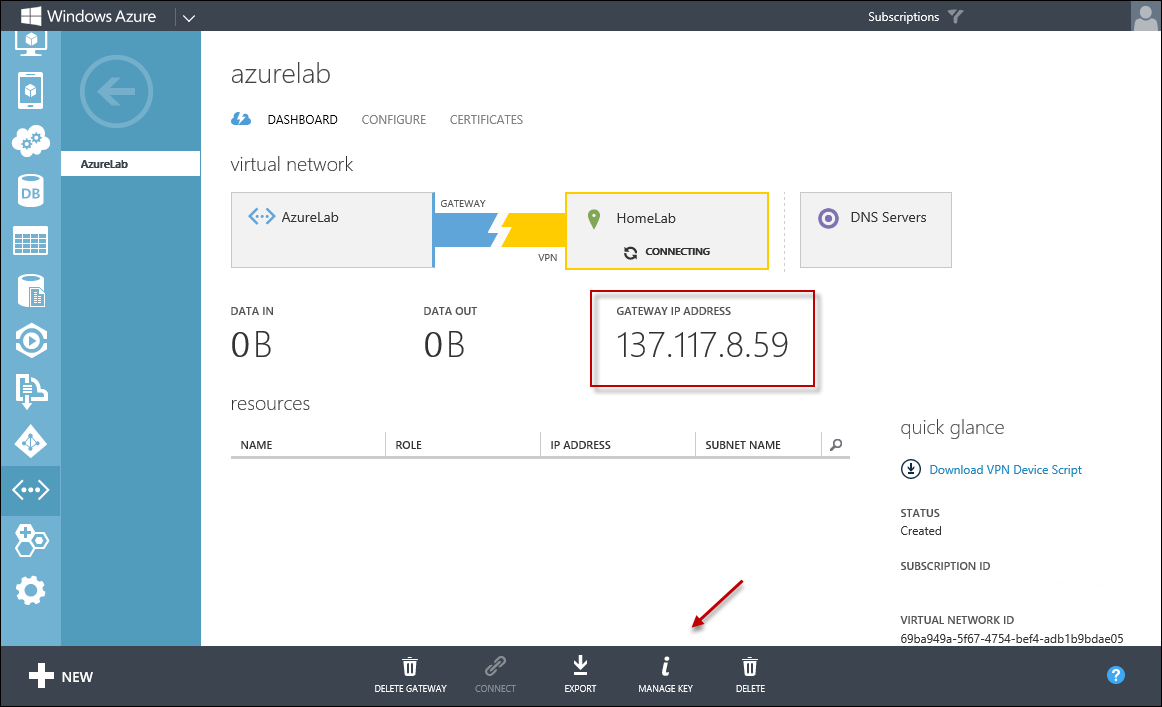
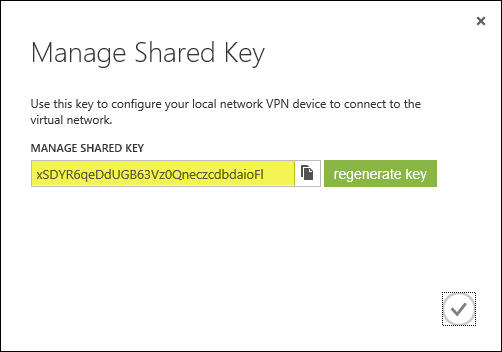
Once the gateway has been created, make a note of the Gateway IP Address and then click Manage Key. Copy this key as it will be required when configuring the site-to-site VPN on the Forefront TMG 2010 firewall.
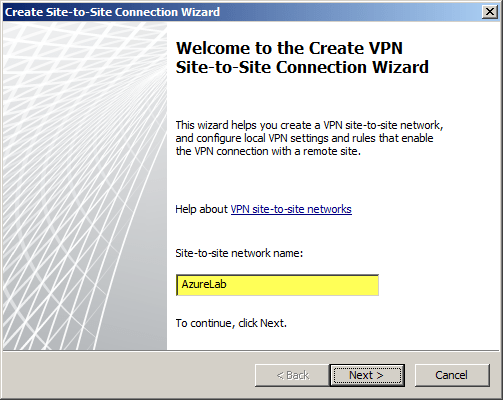
On the Forefront TMG 2010 firewall, open the management console and select Remote Access Policy (VPN). Click the Remote Sites tab in the center pane and then click Create VPN Site-to-Site Connection in the Tasks pane. When the Create Site-to-Site Connection Wizard begins, enter a name for the new site-to-site network.
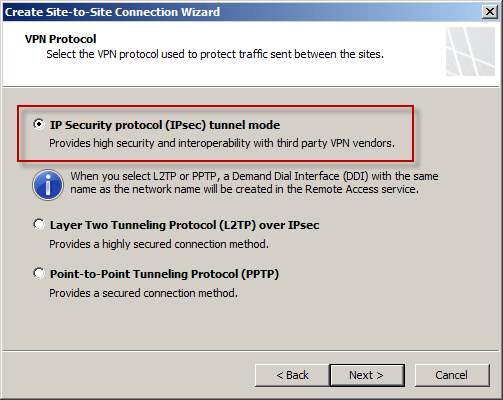
Select IP Security protocol (IPsec) tunnel mode.
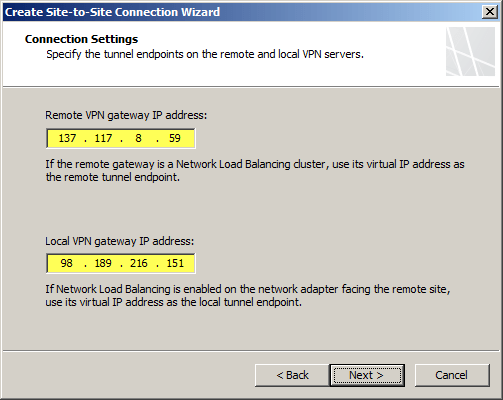
Enter the IP address of the Windows Azure virtual network gateway and the local VPN gateway IP address, which is the IP address assigned to the external network interface of the Forefront TMG 2010 firewall.
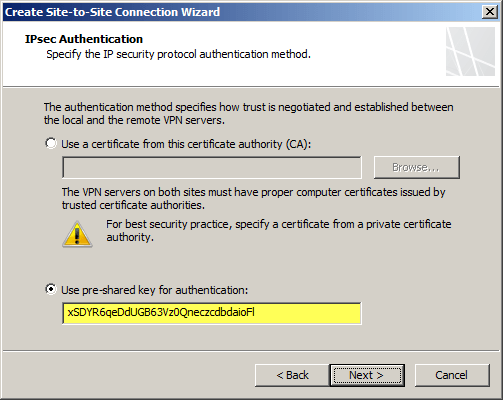
Copy the pre-shared key from the Windows Azure virtual network gateway.
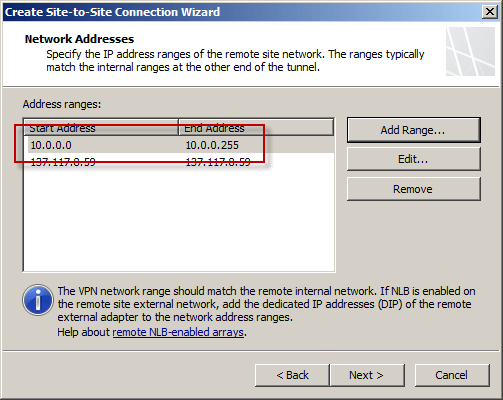
The IP address of the Windows Azure virtual network gateway will be automatically added to the network address list. Click Add Range and add the IP address range you defined earlier for the virtual network.
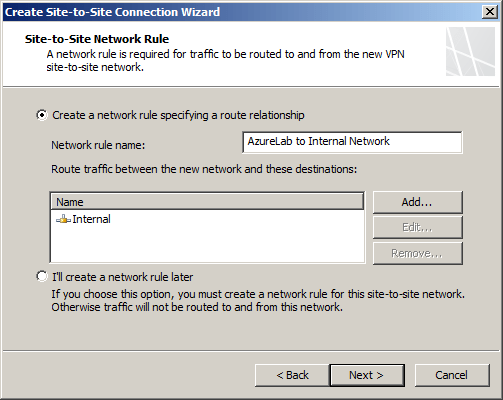
Select the option Create a network rule specifying a route relationship.
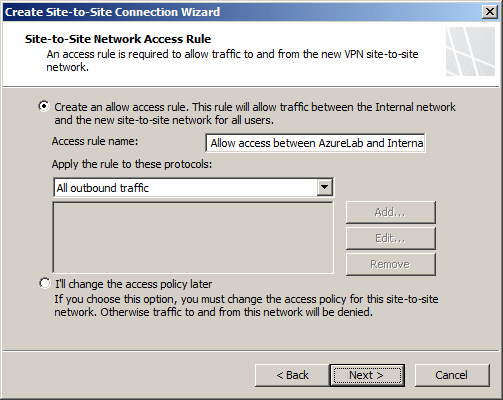
Any communication between the on-premises network and the Windows Azure virtual network must be allowed by firewall policy. You can create an access rule now, or create one later.
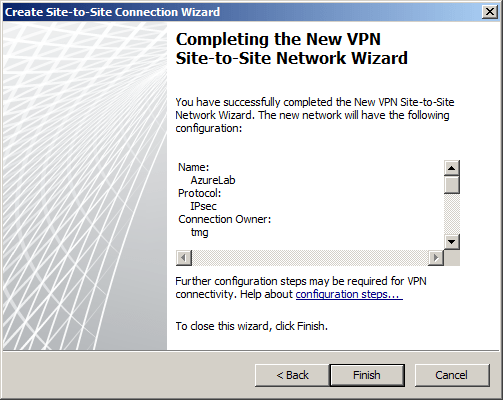
Review the configuration settings and click Finish.
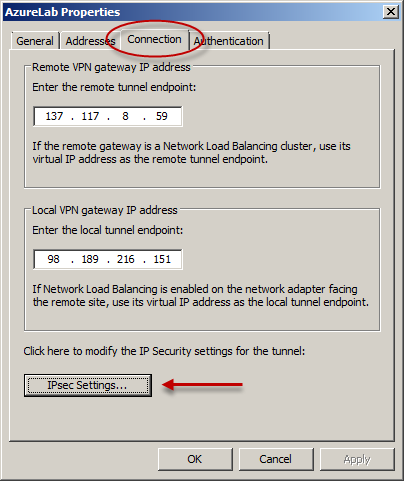
Before applying the configuration, right-click the site-to-site connection and choose Properties, select the Connection tab, and then click IPsec Settings.
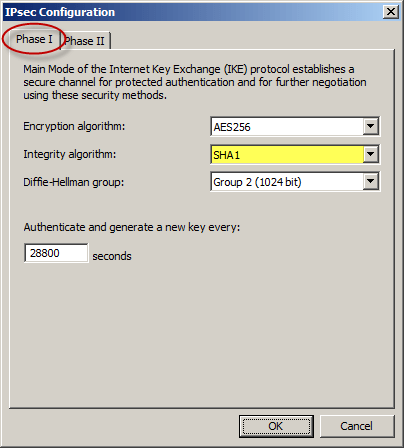
On the Phase I tab select SHA1 for the Integrity algorithm and leave the remaining settings at their defaults.
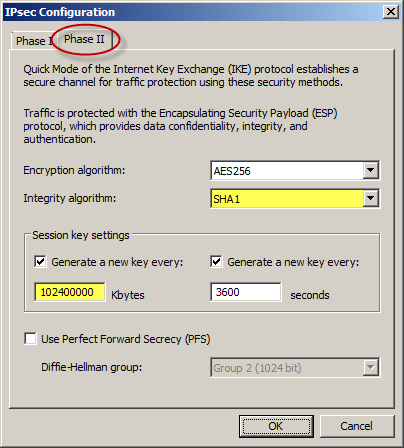
On the Phase II tab select SHA1 for the Integrity Algorithm. Select the option to Generate a new key every 102400000 Kbytes and clear the option to Use Perfect Forward Secrecy (PFS).
Once complete, apply the configuration. Finally, set the Maximum Transmission Unit (MTU) on the Forefront TMG 2010 firewall’s external interface to 1350 bytes by opening an elevated command prompt and issuing the following command:
netsh interface ipv4 set interface <interface_name_or_index> mtu=1350
For example:
netsh interface ipv4 set interface external mtu=1350
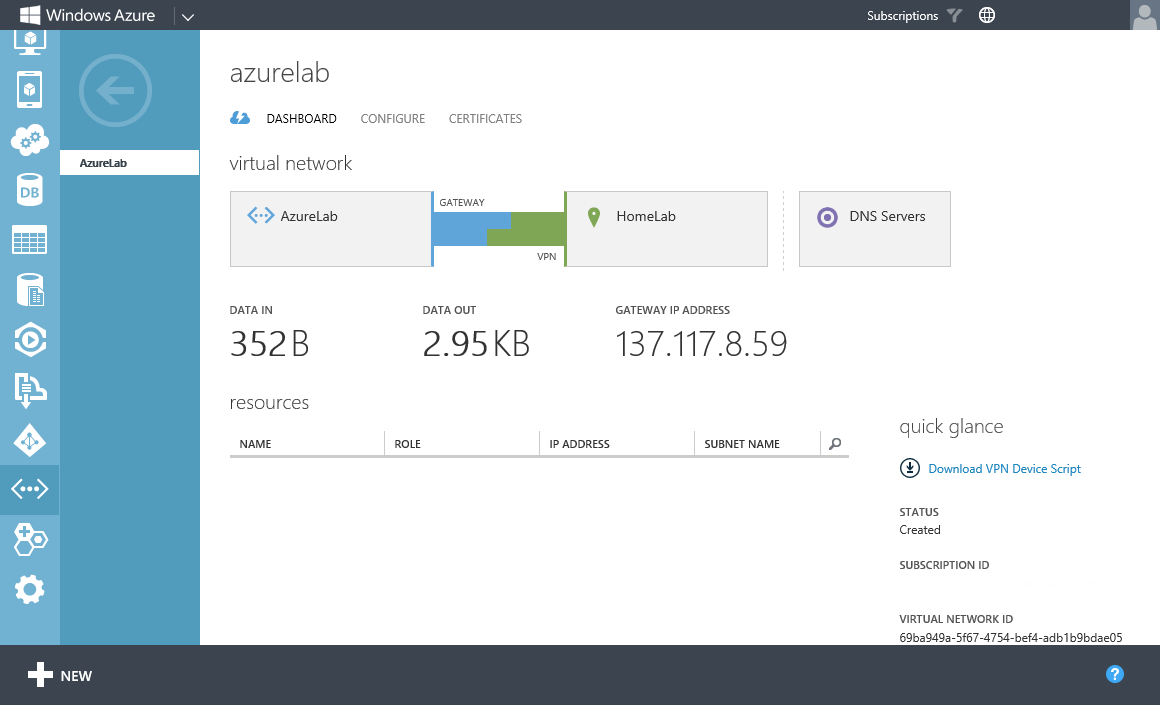
The Windows Azure management console should now indicate that you have successfully established a site-to-site VPN to the remote virtual network.
When you configure a new Windows Azure virtual machine, you can specify that the machine be placed in to your virtual network.
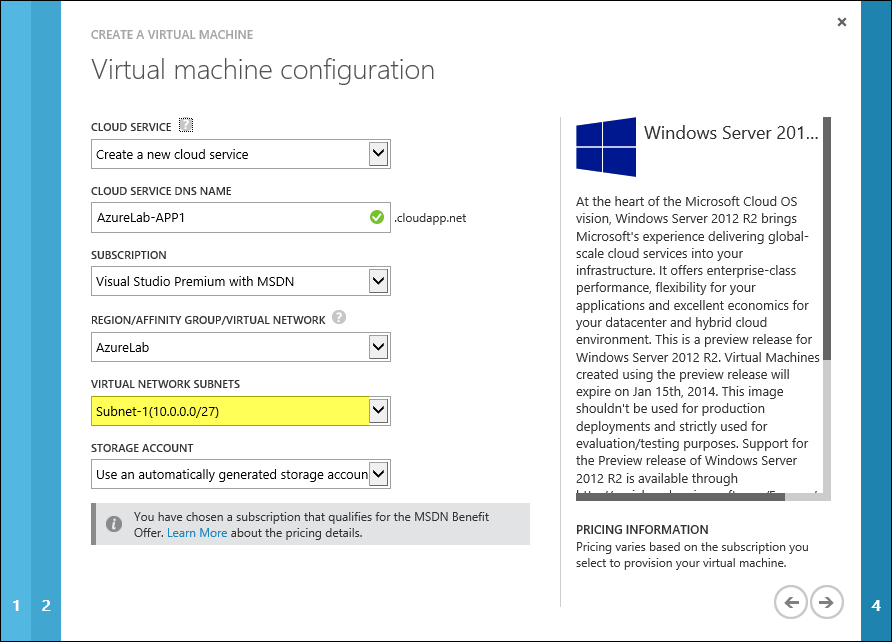
The new virtual machine should now be reachable from your on-premises network using the site-to-site VPN configured on the Forefront TMG 2010 firewall.
Citrix NetScaler Forefront TMG 2010 Replacement White Paper
With the formal end of life announcement for Forefront TMG 2010 last year, many firewall and secure web gateway vendors have been touting themselves as replacements for TMG. The folks at Citrix recently made available a white paper [PDF] making their case as a comprehensive replacement for Forefront TMG. While I don’t have any personal experience with the NetScaler solution, it does appear to have many of the features that TMG administrators have come to rely upon, such as URL filtering, virus and malicious software inspection, SSL termination (HTTPS inspection), content caching, low-level intrusion detection and prevention, and VPN capabilities. In addition, the NetScaler supports flexible network placement with edge, back firewall, and unihomed (single-legged or one-arm) deployment options. The solution is available in both hardware appliance form factor and virtual appliance.
Citrix makes an attempt to position their solution as the ideal and comprehensive replacement for Forefront TMG, and while it does have many features that TMG provides there is one glaring omission – an alternative to the Forefront TMG Firewall Client. ISA and TMG administrators have long used the Firewall Client to provide seamless and transparent proxy services for Winsock applications. The firewall client enables fully authenticated proxy support for non-web based protocols, and it appears that the NetScaler does not include such capabilities.
As with most white papers comparing solutions like this, it is helpful to understand they are essentially marketing material designed to downplay the features of the competing solution while often embellishing their own features. There are also some inaccuracies with regard to Forefront TMG capabilities, which is also not uncommon in documents such as these. For example, the document states that Forefront TMG 2010 failover requires three nodes, which is incorrect. You can easily create a standalone array using Forefront TMG 2010 Enterprise Edition using two nodes.
Overall the Citrix NetScaler looks like a pretty good solution. If you are in the market today for an alternative to Forefront TMG 2010 (…and should you be? That’s a topic for a future post, so stay tuned!) then download their white paper and take a closer look.
Fastvue TMG Reporter v2.1 Now Available
Today Fastvue announced the general availability of TMG Reporter v2.1, the latest release of their advanced reporting and alerting platform built specifically for Forefront TMG 2010. I’ve been working with some of the early release builds and although this is technically considered a minor release, this latest update includes some important new features that make this a worthwhile and compelling upgrade. Here are some of the great new features included with TMG Reporter v2.1:
Activity Reports – Easily the single most important feature included in Fastvue TMG Reporter v2.1 is the addition of detailed activity reports. Prior to v2.1 only overview reports were available. You can now create extremely granular reports on user, site, category, or application activity that include timestamps, full URLs, browse time, category, and disposition (allowed or denied).
Scheduled Custom Reports – Another excellent new feature in Fastvue TMG Reporter v2.1 allows the administrator to create custom reports using the new filtering interface and schedule them for automated delivery to recipients.
Comprehensive Filtering – Fastvue TMG Reporter v2.1 includes a powerful new filtering facility that allows security administrator to dig deep in to the logging data to find the pertinent information they desire. The new enhanced filtering feature is available for use on all reports.
Drilldown Reporting – Another feature that has been greatly improved in the v2.1 release is drilldown reporting. Previously executing a drilldown report resulted in the creation of a completely new and separate report. With v2.1, the new drilldown report now respects the initial filter settings, allowing the administrator to see detailed information as necessary while maintaining the context that the original report was created within.
SQL Server integration – This is one of my favorite (and most requested!) new features. TMG Reporter v2.1 now includes native support for SQL server logging. There are many compelling reasons to configure the Forefront TMG 2010 firewall to log to an external SQL server, and now TMG Reporter can connect directly to your TMG firewall’s configured SQL server to collect report data.
Full support for Windows 8 and Server 2012 – You can now install TMG Reporter on Windows 8 and Windows Server 2012! This is great news as many organizations are beginning to deploy Windows 2012 server and Windows 8 desktops. The TMG Reporter installer now detects which server platform you are installing on and installs the necessary prerequisites automatically. The TMG Reporter web interface is also fully supported on Windows 8 with Internet Explorer 10 (modern and desktop).
Since its initial release a few years ago, Fastvue TMG Reporter has continued to add features and functionality. If you’re running an older version, or if you haven’t yet made the switch to TMG Reporter, the new capabilities in TMG Reporter v2.1 may finally compel you to take the leap and implement or upgrade to TMG Reporter v2.1 for your Forefront TMG monitoring, alerting, and report needs. Download a free, fully functional evaluation copy of Fastvue TMG Reporter v2.1 today. You’ll be glad you did, trust me!

Identifying and Reducing Anonymous Traffic Allowed by Forefront TMG 2010
My recent blog post about altering the SafeSearch enforcement rule in Forefront TMG 2010 to require authentication has sparked some discussion on Twitter and Facebook regarding unauthenticated, anonymous access, particularly to resources located on the public Internet. In a perfect world (ok, my perfect world!), all access to and through the TMG firewall would be fully authenticated. Unfortunately, for a variety of reasons, this isn’t achievable. To start, authenticating all traffic to and through the TMG firewall would necessitate that all clients be configured as explicit web proxy clients. In addition, if non web-based protocols are allowed by firewall policy the Firewall Client would need to be distributed to all clients. While this is ideal if we’re designing a solution on paper, in the real world many administrators don’t have the luxury of forcing proxy configuration or installing the Firewall Client on all their systems. For example, some systems may not be under the administrator’s control or they may be required to support non web-based protocols on platforms other than Windows, for which the Firewall Client is not supported. Also, as veteran ISA and TMG firewall administrators know all too well, there are some applications that simply don’t play nice with an authenticating proxy, even with the Firewall Client installed. Applications that don’t leverage Winsock for network communication or that use IP-based protocols such as ICMP or GRE also prevent us from realizing our goal of authenticating all network traffic through TMG. Windows Update traffic also poses challenges for authenticating all TMG traffic, as the Windows Update service often makes requests to the Internet for updates in the background and perhaps even if there is no interactive user logged on.
Just because out of necessity some traffic has to be allowed through the TMG firewall anonymously doesn’t mean that undertaking an effort to reduce unauthenticated traffic isn’t a worthwhile project. If you’re interested in doing something like this, have a look at the Fastvue blog and read Scott Glew’s excellent article detailing how to use TMG Reporter to identify and reduce unauthenticated traffic on the Forefront TMG 2010 firewall. Not using TMG Reporter? You’re missing out! Download a free evaluation here!
Enable Authentication for SafeSearch Enforcement Rule in Forefront TMG 2010
SafeSearch enforcement in Forefront TMG 2010 is a simple and effective way to prevent users on your network from accessing explicit adult content via popular search engines. Enabling SafeSearch enforcement is accomplished by opening the Forefront TMG 2010 management console, highlighting the Web Access Policy node in the navigation tree, clicking the Configure SafeSearch link in the Tasks pane and selecting the option to Enable SafeSearch.
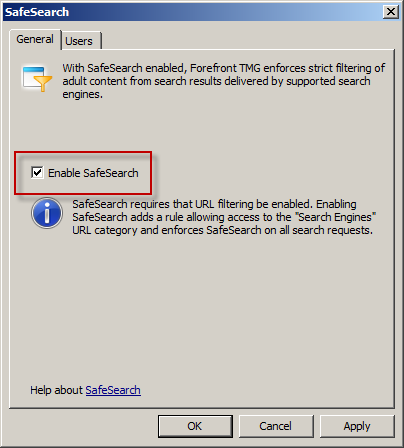
When SafeSearch is enabled a rule is created that grants access to all users from the Internal network to all sites in the Search Engines category.

Effectively this grants unauthenticated access to many search engines including Bing, Google, and Yahoo. This level of access is quite broad and enables anonymous users to access quite a bit of content, which might not be desirable in some environments. It is not possible to change the users in the GUI either, unfortunately. However, it can be changed programmatically using COM and VBscript. For example, the following code will change the users from All Users to All Authenticated Users.
Dim Root, Array, Rule
Set Root = CreateObject("FPC.Root")
Set Array = Root.GetContainingArray()
Set Rule = Array.ArrayPolicy.PolicyRules("SafeSearch")
Rule.AccessProperties.UserSets.Add "All Authenticated Users", fpcInclude
Rule.AccessProperties.UserSets.RemoveSpecified "All Users"
Array.Save
Array.WaitForReload
Important Note: This change is not officially supported by Microsoft. If you make this change it may potentially cause other issues, so please proceed with caution.
Once the script has completed the SafeSearch rule will now apply to All Authenticated Users and prevent unwanted anonymous access to web sites categorized as Search Engines.

Hotfix Rollup 3 for Forefront TMG 2010 SP2 Now Available
Hotfix rollup 3 for Microsoft Forefront TMG 2010 with Service Pack 2 is now available for download. This latest hotfix rollup includes fixes for the following issues:
KB2700248 – A server that is running Forefront TMG 2010 may stop accepting all new connections and may become unresponsive
KB2761736 – All servers in a load balanced web farm may become unavailable in Forefront TMG 2010
KB2761895 – The Firewall service (wspsrv.exe) may crash when the firewall policy rules are reevaluated in Forefront TMG 2010
KB2780562 – PPTP connections through Forefront TMG 2010 may be unsuccessful when internal clients try to access a VPN server on the external network
KB2780594 – A non-web-proxy client in a Forefront TMG 2010 environment cannot open certain load-balanced websites when TMG HTTPS inspection is enabled
KB2783332 – You cannot log on when FQDN is used and authentication delegation is set to “Kerberos constrained delegation” in a Forefront TMG 2010 environment
KB2783339 – A closed connection to a domain controller is never reestablished when authentication delegation is set to “Kerberos constrained delegation” in a Forefront TMG 2010 environment
KB2783345 – Unexpected authentication prompts while you use an OWA website that is published by using Forefront TMG 2010 when RSA authentication and FBA are used
KB2785800 – A “DRIVER_IRQL_NOT_LESS_OR_EQUAL stop error may occur on a server that is running Forefront TMG 2010
KB2790765 – A “Host Not Found (11001)” error message occurs when an SSL site is accessed by using a downstream Forefront TMG 2010 server that has HTTPS Inspection enabled
You can download hotfix rollup 3 for Forefront TMG 2010 SP2 here. After applying this update, the new Forefront TMG 2010 build number will be 7.0.9193.575.
PAL v2.3.3 Now with Forefront UAG 2010 Support
Recently the Performance Analysis of Logs (PAL) tool was updated and now includes a threshold file for Forefront UAG 2010. PAL is an essential utility that can make troubleshooting performance issues or capacity planning dramatically easier. I’ve written about using PAL on Forefront TMG 2010 in the past, and using PAL with Forefront UAG 2010 will be very similar. You can download the latest release of PAL at pal.codeplex.com.
Forefront TMG 2010 Replacement Options
Since Microsoft formally announced the end of life for the venerable Forefront TMG 2010 firewall, the most common question I hear is “What should I replace my Forefront TMG firewall with?” It’s an excellent question, and one that I can’t really answer for you definitively. Since Microsoft has elected to leave this space entirely, you’ll obviously be replacing it with a solution from another vendor. But which one? Well, the answer is “it depends”. There are many excellent firewalls, web proxies, and secure web gateways on the market today. So-called “Next Generation Firewalls” are gaining in popularity as well, and provide some interesting capabilities a security administrator can leverage to provide increased protection for their corporate networks. Which one to choose depends on many factors, and will vary greatly depending on your deployment scenario. My suggestion when evaluating potential replacements for your Forefront TMG 2010 firewall is to take a look at your current configuration, review your corporate security policy to determine network security requirements, then begin researching products that include the features you need. If you take a look at the latest Gartner Magic Quadrant for Secure Web Gateways or Next Generation Firewalls and choose a product in the leaders or challengers quadrants you will probably be satisfied. Regardless which solution you choose, demand a proof-of-concept or insist on an evaluation period with which you can return the product for a full refund if it doesn’t meet your needs or expectations. Be open-minded during the process, as you’re not likely to have the comfort level with the new solution as you do with your existing Forefront TMG 2010 firewall. If you are using your Forefront TMG 2010 firewall as a dedicated remote access solution, I would encourage you to look closely at Windows Server 2012 remote access VPN and especially DirectAccess.
Keep in mind that although Microsoft has announced the end of life for Forefront TMG 2010, it will still be supported for many years to come. You will have full feature functionality until the end of 2015, and the product will be supported in some fashion until early 2020 so there’s no need to rush. Perhaps the best replacement for Forefront TMG 2010 hasn’t even been created yet! If you have questions about Forefront TMG 2010 replacements, or you are in the process of evaluating another solution to replace your existing Forefront TMG firewall today, feel free to ask questions or share your experiences by commenting below. Thanks!
Forefront TMG 2010 Configuration Change Tracking Description Quick Tip
Configuration change tracking is an important tool that can be leveraged by Forefront TMG 2010 firewall administrators to audit changes made to the policy and configuration of TMG. This feature originally appeared with ISA 2006 SP1 and was optionally enabled by the administrator. Beginning with Forefront TMG 2010 this feature is now enabled by default. When applying changes made to TMG, the administrator is prompted to enter a description of the change which is included in the change tracking log.
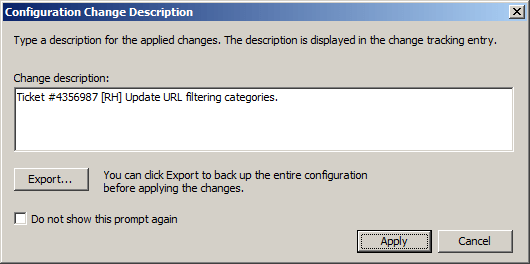
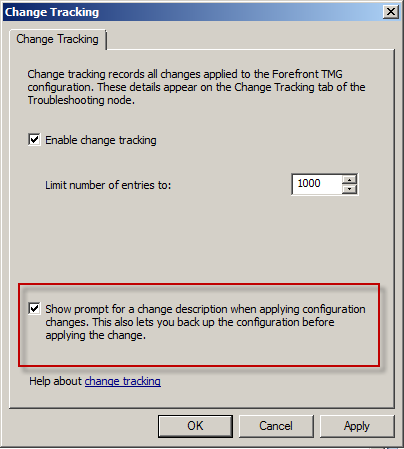
If you check the box Do not show this prompt again you will, of course, not be prompted to enter descriptions for applied changes in the future. If you later decide you’d like to have this feature back, highlight the Troubleshooting node in the navigation tree and select the Change Tracking tab in the main window. In the Tasks pane click Configure Change Tracking and check the box next to Show prompt for a change description when applying configuration changes.
Windows 8 Modern UI Apps and Forefront TMG 2010
On a Windows 8 client deployed behind a Forefront TMG 2010 firewall, users may receive the following error when trying to open the Windows Store app.
You’re PC isn’t connected to the Internet. To use the Store, connect to
the Internet and then try again.
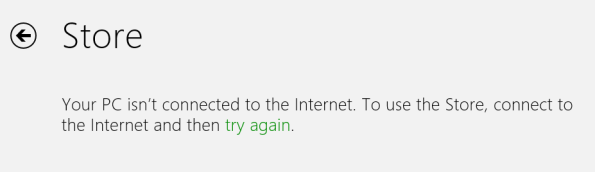
Other Windows 8 “modern UI” applications may experience similar behavior if they require access to resources on the public Internet. However, you are able to access the Internet using both the modern UI and desktop versions of Internet Explorer 10.
The problem occurs when the Forefront TMG 2010 firewall is configured to require authentication on rules controlling access to the Internet over HTTP and HTTPS, or if the option to require all users to authenticate is enabled on the web proxy listener (which isn’t a good idea!). Authenticated web proxy access requires that client be configured either as a web proxy client or as a firewall client. Internet Explorer can be configured as a web proxy client, typically using automatic configuration (WPAD) through DNS or DHCP, but Windows 8 modern UI applications do not inherit Internet Explorer proxy server settings. As such, they behave as SecureNAT clients which do not support authentication. To resolve this issue, run the following command from an elevated command prompt on the Windows 8 client.
netsh winhttp set proxy <tmg_hostname_or_IP_address>:<web_proxy_listener_port>
For example…
netsh winhttp set proxy tmg.richardhicks.net:8080
More information about configuring WINHTTP can be found here.
Another workaround is to install the Forefront TMG 2010 firewall client. This will ensure that all outbound communication through the Forefront TMG firewall is always authenticated.
Connect


 Richard Hicks' Forefront TMG Blog