Archive
How to Determine TMG Version
Recently Tarek Majdalani, one of my fellow Forefront Edge Security MVPs, published an informative article detailing several ways to determine which version of TMG is installed. One additional method you can use to determine the version of TMG you are running is by using COM. The VBScript code looks like this:
Option Explicit

Dim Root, Server

Set Root = CreateObject("FPC.Root")
Set Server = Root.GetContainingServer

WScript.Echo Server.ProductVersion

Set Server = Nothing
Set Root = Nothing
Copy the code above and save it in a file with a .vbs extension, or download the script file here.
You can execute the script from the command line using cscript.exe using the following syntax:
cscript.exe <path_to_script_file>
The output of the command includes the TMG version and build number information.
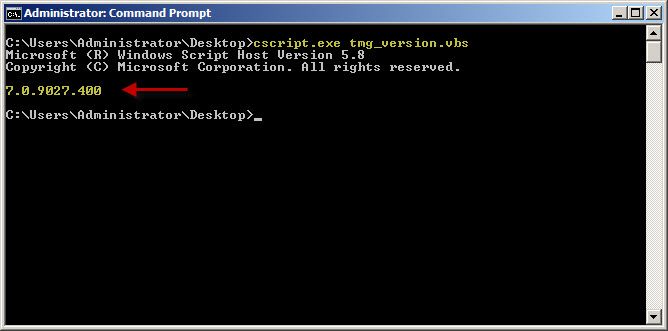
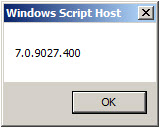
You can also double-click the script file in the GUI and a Windows message box will appear with the TMG version and build number information.
What are the Differences between TMG and UAG?
I am frequently asked “What are the differences between TMG and UAG?” and “Which one should I deploy?” In this post I will provide some background information that will hopefully answer those questions for you. This is not intended to be a comprehensive side-by-side feature comparison. It is only meant to provide a high-level overview of the basic differences between TMG and UAG.
Let’s begin by examining the features of each product:
- Microsoft Forefront Threat Management Gateway (TMG) 2010 is an integrated edge security gateway. It is a Common Criteria certified (EAL4+) enterprise-class application layer firewall that includes support for proxy services (forward and reverse proxy), content caching, and VPN (both remote access and site-to-site). It can be deployed in all of these roles, or any subset of them.
- Microsoft Forefront Unified Access Gateway (UAG) 2010 is a dedicated remote access gateway. It is Common Criteria certified (EAL2+) and provides browser-based remote access to published applications via an SSL VPN portal. It includes limited support for traditional client access VPN with Secure Socket Tunneling Protocol (SSTP) and Network Connector (a proprietary UAG component that provides network-level access). UAG can also serve as a DirectAccess gateway, a deployment scenario for which the UAG provides incredible value.
Fundamentally, TMG is a network-centric access control solution. With it you can provide fine-grained control over all types of communication going through the firewall, both web-based and non web-based protocols. TMG controls access inbound and outbound, and allows for the configuration of multiple perimeter (DMZ) networks.
By contrast, UAG is an application-centric remote access solution. It provides inbound access only; there are no outbound access capabilities provided by UAG. This is a common source of confusion, as UAG includes TMG under the hood. Many administrators mistakenly believe they can leverage the underlying TMG installation to provide forward proxy or VPN services. This is not supported. Other than mail server publishing, TMG may not be used for any other purpose. It is installed to provide protection for the UAG application only.
UAG takes one of the TMG deployment roles, the VPN/remote access role, and supercharges it. UAG includes advanced application publishing capabilities not provided by TMG, such as endpoint configuration and health detection, customizable data manipulation, session clean up, and more. For example, an administrator can allow full access to a published application to any system that has anti-virus software running and up-to-date, has the firewall enabled, and has the latest system updates applied. If the system does not meet these requirements, the administrator can determine if access should be granted with reduced privileges, or perhaps denied access altogether. An administrator might mask specific data sent to a user (such as credit card numbers, social security numbers, etc.) if the user is accessing the published web application from an untrusted device (non-managed workstation, kiosk, etc.). When the user closes their session, all temporarily downloaded files are removed from the workstation, ensuring that no sensitive data is left behind.
So when do you deploy TMG and when do you deploy UAG? If you want to control outbound web access (forward proxy or firewall), TMG is your only option. If you want to publish multiple applications with a single URL (an application portal), UAG is the answer. There are, however, areas where there is overlap between TMG and UAG capabilities. For example, let’s say you want to publish a single application such as Outlook Web App (OWA). Which solution do you choose? TMG can publish OWA quite capably, as can UAG. The answer depends on your specific requirements. If you need to restrict access to only those systems that meet your specific configuration requirements, publishing OWA with UAG is the solution. If you wish to grant access to OWA to anyone who authenticates successfully, then TMG will suffice.
Licensing often plays a role in determining which solution to deploy for remote access. UAG is licensed using Client Access Licenses, or CALs. Each user of the system is required to have a UAG CAL. The UAG CAL is included in the Microsoft Enterprise CAL (eCAL), so this may not be an issue for larger enterprises. TMG is licensed per processor. There are no CALs required for users of TMG (advanced web protection features do require the Web Protection Services Subscription license, however, which is licensed per user or per device annually). For more information, refer to the licensing FAQs for TMG and UAG.
In summary, TMG is a rock-solid firewall, proxy, content cache, and VPN access gateway that has basic support for application publishing. UAG is an advanced remote access gateway dedicated to application publishing, and is highly customizable and limited in functionality only by your programming skills, creativity, and imagination.
In a nutshell, think of TMG and UAG like this:
TMG – Keeps the bad guys out.
UAG – Lets the good guys in.
Implementing Forefront Threat Management Gateway (TMG) 2010 Free Training Event (Portland)
Great news…more FREE training! Recently I announced that I will be delivering a Microsoft Forefront Threat Management Gateway (TMG) 2010 training course in Bellevue, WA on October 6 and 7, 2010. Microsoft and Celestix have added another event in Portland, OR on October 13 and 14! Attendees will learn how to design and deploy the latest TMG solutions for web access, remote access, and mail protection. The course includes classroom and hands-on lab training. As an added bonus I will be giving away a free copy of the Forefront Threat Management Gateway (TMG) 2010 Administrator’s Companion to one lucky attendee at each even, signed by one of the authors, Yuri Diogenes! Visit the event page for more information and to register.

Upcoming Events
Over the next few months I’ll be traveling and speaking frequently, giving presentations at conferences, delivering training classes, speaking at seminars, and more. I’ve created an Events page here to keep everyone informed about where I am and what I’m doing. Chances are good that I’ll be in your part of the world sometime this year or next, so register for one of the events and introduce yourself!
Implementing Forefront Threat Management Gateway (TMG) 2010 Free Training Event
Are you interested in attending a FREE Microsoft Forefront Threat Management Gateway (TMG) 2010 training course? If so, I’ll be delivering a two-day instructor-led TMG training program at the Microsoft office in Bellevue, WA on October 6 and 7, 2010. The event is sponsored by Microsoft and Celestix Networks. Attendees will learn how to design and deploy the latest TMG solutions for web access, remote access, and mail protection. The course includes classroom and hands-on lab training. Visit the event page for more information and to register.
Forefront Threat Management Gateway (TMG) and Windows Server 2008 Networking Scalability Features
Several years ago, Microsoft released the Scalable Networking Pack (SNP) for Windows Server 2003 SP1. The SNP included enhancements to the operating system’s networking stack to improve scalability and increase performance. Later the SNP features were included in Windows Server 2003 SP2. Veteran ISA firewall administrators will recall that the SNP adversely affected the operation of ISA, particularly when Network Load Balancing (NLB) was enabled. Since these features were enabled by default, disabling them after installing the SNP or Windows Server 2003 SP2 on an ISA firewall was a requirement. This was accomplished by modifying registry keys or installing a hotfix that disabled the SNP features.
Today, the networking stack in Windows Server 2008 and Windows Server 2008 R2 both include the capabilities originally introduced with the SNP. Instead of modifying registry keys to enable/disable those features as we did in Windows Server 2003, they are now managed using netsh.exe. To view these parameters, enter the following command:
netsh interface tcp show global
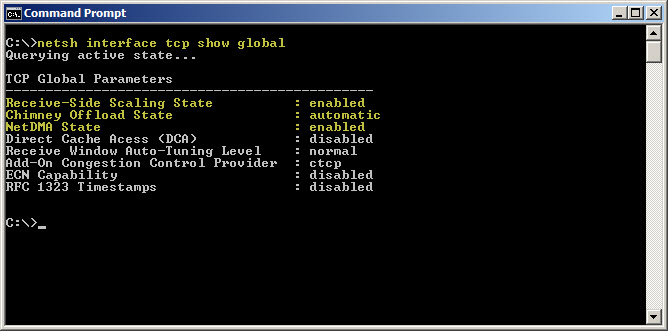
As you can see, SNP components such as receive-side scaling, chimney offload, and NetDMA are enabled by default. Thankfully TMG is now fully compatible with all of the scalable networking features. There is no need to disable them unless you have a specific requirement to do so.
Microsoft Operations Framework (MOF) Reliability Workbooks
The Microsoft Operations Framework (MOF) provides important guidance for IT professionals responsible for maintaining and operating various Microsoft technologies. The MOF Technology Library includes a series of workbooks that provide detailed knowledge, tasks, and schedules required to keep these technologies operating efficiently and without issue. There are workbooks available today for many Microsoft infrastructure and application services, including Active Directory, DNS, Exchange, SQL, IIS, and many more. Reliability workbooks for Forefront Unified Access Gateway (UAG) and DirectAccess were recently added to the library. The Network Load Balancing (NLB) workbook will also be helpful for many TMG and UAG administrators. If you are responsible for deploying or managing these technologies in your organization, these workbooks are sure to be beneficial.
Forefront TMG Malware Protection and the Unified Access Gateway (UAG)
Forefront Threat Management Gateway (TMG) 2010 includes integrated virus and malware inspection capabilities that provide enhanced protection for clients accessing the Internet through TMG. The scanning engine used by TMG is the same engine included in many Forefront protection technologies such as Forefront Protection for Exchange (FPE), Forefront Protection for SharePoint (FPS), and the forthcoming Forefront Endpoint Protection (FEP), just to name a few. This same scanning engine is also the heart of the Microsoft Security Essentials desktop antivirus offering, which is very highly rated by independent third parties. It has a proven track record of being efficient and performing well, with a high degree of accuracy and extremely low false positives.
Since the Forefront Unified Access Gateway (UAG) 2010 includes TMG, many UAG administrators believe that they can enable TMG malware protection to protect their UAG-published applications. Unfortunately, this does not work. With UAG, all SSL VPN traffic is processed by the UAG ISAPI filter, not the underlying TMG firewall. TMG is used only to protect the UAG host itself, so enabling TMG malware inspection on the UAG system has no effect whatsoever.
If you are thinking you can leverage the malware inspection capabilities when publishing applications using TMG, it still doesn’t work. With TMG, the malware inspection engine works only in forward proxy scenarios (HTTP requests made by TMG protected clients). Malware inspection does not apply to reverse proxy traffic at all in TMG.
Changing the WebSpy Vantage Scheduled Task Recurrence Interval
There are many third-party reporting tools available today that can aggregate log data for analysis, reporting, and event correlation. One of my favorites for Microsoft Forefront Threat Management Gateway (TMG) 2010 is WebSpy Vantage. Vantage uses its own data stores (called storage), so before you can view logged data or generate reports, you must first import data from your current TMG logging repository (SQL or text file) in to Vantage storage. Once this data has been imported you can do pretty much whatever you want with it after that.
When you create a task to automate the import of log data, you will notice that the Recurrence options are limited to None, Daily, Weekly, and Monthly.
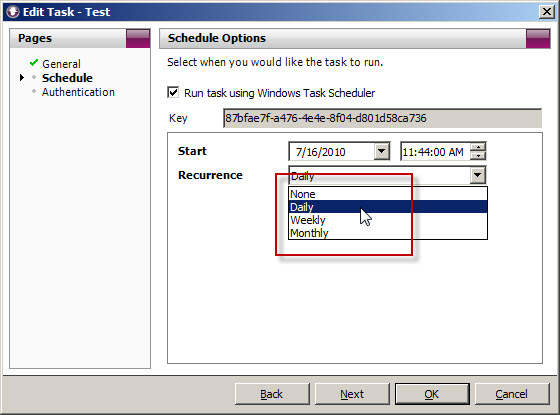
What if you’d like to import the data more frequently than daily? You could create another daily task and schedule that to run daily at a different time, but fortunately there’s an easier way. Since WebSpy Vantage leverages the Windows Task Scheduler, we can use the schtasks.exe command line tool to alter the schedule to run more frequently.
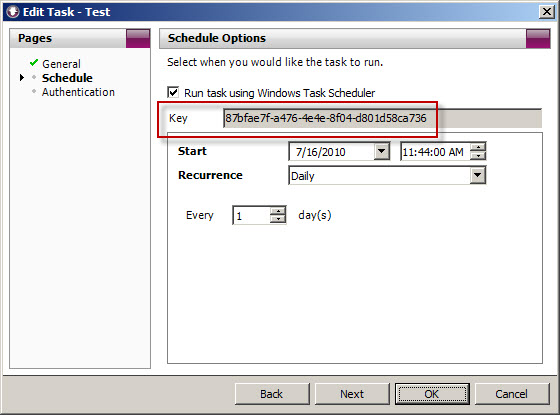
To accomplish this, first copy the Key for the scheduled task you wish to modify.
Next, open a command prompt. The syntax for the command when using Vantage Ultimate is:
schtasks /change /tn “Vantage Ultimate […key…]” /ri <interval_in_minutes>
For example, if we want to alter the task above to run every 4 hours, the command would look like this:
schtasks /change /tn “Vantage Ultimate [87bfae7f-a476-4e4e-8f04-d801d58ca736]” /ri 240
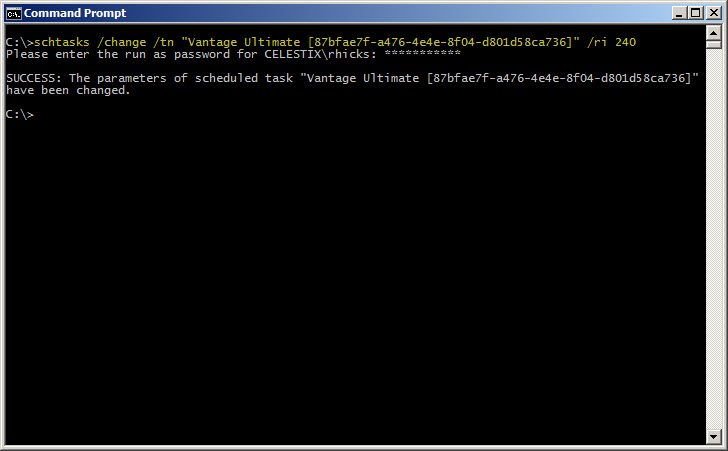
You can verify the new task settings by entering the following command:
schtasks /query /tn “Vantage Ultimate [87bfae7f-a476-4e4e-8f04-d801d58ca736]” /v /fo list
The output will look similar to this:
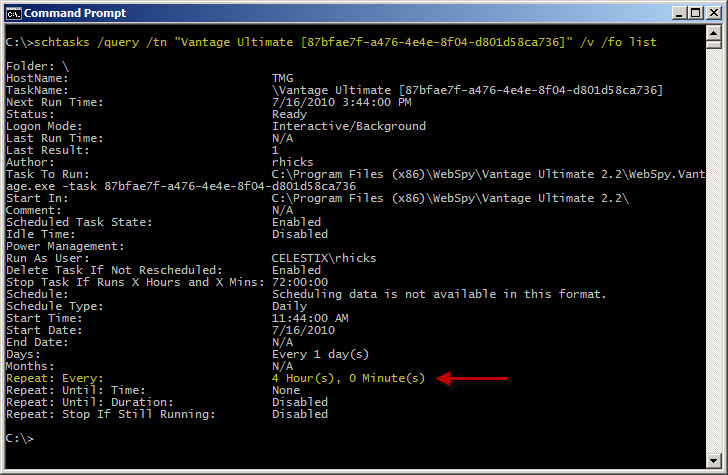
With schtasks.exe, the interval range in minutes is 1-599940.
Websense Integration Support for Forefront Threat Management Gateway (TMG) 2010
Updated July 11, 2011: Since this post was originally published, Websense now supports full integration with Forefront TMG 2010 with Websense Web Security/Web Filter v7.6.
There seems to be a fair amount of confusion regarding Websense integration support for Microsoft Forefront Threat Management Gateway (TMG) 2010. As you are most likely aware, TMG is 64-bit only and is supported only on Windows Server 2008 64-bit and Windows Server 2008 R2 64-bit. You cannot install TMG on any 32-bit operating system. By contrast, Websense Web Security and Web Filter today (July, 2010) are 32-bit only and are not supported on any 64-bit operating system. These architectural differences clearly limit the integration capabilities for Websense and TMG.
Recently Websense announced the availability of Websense Web Filter and Web Security v7.5, which now includes limited support for integration with TMG. In this release, no Websense components (with the exception of the filtering plug-in) can be installed on the TMG firewall system. In order to support Websense integration with TMG, you must have a separate system or systems on which to install the Websense policy, filtering, user identification, and logging/reporting components. For typical enterprise deployments this won’t be an issue, but this is disappointing news for many small to mid-sized customers who don’t need or want the extra overhead of multiple systems to provide URL filtering services. Another serious limitation is that Websense Web Filter and Web Security v7.5 are currently not supported on Windows Server 2008 R2, at all. If you have installed TMG on Windows Server 2008 R2, you are out of luck.
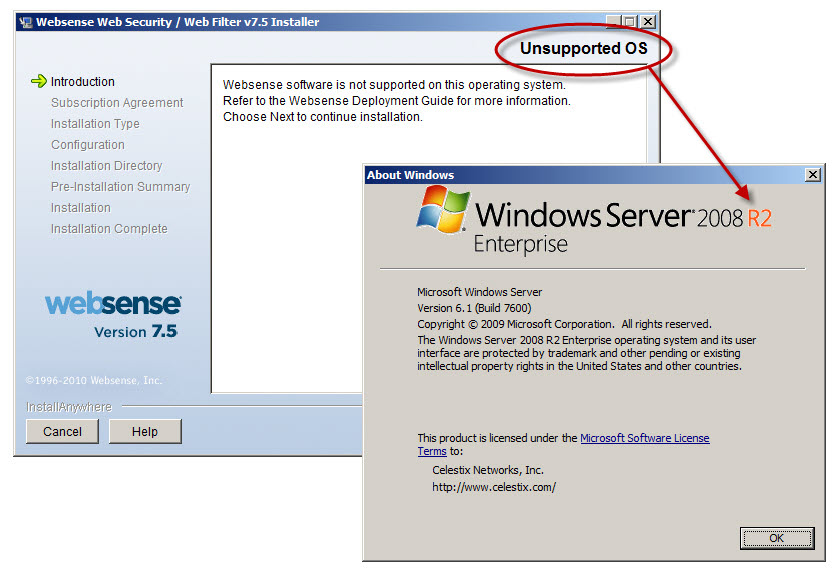
Thankfully, TMG includes native URL filtering capabilities that, when combined with other TMG advanced protection technologies such as integrated virus and malware scanning, HTTPS inspection, and the vulnerability-based intrusion detection and prevention system, provide a consolidated and comprehensive secure web gateway solution that ultimately affords more overall protection compared to URL filtering solutions alone. TMG includes a 120-day evaluation of these advanced web protection technologies (beginning at the time of product installation, not the activation of the URL filtering feature itself!) so there’s no obligation to try it out. Take it for a test drive…I think you’ll be impressed! It performs well, scales very effectively, and is much easier to manage than many third-party integrations.
Connect


 Richard Hicks' Forefront TMG Blog