Archive
Forefront Threat Management Gateway (TMG) Interview with David Cross
For a high-level overview of Microsoft Forefront Threat Management Gateway 2010, watch this TechNet Edge interview with TMG Program Unit Manager David Cross. David discusses the new features and functionality included in TMG and explains the differences between TMG and UAG.

Forefront Threat Management Gateway (TMG) 2010 – RTM Now Available!
Great news! Microsoft Forefront Threat Management Gateway (TMG) 2010 RTM is now available!

MSDE Performance with Microsoft ISA Server 2006
I realize that MSDE performance is an oxymoron, but the performance of the MSDE database included with Microsoft ISA Server 2006 is essential to the operation of the ISA firewall. By default, if ISA is unable to write log data to the database, the firewall will enter lockdown mode and stop servicing requests. To ensure the availability of the ISA firewall, it is important to understand the limitations that are inherent with MSDE, and also the steps to take to improve performance when logging to an MSDE database.
There are several logging options to choose from when installing ISA. Selecting the ‘advanced logging’ feature will install the Microsoft SQL Server 2000 Desktop Engine (MSDE) database to support logging.
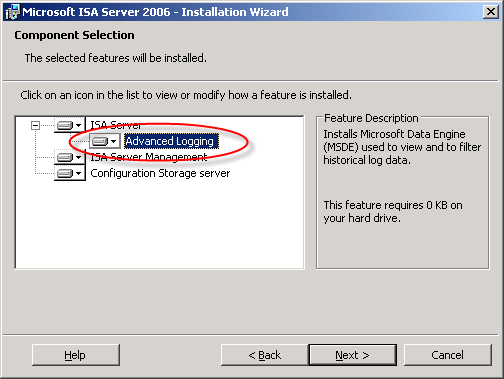
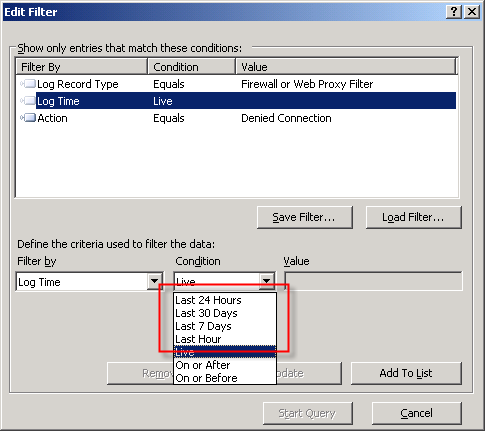
The advanced logging option using MSDE requires more resources than text file logging (in terms of processor utilization, memory consumption and disk I/O), but unlike text file logging there is the added benefit of viewing historical log data in the ISA management console.
To be honest, I have never been a fan of using MSDE with ISA. In terms of performance, it is not very robust. MSDE was designed originally as an alternative to the Jet database engine included with Microsoft Access and was never intended to be used for enterprise applications. MSDE is based on SQL Server 2000, which by my math is over nine years old as of this writing. That is an eternity in technology time. Also, MSDE on ISA limits the database size to 1.5GB, and by design includes a workload governor that can impede performance in busy environments. Personally, I prefer text logging because it is much more robust, scalable, and higher performing, especially in very busy enterprise deployments. For me, the need to view historical data in the ISA management console is not critical, as I am comfortable with looking through text log files using the command line. I make liberal use of utilities such as findstr.exe and tail.exe (the latter of which is included in the Windows Server 2003 Resource Kit tools), as well as the Microsoft Log Parser. That’s just me though. : )
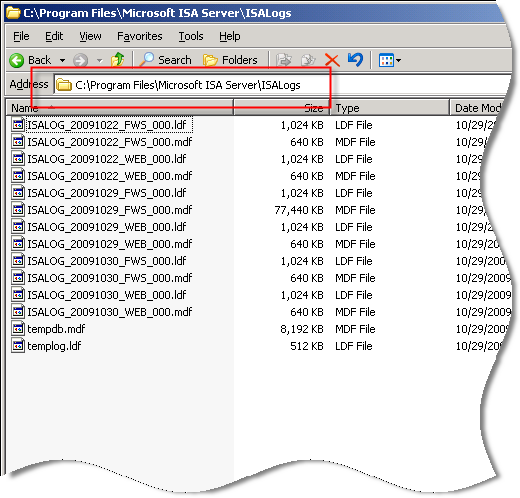
Of course there are many small and mid-sized deployments for which MSDE is perfectly suited and quite capable of performing adequately. In those scenarios, it is important that we follow some implementation best practices and perform additional maintenance to ensure optimum performance when using MSDE. First and foremost, the MSDE database files should be placed on a separate partition from the system partition. This will reduce disk contention and file fragmentation. By default, the log files are contained in the \Program Files\Microsoft ISA Server\ISALogs folder on the system partition.
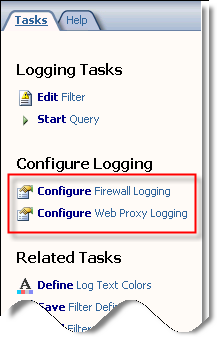
You can change the location of the database files by opening the ISA management console, highlighting ‘Monitoring’, then selecting the option to ‘Configure Firewall Logging’ or ‘Configure Web Proxy Logging’.
Next, click the ‘Options…’ button next to the ‘MSDE Database’ option, then select the radio button next to ‘This folder (enter full path):’ and specify a location to store the log files. If you are making this change on an ISA Enterprise array, this location must exist on ALL array members. You have the option to use a system variable here, such as %logdrive%, which can simplify configuration for enterprise deployments.
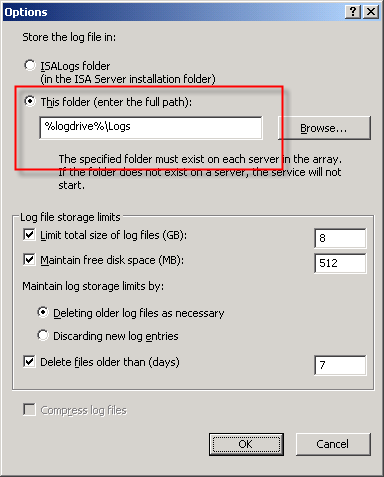
Although less critical when you have a separate partition for the log files, disk fragmentation can reduce MSDE performance as well. You can use the native Windows disk defragmentation tool (defrag.exe) to defragment the partition, or if you prefer only to defragment the database files themselves you can use contig.exe from Sysinternals.
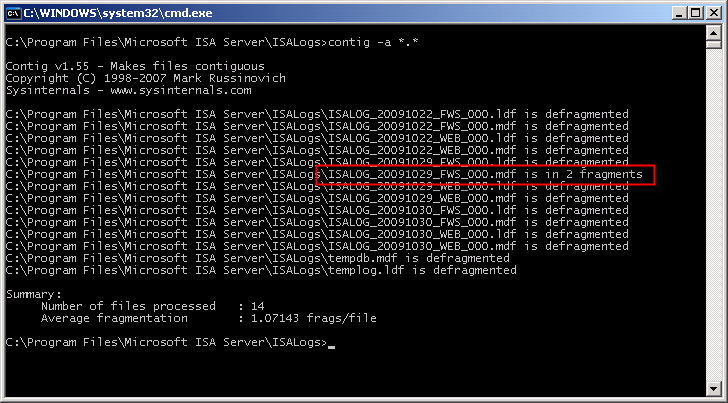
Note: This screen shot is from a little used test machine, so the level of fragmentation is minimal. On a busy system that has been in production for years, there will almost certainly be more fragmentation than you see here.
In addition to the best practices outlined above, another way to improve MSDE performance is to reduce the amount of data logged in the first place. This can be accomplished in several ways. To begin, review the log fields that are selected by default. You can find the log fields on the Firewall or Web Proxy logging properties window and clicking on the ‘Fields‘ tab. If there are fields that contain information that aren’t required, deselect them. Some fields that are enabled by default and are commonly omitted are the bytes sent and received (and delta) fields and processing time (and delta) fields. Review all of the log fields to determine the minimum data required.
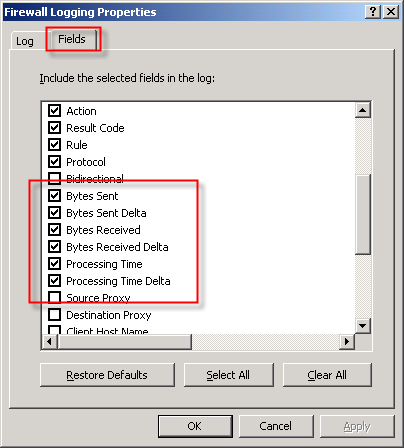
You might also consider not logging traffic processed by the default deny rule. While this can significantly reduce the amount of data logged in busy environments, it does reduce visibility in to what types of traffic the ISA firewall is rejecting. A better alternative is to create specific access rules for uninteresting traffic (e.g. DHCP requests, NetBIOS name resolution broadcasts, etc.) and configure the rule not to log requests that match.
You can also disable the option to log traffic blocked by flood mitigation settings. Flood mitigation settings can be found in the ISA management console by expanding the ‘Configuration’ node, highlighting the ‘General’ node, then click on the ‘Configure Flood Mitigation Settings’ link.

Considering the many limitations imposed by MSDE, you might think that using a remote SQL server is the answer to all of these problems. Having a dedicated system running the latest version of SQL would certainly better than MSDE. However, network connectivity issues and throughput can potentially impede performance using this option. Thankfully Forefront Threat Management Gateway 2010 includes some significant enhancements to logging that address these issues. First, the native database logging option now uses SQL 2008 Express, which is a big improvement over MSDE. Also, TMG database logging now includes an option to queue logged data locally if for any reason the database is unreachable. The log queuing feature of TMG now makes remote SQL logging a viable and compelling option for logging in the future.
For additional information about remote SQL logging, see my previous posts Remote SQL Logging with Microsoft ISA Server 2006 and A Few Notes Regarding Remote SQL Logging with Microsoft ISA Server and Forefront Threat Management Gateway.
For more detail about how logging works in ISA, and for additional information on the various logging options available, please refer to the Monitoring, Logging, and Reporting Features in ISA Server 2006 document on TechNet.
Microsoft Forefront Threat Management Gateway Administrator’s Companion – Pre-Order Now!
Excellent news! Forefront Threat Management Gateway Administrator’s Companion, authored by Jim Harrison, Yuri Diogenes, Mohit Saxena and reviewed by Dr. Tom Shinder is now available for pre-order on Amazon.com!
Forefront Threat Management Gateway 2010 Release Candidate – Available Now!
Good news! Microsoft Forefront Threat Management Gateway 2010 Release Candidate is now available for download! For more information about TMG RC, please read this blog post from the TMG product team.
Microsoft Forefront Threat Management Gateway Administrator’s Companion – Coming Soon!
Just wanted to remind everyone now that Microsoft Forefront Threat Management Gateway Beta 3 is out that the Administrator’s Companion book will be available soon!
This book is being co-authored by some of the most knowledgeable TMG experts in the world – Jim Harrison, Yuri Diogenes, Mohit Saxena, and Tom Shinder. I’ll post another reminder as soon as the book is available for pre-order.
DNS Security Enhancements and Web Proxy Auto Discovery
Using Web Proxy Auto Discovery (WPAD) is a simple and effective way to configure web browsers to use the ISA firewall as a proxy server. WPAD can be implemented using DNS or DHCP, with DNS being the more common of the two. For WPAD using DNS, configuration is simple and straightforward; all that is required is that you configure a host record in DNS called WPAD that resolves to the IP address of your ISA firewall’s internal network interface.
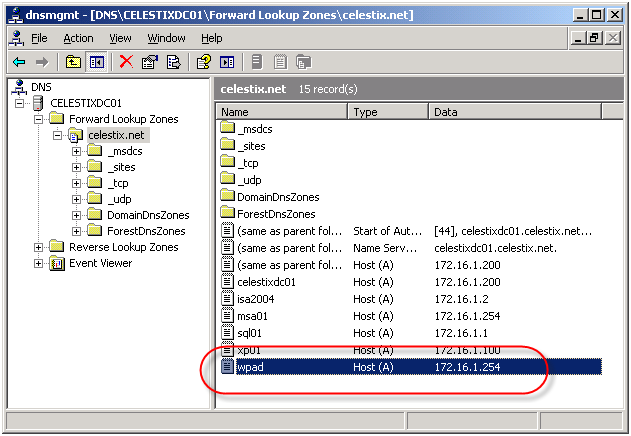
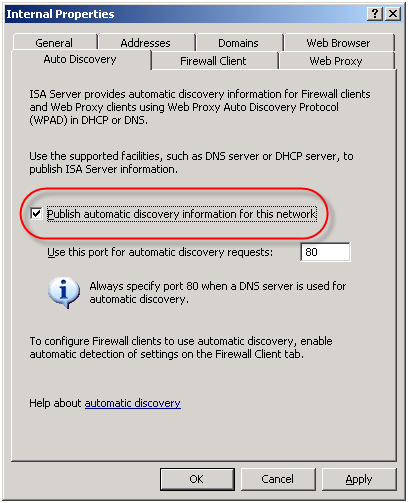
On the ISA firewall, enable the ‘Publish automatic discovery information for this network’ option on the ‘Auto Discovery’ tab for the Internal network.
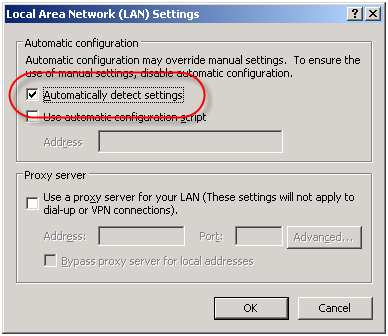
For Internet Explorer, navigate to ‘Tools/Internet Options/Connections/Lan Settings’ and select the option to ‘Automatically detect settings’ and your work is done!
Unfortunately this functionality can be easily leveraged for nefarious purposes. An attacker could create their own WPAD record (which can be accomplished simply if dynamic DNS is not configured correctly) and redirect traffic through a host that they control. From there they could have full view in to all web-based communication between a client and an Internet-based remote host.
In order to address this security concern, Microsoft has made changes to the way DNS works beginning in Windows Server 2008. DNS in Windows Server 2008 now includes a feature called the global query block list. Essentially this is a list of names that the DNS server will not respond to if queried. By default this list includes two entries; WPAD and ISATAP. You can view this list by executing the following command from an elevated command prompt:
dnscmd /info /globalqueryblocklist
If you are using Windows Server 2008 DNS and you wish to leverage DNS WPAD functionality you must instruct the DNS server to respond to these requests. Simply creating the DNS record by itself is not enough. On Windows Server 2008 you can configure WPAD by creating your DNS record as usual, then remove WPAD from the global query block list by executing the following command from an elevated command prompt:
dnscmd /config /globalqueryblocklist isatap
This command replaces the existing global query block list with only isatap. Remember to execute this command on each DNS server that is authoritative for your zone.
Although not recommended, you can also disable the global query block list functionality altogether by executing the following command from an elevated command prompt:
dnscmd /config /enableglobalqueryblocklist 0
Of course this functionality can be restored by executing the following command from an elevated command prompt:
dnscmd /config /enableglobalqueryblocklist 1
The global query block list functionality is also now included in security update MS09-008 for Windows Server 2003 DNS and WINS servers. This means that everything we’ve discussed here applies to Windows Server 2003 DNS servers with the MS09-008 update installed, with the exception of how the block list is configured. With Windows Server 2003 DNS and the MS09-008 update, management of the global query block list is done through the following registry key:
HKLM\SYSTEM\CurrentControlSet\Services
\DNS\Parameters\GlobalQueryBlockList
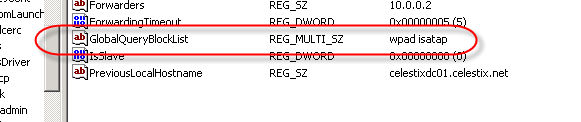
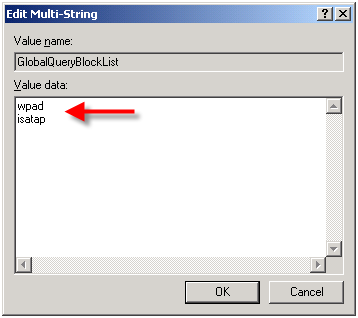
If you have already configured WPAD record in DNS, the good news is that if you perform an in-place upgrade to Windows Server 2008, WPAD functionality will not be disabled. The same holds true if you install the security update for MS09-008. Any existing functionality will remain if it was in place prior to the upgrade or update. For additional information on the MS09-008 security update, read this blog post by the Microsoft Security Research and Defense team.
Forefront Threat Management Gateway Beta 3 – Now Available!
The third beta for the forthcoming release of Microsoft Forefront Threat Management Gateway is now available! This latest release includes many new and wonderful features and functionality. In this latest release you will find an improved installation and setup utility that now automatically installs TMG prerequisites, including the .Net Framework 3.5 SP1 as well as required roles and role services. URL filtering is now included, along with support for SSTP VPN clients, improvements to the Network Inspection System (NIS), and enhancements to NAT. There’s even version of the management console for 32-bit machines! This is excellent news for TMG firewall administrators who wish to manage their firewalls remotely from 32-bit workstations.
In addition, there have been numerous improvements made to the UI. We now have the ability to search the rule base for specific objects (think “where used”!) and create groups for our access rules as well. Perhaps my favorite UI enhancement is the inclusion of NLB advanced settings for unicast or multicast operations. No more running scripts to change the NLB operational mode!
Beta 3 of Microsoft Forefront Threat Management Gateway can be downloaded here.
A Few Notes Regarding Remote SQL Logging with Microsoft ISA Server 2006 and Forefront Threat Management Gateway
In response to my last blog post disucssing remote SQL logging for Microsoft ISA Server, several people asked about the data stored in the IP address fields of the ISA 2006 log database.

ISA 2006 IP Address Fields
Clearly these are not IP addresses. In ISA versions up to and including ISA Server 2004, the data type for these fields were varchar(32) and contained IP addresses in the familiar dotted decimal notation.

ISA 2004 IP Address Fields
Beginning with ISA Server 2006, the data type for these fields were changed to bigint. In order to convert the data from these fields to the more familiar dotted decimal notation, use the following SQL function (adapted from this KB article):
CREATE FUNCTION [dbo].[fnConvertIPToText] (
@ISALogIPAddress [bigint]
)
RETURNS varchar(15) AS
BEGIN
DECLARE @ConvertedAddress varchar(15)
SET @ConvertedAddress =
CAST(@ISALogIPAddress / 256 / 256 / 256 % 256 AS VARCHAR) + ‘.’ + CAST(@ISALogIPAddress / 256 / 256 % 256 AS VARCHAR) + ‘.’ + CAST(@ISALogIPAddress / 256 % 256 AS VARCHAR) + ‘.’ + CAST(@ISALogIPAddress % 256 AS VARCHAR)
RETURN @ConvertedAddress
END
[Download script here.]
(Special thanks to my good friend Christopher Schau, DBA extraordinaire, for creating this function for me!)
When selecting data from the table, use the function created above to convert the data follows:
SELECT
LogTime,
dbo.fnConvertIPToText(SourceIP) AS [SourceIP],
dbo.fnConvertIPToText(DestinationIP) AS [DestinationIP],
dbo.fnConvertIPToText(OriginalClientIP) AS [OriginalClientIP]
FROM
firewalllog
Data from the IP address fields returned from this query will now appear in the familiar dotted decimal notation.
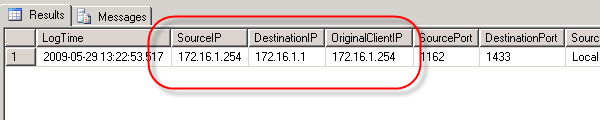
ISA 2006 IP Address Fields - Converted
Looking ahead to Microsoft Forefront Threat Management Gateway (TMG), the developers have once again changed the data type for IP address fields. In TMG, the data type for these fields were changed to uniqueidentifier. This was done in order to support IPv6 entries in these fields. In order to convert the data from these fields in to the more familiar dotted decimal notation, use the following SQL function:
CREATE FUNCTION [dbo].[fnIpAddressToText]
(
@Ipv6Address [uniqueidentifier]
)
RETURNS varchar(40) AS
BEGIN
DECLARE @strInAddress varchar(40)
DECLARE @strOutAddress varchar(40)
SET @strInAddress = LOWER(CONVERT(varchar(40), @Ipv6Address))
SET @strOutAddress = ”
IF (SUBSTRING(@strInAddress, 10, 4) = ‘ffff’)
BEGIN
— ipv4 (hex to int conversion)
DECLARE @IsNum int, @ZERO int, @IsAlpa int
set @ZERO = ASCII(‘0’)
set @IsNum = ASCII(‘9’)
set @IsAlpa = ASCII(‘a’) – 10
DECLARE @intH int, @intL int
SET @intH = ASCII(SUBSTRING(@strInAddress, 1, 1))
IF (@intH <= @IsNum) SET @intH = @intH – @ZERO ELSE SET @intH = @intH – @IsAlpa
SET @intL = ASCII(SUBSTRING(@strInAddress, 2, 1))
IF (@intL <= @IsNum) SET @intL = @intL – @ZERO ELSE SET @intL = @intL – @IsAlpa
SET @strOutAddress = CONVERT(varchar(3), @intH * 16 + @intL) + '.'
SET @intH = ASCII(SUBSTRING(@strInAddress, 3, 1))
IF (@intH <= @IsNum) SET @intH = @intH – @ZERO ELSE SET @intH = @intH – @IsAlpa
SET @intL = ASCII(SUBSTRING(@strInAddress, 4, 1))
IF (@intL <= @IsNum) SET @intL = @intL – @ZERO ELSE SET @intL = @intL – @IsAlpa
SET @strOutAddress = @strOutAddress + CONVERT(varchar(3), @intH * 16 + @intL) + '.'
SET @intH = ASCII(SUBSTRING(@strInAddress, 5, 1))
IF (@intH <= @IsNum) SET @intH = @intH – @ZERO ELSE SET @intH = @intH – @IsAlpa
SET @intL = ASCII(SUBSTRING(@strInAddress, 6, 1))
IF (@intL <= @IsNum) SET @intL = @intL – @ZERO ELSE SET @intL = @intL – @IsAlpa
SET @strOutAddress = @strOutAddress + CONVERT(varchar(3), @intH * 16 + @intL) + '.'
SET @intH = ASCII(SUBSTRING(@strInAddress, 7, 1))
IF (@intH <= @IsNum) SET @intH = @intH – @ZERO ELSE SET @intH = @intH – @IsAlpa
SET @intL = ASCII(SUBSTRING(@strInAddress, 8, 1))
IF (@intL <= @IsNum) SET @intL = @intL – @ZERO ELSE SET @intL = @intL – @IsAlpa
SET @strOutAddress = @strOutAddress + CONVERT(varchar(3), @intH * 16 + @intL)
END
ELSE
BEGIN
— ipv6
SET @strOutAddress = @strOutAddress + SUBSTRING(@strInAddress, 1, 4) + ':'
+ SUBSTRING(@strInAddress, 5, 4) + ':'
+ SUBSTRING(@strInAddress, 10, 4) + ':'
+ SUBSTRING(@strInAddress, 15, 4) + ':'
+ SUBSTRING(@strInAddress, 20, 4) + ':'
+ SUBSTRING(@strInAddress, 25, 4) + ':'
+ SUBSTRING(@strInAddress, 29, 4) + ':'
+ SUBSTRING(@strInAddress, 33, 4)
END
—- guid sample '6F9619FF-8B86-D011-B42D-FFF34FC964FF'
RETURN @strOutAddress
END
[Download script here.]
(Special thanks to Avi Sander with Microsoft Israel for sharing this SQL code with me. Shortly after I received this code it was also posted on the TMG Product Team Blog as well.)
I apologize in advance if any of the SQL code listed in this post is not readable. When posting code like this, formatting with WordPress can cause problems. If you have any issue with code on this page, send me an e-mail and I’ll be glad to send you the actual script files.
Remote SQL Logging with Microsoft ISA Server 2006
Recently I had the opportunity to assist one of my customers with configuring their ISA firewalls to log to a central, remote SQL server. As it turns out, configuring remote SQL logging was not as simple and straightforward as I had anticipated, so I decided to document the process here for reference.
I’ll start out by saying that I’m not particularly a big fan of remote SQL logging for ISA because there are some serious risks involved in doing so. Remote SQL logging brings added complexity and introduces additional moving parts and potential single points of failure. By default, the ISA firewall will shut down if it is unable to write to the log, which means that if the SQL database is unavailable for any reason (offline for maintenance, out of disk space, network communication failure, etc.) the firewall service will go into lockdown mode and it will stop servicing requests (there is a workaround for this, but since it is something that I strongly discourage, I have chosen not to document that here. Also, Forefront Threat Management Gateway includes new functionality that addresses this specific issue – see below). It also requires (obviously) that you purchase an SQL license and have another server to install the software on (NEVER install SQL on the ISA firewall itself!).
Of course if you take steps to mitigate some of these concerns, there are some advantages to remote SQL logging for ISA. It certainly is much more robust that MSDE, and using an SQL database for logging allows you to access historical data from the ISA management console as well (this requires that you install the advanced logging components, even though you will not be using the local MSDE database). There are some advantages to having all of the ISA firewalls in your enterprise log to a central location, and of course you can also leverage any existing SQL reporting tools that you may already have and be familiar with, too. Ultimately the decision to use remote SQL logging for ISA is up to you. Before making that decision I would strongly encourage you to review the Best Practices for Logging in ISA Server 2004/2006 document on TechNet. If you decide to use remote SQL logging, the best advice I can give you is to ensure you have abundant, highly reliable network bandwidth between your ISA firewalls and your SQL server. In very busy network environments it might even be desirable to dedicate a separate network interface solely for SQL communication in order to accomplish this.
Configuring the Database Server
Before we configure the ISA firewall for remote SQL logging, the first thing that we need to do is configure the database on the SQL server (I am going to make the assumption that the reader has some familiarity with SQL, as detailed SQL configuration is beyond the scope of this article).
To create a database, open Microsoft SQL Server Management Studio, then click on ‘New Query’. In the new query window, execute the following commands:
create database [isalogs]
go
use [isalogs]
go
This is a very simplistic way to create a database, of course. Ideally you (or your DBA) would follow SQL best practices and place the data and log files on separate partitions, configure database sizes, specify autogrowth options, and whatever else a ‘real’ DBA would do (that’s not me, for sure!).
Next, locate the two SQL scripts that will be used to create the required tables for ISA logging. The two script files are ‘fwsrv.sql’ and ‘w3proxy.sql’ and they are located in the \Program Files\Microsoft ISA Server folder on the ISA firewall itself, or on the ISA installation CD in the \FPC\Program Files\Microsoft ISA Server folder. Copy these scripts to a location that is accessible from the SQL server, then in the ‘Microsoft SQL Server Management Studio’ window, choose ‘File | Open | File’ (or just Ctrl-O) and select each script. Once the script appears in the query window, execute the script by pressing ‘F5’ and then close the window.
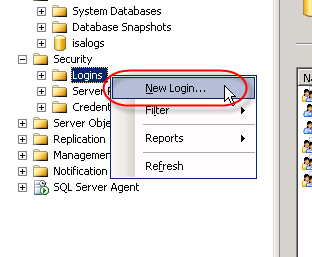
To continue we’ll need to create a SQL login for the new database. In the Microsoft SQL Server Management Studio console window, expand the ‘Security’ node in the ‘Object Explorer’ in the left pane, then right-click ‘Logins’ and choose ‘New login’.
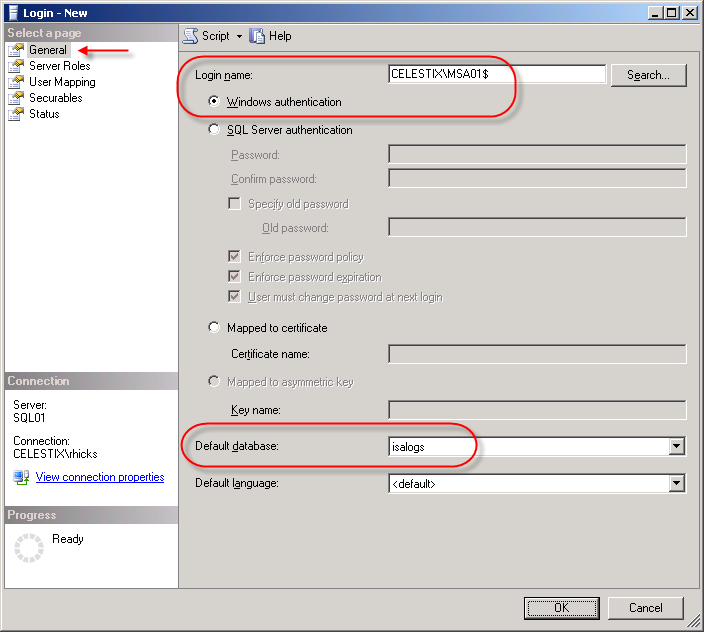
Best practices dictate that Windows authentication should be used for optimum security, so enter the name of the ISA firewall in the ‘Login name’ box as domain\computername$. For the ‘Default database’ select ‘isalogs’.
Select ‘User Mapping’, then select the checkbox next to the ‘isalogs’ database. Choose the ‘db_datareader’ and ‘db_datawriter’ database roles (‘public’ is checked by default) and then choose ‘Ok’.
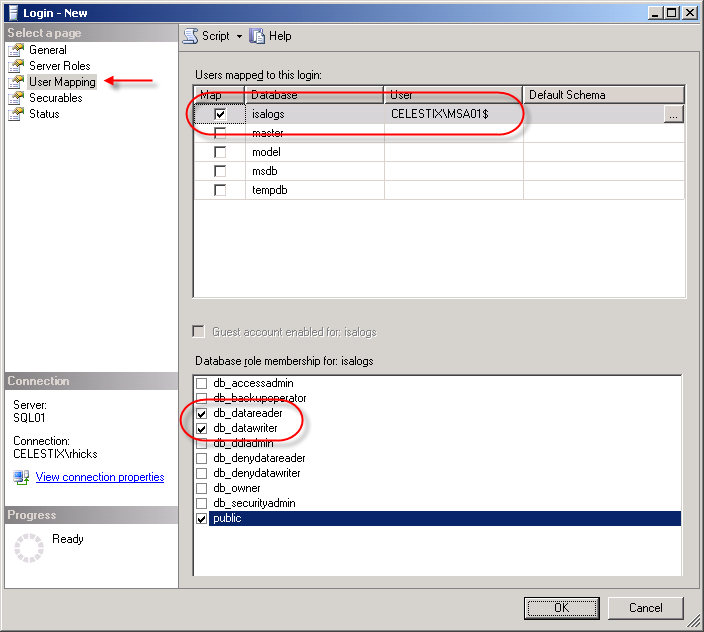
Repeat this process for each ISA firewall that will be logging to this database.
Now that we’ve created the login, we need to grant some additional privileges in order for the ISA firewall to successfully log data to the database. First we’ll begin by creating a new database role for our database. In the ‘Object Explorer’, expand the ‘isalogs’ database, then expand ‘Security’ and then ‘Roles’. Right-click on ‘Database Role’ and choose ‘New Database Role’.
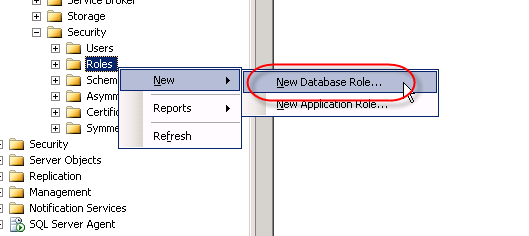
Call the new role name ‘db_batch_insert’, then add each of the ISA firewall logins you created earlier. Choose ‘Ok’ twice to complete.
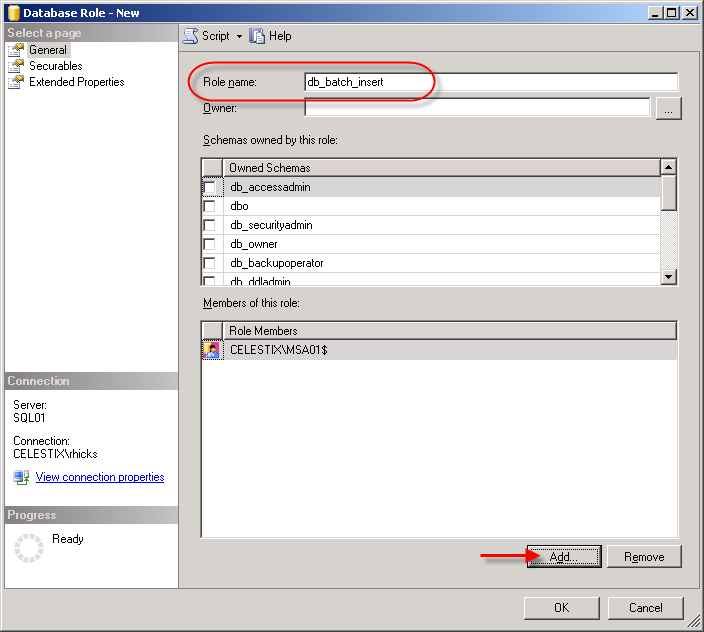
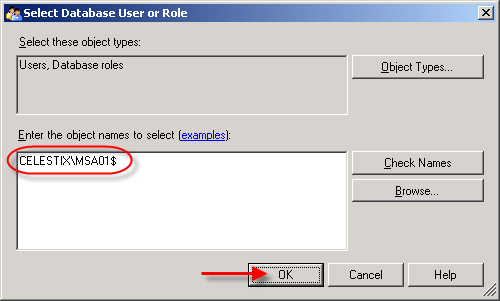
Once the database role has been configured, open a new query window in the Microsoft SQL Server Management Studio console and execute the following command:
use [isalogs]
go
grant execute on [dbo].[sp_batch_insert] to [db_batch_insert]
go
If you are performing these steps on a Forefront Threat Management Gateway system, you will need to also execute the additional following command:
use [isalogs]
go
grant execute on [dbo].[sp_batch_discard] to [db_batch_insert]
go
Note: If you have only a single ISA firewall, you can skip the above steps creating a new database role and simply grant execute access for the ISA firewall directly to the stored procedure itself by executing the following command:
use [isalogs]
go
grant execute on [dbo].[sp_batch_insert] to [domain\computername$]
go
That’s it for the database configuration! Now let’s move on to the ISA firewall configuration.
Configuring the ISA Firewall
To allow for remote SQL logging, two specific system policy rules need to be enabled. In the ISA management console, right-click on ‘Firewall Policy’ and choose ‘Edit System Policy’. In the left pane of the System Policy Editor, under the ‘Logging’ configuration group, highlight the ‘Remote Logging (NetBIOS)’ policy and select the option to enable the configuration group. Next click on the ‘To’ tab. You’ll notice that the rule applies to traffic sent to the Internal network. While this works, I prefer to follow the principle of least privilege wherever possible, so I would suggest that you restrict this policy to only your authorized SQL servers.
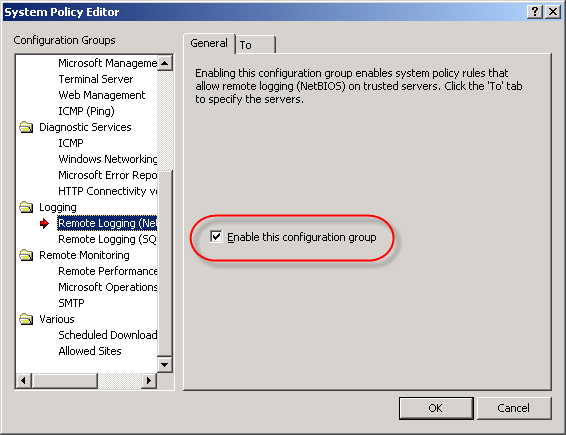
Repeat these steps for the ‘Remote Logging (SQL)’ system policy, choose ‘Ok’, then apply the changes.
Next, in the ISA Management console, expand your array and then highlight the ‘monitoring’ node. Click on the ‘Logging’ tab, then in the right hand pane under ‘Tasks’ choose ‘Configure Firewall Logging’.
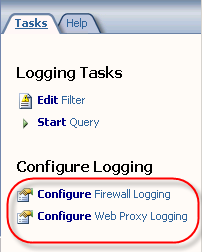
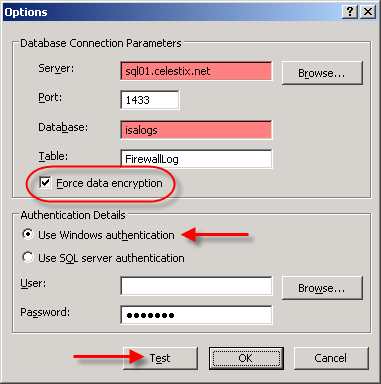
Select the ‘SQL Database’ option, then click on ‘Options’. Enter the FQDN for the database server, then enter the name of the database you created earlier. Since ISA firewall logging data is potentially sensitive, it is highly recommended that you select the option to ‘Force data encryption’. This will require that a valid server certificate be installed on your SQL server, however (for more information on how to configure SQL to use SSL, please read How to enable SSL encryption for an instance of SQL Server). Click on the ‘Test’ button and if everything is configured correctly, you should receive a message stating that the connection succeeded.
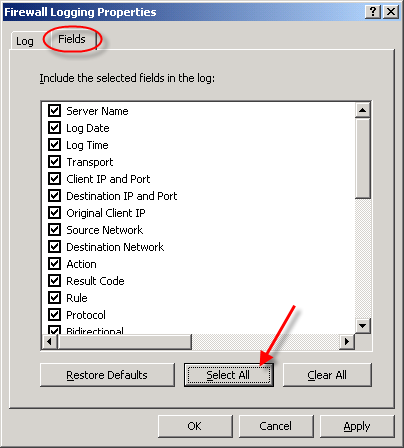
Once the test has been completed successfully, choose ‘Ok’, then click on the ‘Fields’ tab. At the bottom of the window, choose the option to ‘Select All’. This will ensure that all logging fields are recorded in the SQL database.
When finished, repeat these steps to configure web proxy logging, then apply the configuration changes to complete the process.
That’s it! You should now be logging data to your remote SQL server. To verify operation, open a new query window in the Microsoft SQL Server Management Studio console and enter the following commands:
use [isalogs]
go
select * from [firewalllog]
go
select * from [webproxylog]
go
If everything is working correctly you should now see data populated in both of these tables (for an explanation of why the IP address field does not return data in the familiar dotted decimal notation, see this blog post) . It takes a minute or two before the ISA firewall begins to populate the database with data, so be patient. : )
One last note in regard to remote SQL logging; if you choose not to install the ISA advanced logging components, you can still log to a remote SQL server. You will not, however, be able to view historical data in the ISA management console. This was something that I discovered when I configured my lab for documentation purposes. If you want to conserve resources and reduce the attack surface on the ISA firewall (an excellent idea!), I recommend removing (or not installing) the ISA advanced logging components. Keep in mind that to view historical data you will need to query your SQL server directly.
A Note about Logging with Forefront Threat Management Gateway
At the beginning of this post I had indicated that there are some potential issues with SQL logging for the ISA firewall. The good news is that there have been some significant improvements in the area of logging in Forefront Threat Management Gateway. First, TMG now uses SQL 2005 Express instead of MSDE, which is wonderful. Second, and very important for those of you considering remote SQL logging, TMG now has the capability to queue log data on the firewall itself.
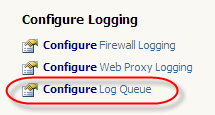

This means that in very busy environments with high utilization, the likelihood of a logging failure (and subsequent firewall shutdown) due to the inability to write to the logs in a timely manner is greatly reduced. The TMG firewall can now queue logging requests during periods of high utilization, then write them out to the log later when more resources are available. Another benefit to this queuing is that when you are using a remote SQL server, the TMG firewall can continue to log and service requests even if the remote SQL server is offline for some reason. The TMG firewall will simply spool any queued log data out to the remote SQL server once it is back online. Great stuff!
Connect


 Richard Hicks' Forefront TMG Blog