Microsoft Forefront Unified Access Gateway (UAG) Administrator’s Handbook – Pre-Order Now!
Great news! The Microsoft Forefront Unified Access Gateway (UAG) 2010 Administrator’s Handbook is now available for pre-order. Authored by Erez (Ben) Ben-Ari and Ran Dolev from Microsoft, this book will be a valuable asset for all UAG administrators. Due out early next year, the book is available in traditional print form or electronic book (eBook). You can purchase one or both, but if you buy the eBook you will have immediate access to the first three chapters, and additional chapters as they become available.
Microsoft Operations Framework (MOF) Reliability Workbooks
The Microsoft Operations Framework (MOF) provides important guidance for IT professionals responsible for maintaining and operating various Microsoft technologies. The MOF Technology Library includes a series of workbooks that provide detailed knowledge, tasks, and schedules required to keep these technologies operating efficiently and without issue. There are workbooks available today for many Microsoft infrastructure and application services, including Active Directory, DNS, Exchange, SQL, IIS, and many more. Reliability workbooks for Forefront Unified Access Gateway (UAG) and DirectAccess were recently added to the library. The Network Load Balancing (NLB) workbook will also be helpful for many TMG and UAG administrators. If you are responsible for deploying or managing these technologies in your organization, these workbooks are sure to be beneficial.
Forefront TMG Malware Protection and the Unified Access Gateway (UAG)
Forefront Threat Management Gateway (TMG) 2010 includes integrated virus and malware inspection capabilities that provide enhanced protection for clients accessing the Internet through TMG. The scanning engine used by TMG is the same engine included in many Forefront protection technologies such as Forefront Protection for Exchange (FPE), Forefront Protection for SharePoint (FPS), and the forthcoming Forefront Endpoint Protection (FEP), just to name a few. This same scanning engine is also the heart of the Microsoft Security Essentials desktop antivirus offering, which is very highly rated by independent third parties. It has a proven track record of being efficient and performing well, with a high degree of accuracy and extremely low false positives.
Since the Forefront Unified Access Gateway (UAG) 2010 includes TMG, many UAG administrators believe that they can enable TMG malware protection to protect their UAG-published applications. Unfortunately, this does not work. With UAG, all SSL VPN traffic is processed by the UAG ISAPI filter, not the underlying TMG firewall. TMG is used only to protect the UAG host itself, so enabling TMG malware inspection on the UAG system has no effect whatsoever.
If you are thinking you can leverage the malware inspection capabilities when publishing applications using TMG, it still doesn’t work. With TMG, the malware inspection engine works only in forward proxy scenarios (HTTP requests made by TMG protected clients). Malware inspection does not apply to reverse proxy traffic at all in TMG.
Running Windows Update on a TMG Firewall Fails with Result Code 80072EE2
Recently I have encountered a few instances in which the Windows Update client on a system with Forefront Threat Management Gateway (TMG) 2010 installed is unable to retrieve updates and fails with an error code of 80072EE2.
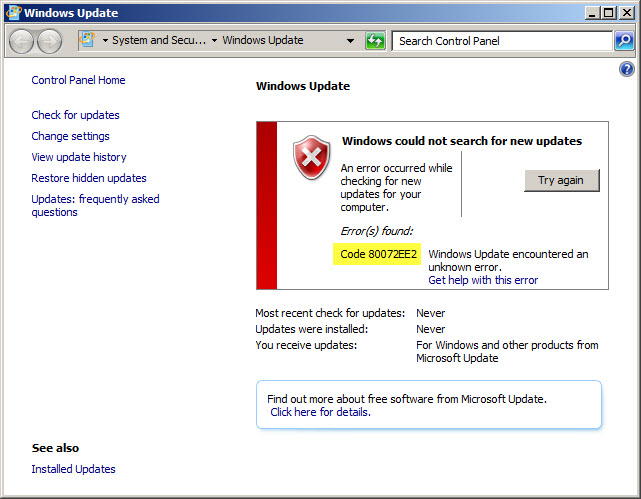
When this occurs, Malware Inspection and Network Inspection Systems signature updates are received without issue.

To resolve this issue, open an elevated command prompt and enter the following command:
netsh winhttp set proxy localhost:8080
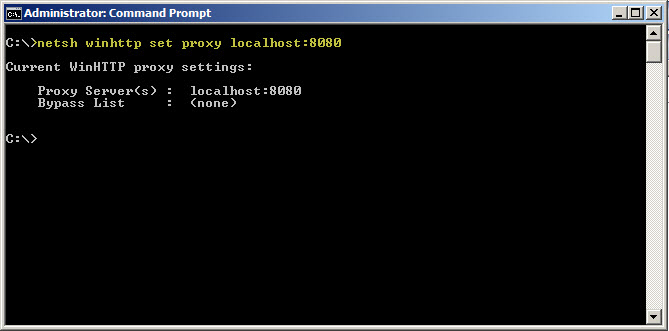
If it is necessary to access HTTP and/or HTTPS web sites or services on your Internal network from the TMG firewall, you will need to configure the proxy bypass list. To learn how, enter the following command:
netsh winhttp set proxy ?
If you need to configure Windows Update on the TMG firewall to work with WSUS, read this blog post on the Forefront TMG product team blog.
Changing the WebSpy Vantage Scheduled Task Recurrence Interval
There are many third-party reporting tools available today that can aggregate log data for analysis, reporting, and event correlation. One of my favorites for Microsoft Forefront Threat Management Gateway (TMG) 2010 is WebSpy Vantage. Vantage uses its own data stores (called storage), so before you can view logged data or generate reports, you must first import data from your current TMG logging repository (SQL or text file) in to Vantage storage. Once this data has been imported you can do pretty much whatever you want with it after that.
When you create a task to automate the import of log data, you will notice that the Recurrence options are limited to None, Daily, Weekly, and Monthly.
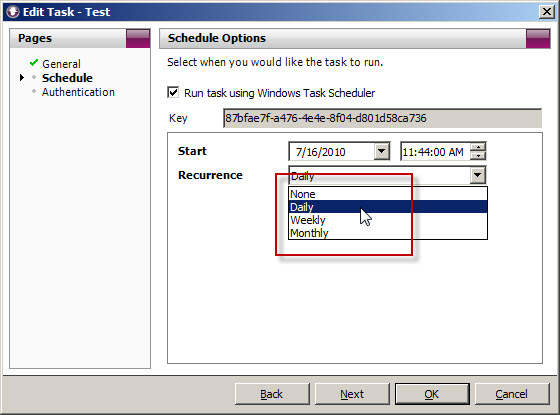
What if you’d like to import the data more frequently than daily? You could create another daily task and schedule that to run daily at a different time, but fortunately there’s an easier way. Since WebSpy Vantage leverages the Windows Task Scheduler, we can use the schtasks.exe command line tool to alter the schedule to run more frequently.
To accomplish this, first copy the Key for the scheduled task you wish to modify.
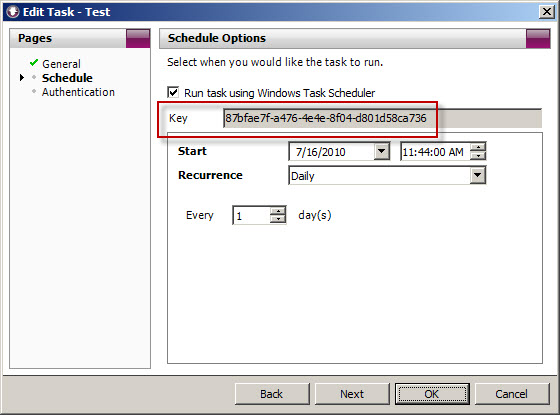
Next, open a command prompt. The syntax for the command when using Vantage Ultimate is:
schtasks /change /tn “Vantage Ultimate […key…]” /ri <interval_in_minutes>
For example, if we want to alter the task above to run every 4 hours, the command would look like this:
schtasks /change /tn “Vantage Ultimate [87bfae7f-a476-4e4e-8f04-d801d58ca736]” /ri 240
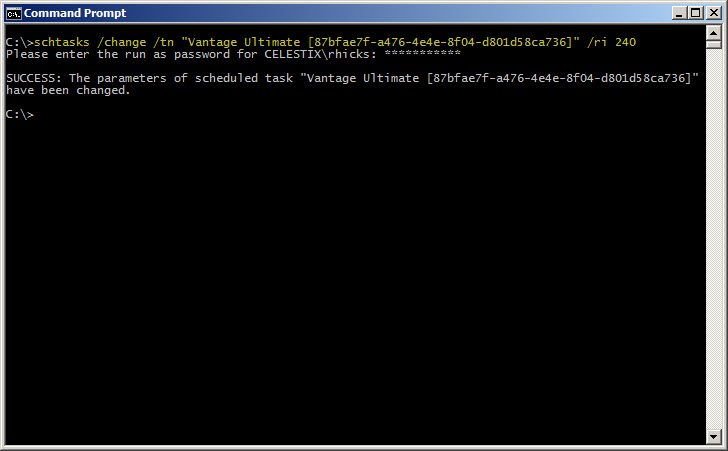
You can verify the new task settings by entering the following command:
schtasks /query /tn “Vantage Ultimate [87bfae7f-a476-4e4e-8f04-d801d58ca736]” /v /fo list
The output will look similar to this:
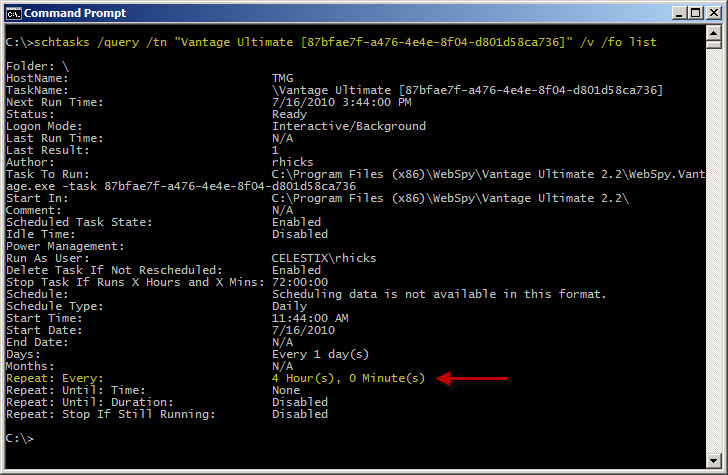
With schtasks.exe, the interval range in minutes is 1-599940.
Websense Integration Support for Forefront Threat Management Gateway (TMG) 2010
Updated July 11, 2011: Since this post was originally published, Websense now supports full integration with Forefront TMG 2010 with Websense Web Security/Web Filter v7.6.
There seems to be a fair amount of confusion regarding Websense integration support for Microsoft Forefront Threat Management Gateway (TMG) 2010. As you are most likely aware, TMG is 64-bit only and is supported only on Windows Server 2008 64-bit and Windows Server 2008 R2 64-bit. You cannot install TMG on any 32-bit operating system. By contrast, Websense Web Security and Web Filter today (July, 2010) are 32-bit only and are not supported on any 64-bit operating system. These architectural differences clearly limit the integration capabilities for Websense and TMG.
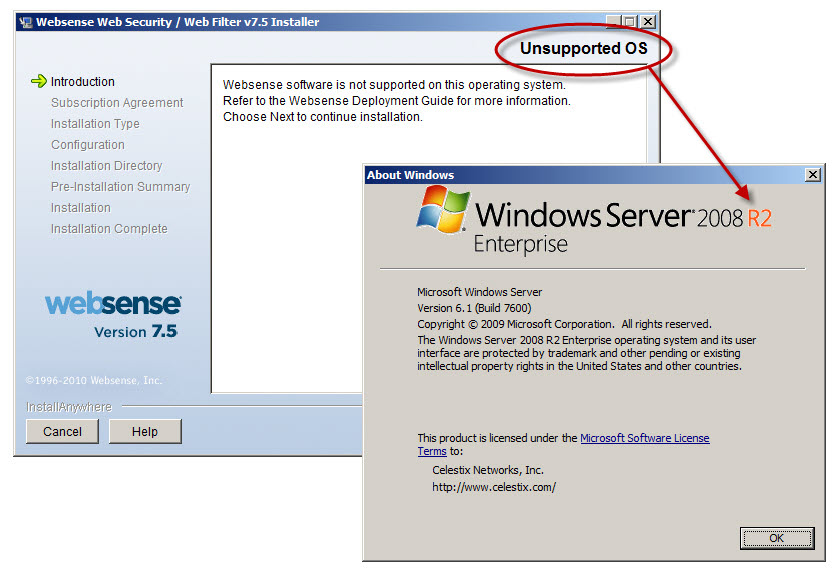
Recently Websense announced the availability of Websense Web Filter and Web Security v7.5, which now includes limited support for integration with TMG. In this release, no Websense components (with the exception of the filtering plug-in) can be installed on the TMG firewall system. In order to support Websense integration with TMG, you must have a separate system or systems on which to install the Websense policy, filtering, user identification, and logging/reporting components. For typical enterprise deployments this won’t be an issue, but this is disappointing news for many small to mid-sized customers who don’t need or want the extra overhead of multiple systems to provide URL filtering services. Another serious limitation is that Websense Web Filter and Web Security v7.5 are currently not supported on Windows Server 2008 R2, at all. If you have installed TMG on Windows Server 2008 R2, you are out of luck.
Thankfully, TMG includes native URL filtering capabilities that, when combined with other TMG advanced protection technologies such as integrated virus and malware scanning, HTTPS inspection, and the vulnerability-based intrusion detection and prevention system, provide a consolidated and comprehensive secure web gateway solution that ultimately affords more overall protection compared to URL filtering solutions alone. TMG includes a 120-day evaluation of these advanced web protection technologies (beginning at the time of product installation, not the activation of the URL filtering feature itself!) so there’s no obligation to try it out. Take it for a test drive…I think you’ll be impressed! It performs well, scales very effectively, and is much easier to manage than many third-party integrations.
Load Balancing and Forefront TMG Firewall Clients
Recently I encountered an issue where TMG firewall clients were experiencing intermittent connectivity issues. Clients were sometimes able to connect to a remote RDP server, and other times they were not. Web proxy clients were working perfectly. After looking carefully at the network and TMG firewall configuration, everything appeared to be in order with no apparent issues. In this particular instance, two TMG firewalls were configured in a multi-homed, standalone array with Network Load Balancing (NLB) enabled on both the Internal and External networks. Clients connect to the array using a hostname that resolves to the virtual IP address (VIP) assigned to the Internal network.
Although this configuration works just fine for web proxy clients, it poses a particular problem for the TMG Firewall Client because the Firewall Client uses a control channel to facilitate authentication and communication with the TMG firewall. For proper operation, Firewall Clients must be configured to communicate directly with the TMG firewall’s dedicated IP address (DIP). For this reason, the use of NLB and third-party hardware load balancers is not supported for load balancing TMG Firewall Clients. The only form of load balancing that is supported for TMG Firewall Clients is DNS round-robin.
To learn more about the TMG Firewall Client and how it functions, please refer to Jim Harrison’s excellent series of articles about this topic on TechNet.
Introduction to the ISA Server Firewall Client and Forefront TMG Client
Introduction to Remote Winsock (RWS) Protocol Analysis
Observing Firewall Client Single-connection HTTP Traffic
Observing Firewall Client Single-connection DNS Traffic
How to Slipstream Service Pack 1 for TMG
Now that SP1 for Forefront Threat Management Gateway (TMG) 2010 is available, several people have asked if it is possible to slipstream this service pack into the installation bits. The answer is yes! For someone like me this is a tremendous time saver, as I typically install and configure TMG several times a week. Having SP1 integrated with the installation media ensures that I always have the latest version of TMG installed right from the start, eliminating the extra step of having to install the update each time I build a new system.
To slipstream TMG SP1, begin by copying the contents of the installation media to a folder on your hard drive. Next, open a command prompt and navigate to the \FPC folder, then execute the following command:
msiexec /a ms_fpc_server.msi /p <path_to_tmg_sp1>
For example…
msiexec /a ms_fpc_server.msi /p e:\tmg_sp1\tmg-kb981324-amd64-enu.msp
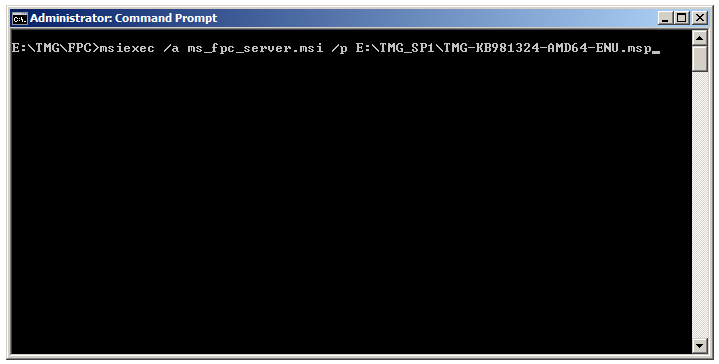
Complete the integration by following the prompts provided by the Microsoft Forefront TMG Service Pack 1 Installation Wizard (accept the defaults). Once complete you can burn the files to DVD or use your favorite utility to create an ISO image file.
Forefront TMG Service Pack 1 – Now Available!
Service Pack 1 for Microsoft Forefront Threat Management Gateway (TMG) 2010 is now available! In addition to the usual bug fixes included in a service pack, this update also includes new features and functionality. Included in TMG SP1 are enhancements to URL filtering, including user override for blocked categories and enterprise-level category override configuration. Reporting has been improved, with a new overall look-and-feel and a user activity report option. In addition, there are new branch office capabilities including support for installing TMG on a domain controller and integration with Windows BranchCache. Also, publishing SharePoint 2010 is now fully supported. For more information, read my full preview of TMG SP1 at ISAserver.org, and download Forefront TMG 2010 SP1 today!
Configuring Forefront Threat Management Gateway (TMG) URL Filtering to Fail Closed
The URL filtering feature in Microsoft Forefront Threat Management Gateway (TMG) 2010 leverages the Microsoft Reputation Services (MRS) for URL categorization. MRS is a cloud-based, multi-vendor URL database that is supplemented by intelligence gathered from various Microsoft online service offerings, telemetry from TMG, and direct user feedback. At a high level, when a request is made for a public URL, the firewall service will contact MRS to determine which category or categories the URL belongs to. TMG then compares this against the configured firewall policy to determine if the request is allowed or denied (this categorization is cached locally, so subsequent requests for the same URL do not require another trip to the cloud).
What happens if TMG cannot contact the MRS services to categorize a URL? By default, if TMG does not receive a reply from MRS the URL is categorized as Unknown and an alert is raised. In essence, the fail open or fail closed policy can be determined by either allowing or denying the category unknown. Allow the unknown category to fail open, or deny it to fail closed.
Of course there are some implications to denying the unknown category. There may be legitimate sites that users visit that are not yet categorized by MRS. Although you could manually categorize these URLs in the TMG management console, doing so would be a tedious and time consuming process. Blocking access to unknown sites until an administrator could categorize them manually would also be intrusive and disruptive, and a potential productivity killer.
A better solution to enable a fail closed policy would be to configure the URL Categorization Server Unavailable alert to stop the TMG firewall service when triggered. To do this, open the TMG management console and highlight the monitoring node in the navigation tree.
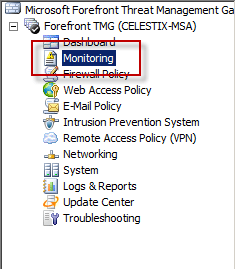
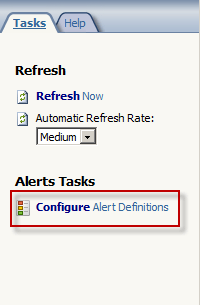
Select the alerts tab and in the tasks pane click the Configure Alert Definitions link.
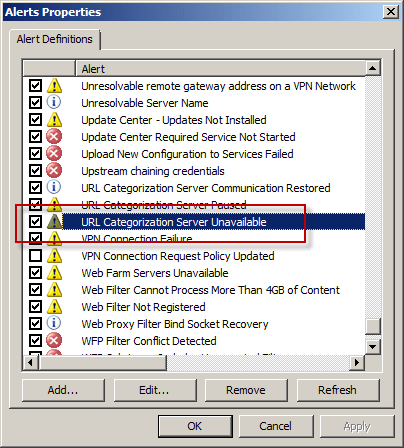
Highlight the URL Categorization Server Unavailable alert and choose Edit…
Select the Actions tab, and then check the Stop selected services option and choose Select…
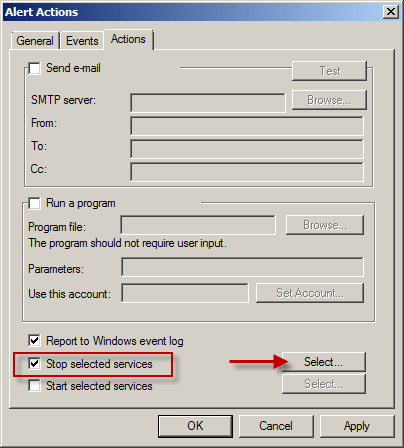
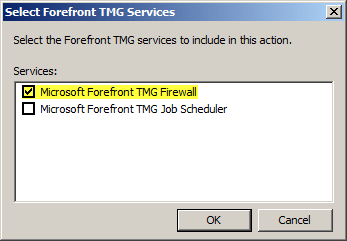
Select Microsoft Forefront TMG Firewall.
For Enterprise arrays, consider creating separate alerts for each array member. In the event a single array member is unable to contact MRS, only that firewall will stop processing traffic. To do this, select the Events tab and select an array member from the By server: dropdown box.
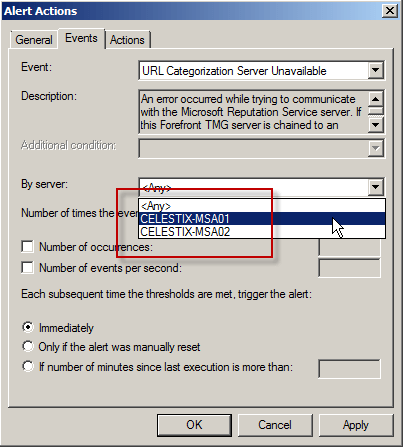
Note: To avoid interrupting service due to temporary unavailability of MRS, you may want to configure the alert to be triggered after a certain number of occurrences, and perhaps specify the number of minutes since the last execution of the event occurred.
Once complete, create an identical alert for each of the remaining array members. You can do this by choosing clicking the Configure Alert Definitions link and selecting Add…, then follow the New Alert Configuration Wizard.
Connect


 Richard Hicks' Forefront TMG Blog